
What Is an AI Agent?
An AI agent is more than a chatbot. It is an autonomous program that can reason about a task, make decisions, call tools (search the web, read files, scan ports, write reports), and chain multiple steps together to accomplish a goal. Where a chatbot just answers questions, an agent takes action.
Traditional AI agent frameworks — LangChain, CrewAI, AutoGen — require Python code, dependency management, and terminal commands. Feluda takes a different approach: you build AI agents visually by connecting blocks on a canvas. No code. No terminal. No framework installation.
Why Build AI Agents Without Code?
Visual Design
See your agent's logic as a visual flow. Drag blocks, draw connections, and understand the entire decision tree at a glance — no reading through hundreds of lines of Python.
Minutes, Not Days
Build a working AI agent in minutes. No environment setup, no pip installs, no debugging import errors. Open Studio, place blocks, connect them, run.
Desktop-First Privacy
Your agents run on your computer. Sensitive data, API keys, and tool outputs never leave your machine. Use local models for fully air-gapped operation.
Controlled Tool Access
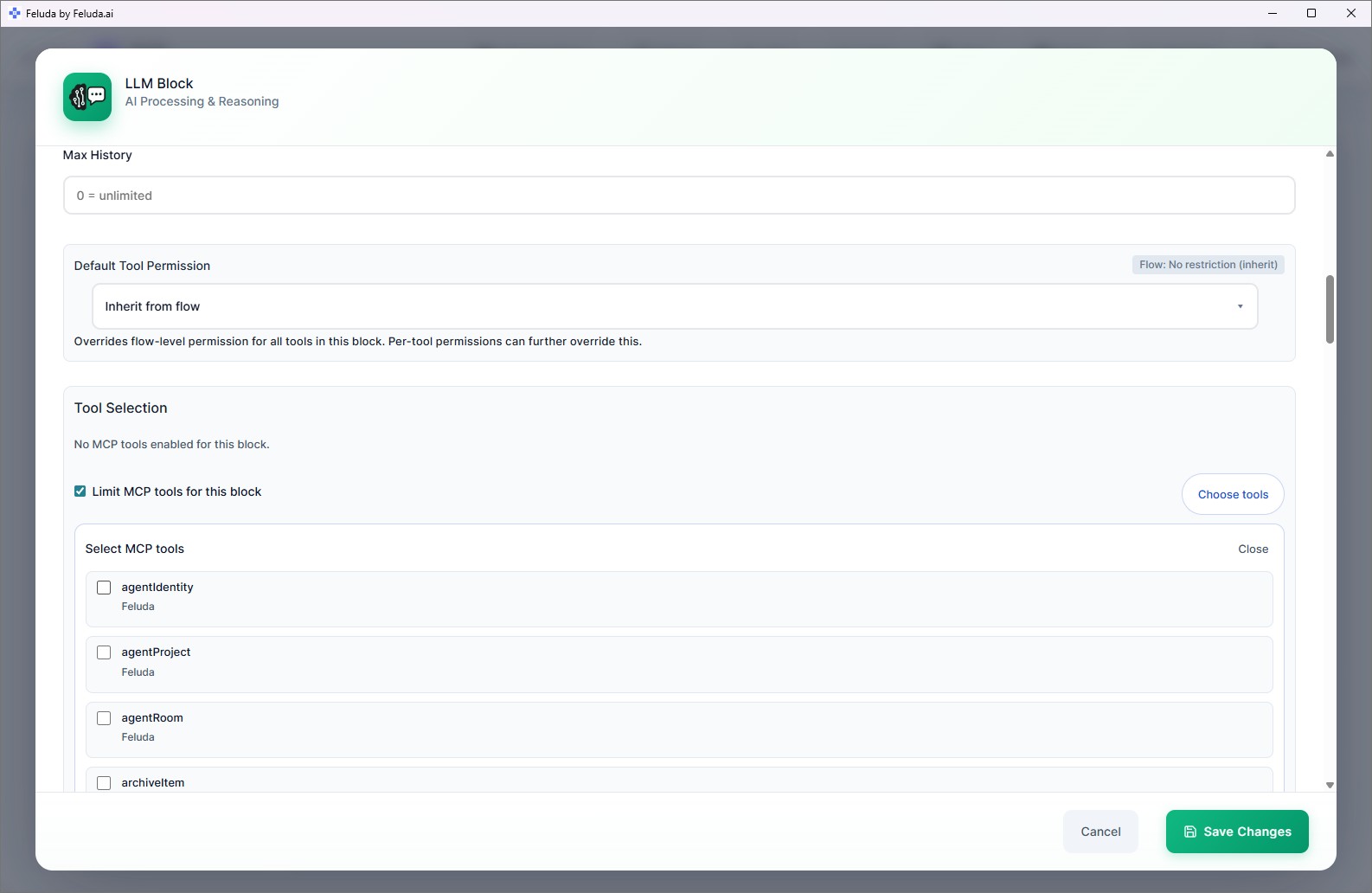
Set granular permissions on every tool your agent uses — restrict URLs, IPs, file paths, ports, and parameters. Your agent acts within boundaries you define.
Resilient by Design
Every block has typed error outputs. Route rate limits to a backup provider, route timeouts to a retry path, route content filters to a review step — your agent recovers instead of crashing.
Any AI Model
Use OpenAI, Anthropic, Mistral, Google, or local models via Ollama and LM Studio. Mix different models in the same agent — use a fast model for classification and a powerful one for reasoning.
How to Build an AI Agent in Feluda
Four steps from idea to running agent — entirely visual, entirely on your desktop.
Open Studio
Launch Feluda and open Studio. You get an empty canvas ready for your agent's logic.
Place Your Blocks
Add an Input Block, connect it to LLM Blocks for reasoning, Label Blocks for classification, Extract Blocks for data extraction, and an Output Block for results.
Configure Each Step
Select the AI model, write system instructions, enable tools, and set permissions. Each block is a self-contained step in your agent's decision process.
Run It
Execute in RunFlows for instant results, test interactively in the Workbench, or schedule automatic execution on any cadence.
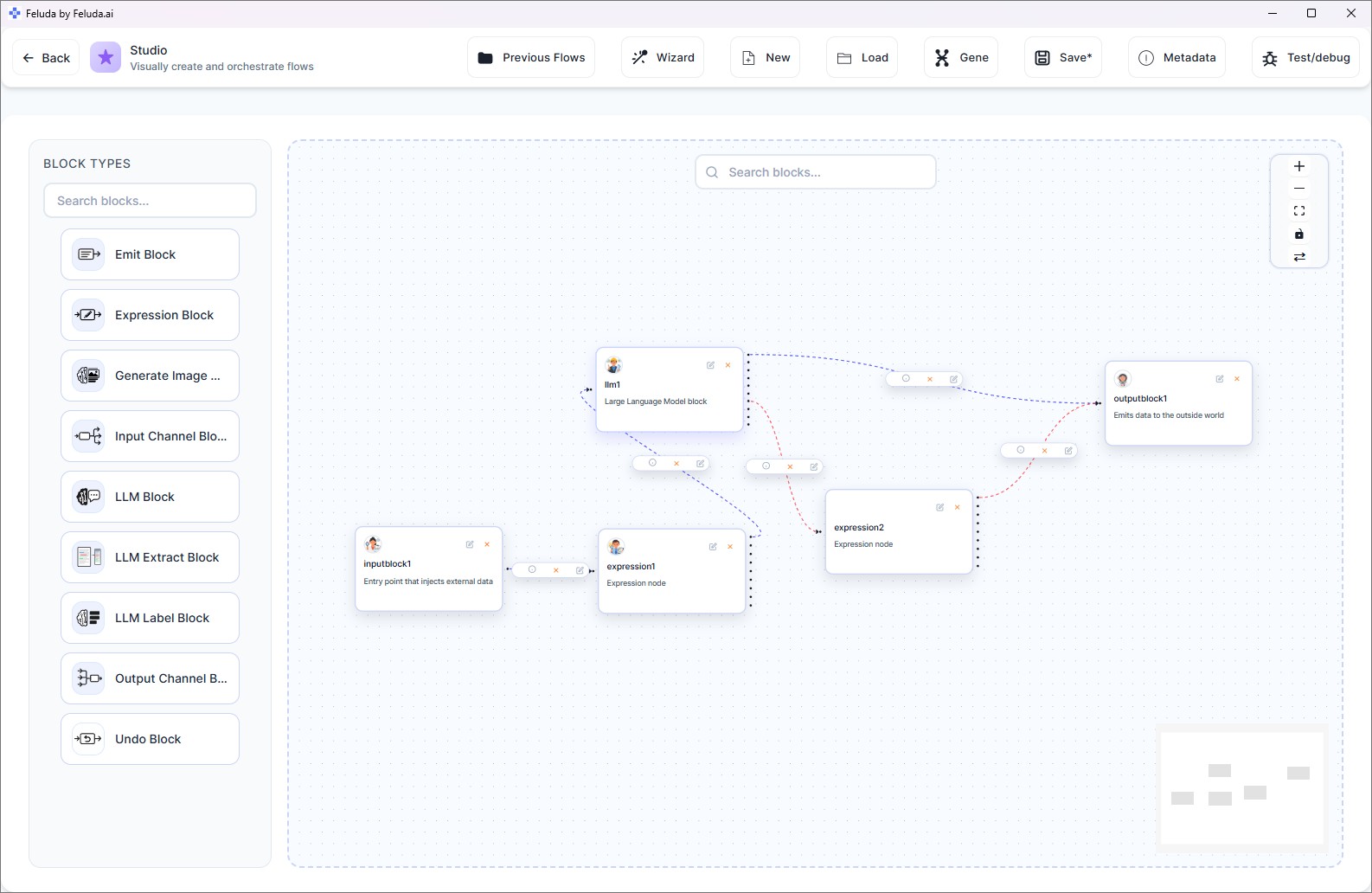
The Building Blocks of an AI Agent
Every agent is assembled from purpose-built blocks. Each handles a specific part of the reasoning and decision process.
🧠 LLM Block
The reasoning engine. Analyses input, generates text, calls tools, and makes decisions. Connect multiple LLM Blocks for multi-step agent reasoning.
🏷️ LLM Label Block
Classifies input into categories you define. Routes data to different paths based on the classification — the agent's decision-making layer.
📊 LLM Extract Block
Extracts structured data from unstructured text. Define classes and attributes — the agent returns clean, structured output from any document.
⚙️ Expression Block
Deterministic logic without AI overhead. Transform data, evaluate conditions, filter PII, apply rules — fast, predictable, and repeatable.
🖼️ Generate Image Block
Creates images from text descriptions. Your agent can generate visual content as part of its workflow using models like DALL-E.
📡 Emit Block
Broadcasts intermediate results while the agent continues processing. Get progress updates from long-running agent tasks.
↩️ Undo Block
Rolls back to a previous state for retry logic. If the agent's first attempt fails, it can try a different approach automatically.
📥 Input / 📤 Output
Define where data enters and exits the agent. Multiple outputs let the agent deliver results to different destinations based on its reasoning.
AI Agents That Use Real Tools
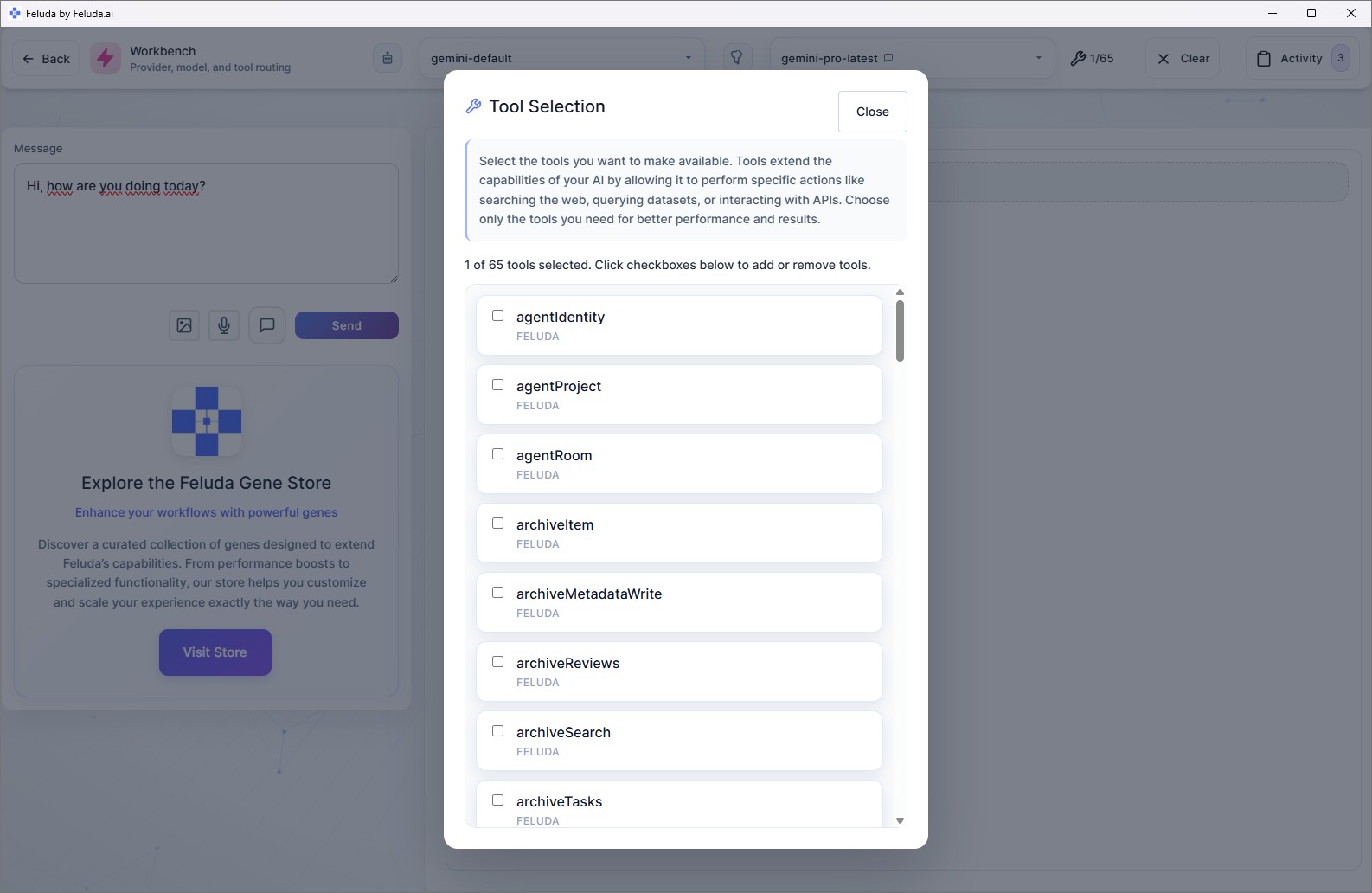
What makes an AI agent different from a simple prompt? Tool use. In Feluda, every LLM Block can call real tools during execution — your agent doesn't just think, it acts.
🔍 Web Search
Your agent searches the web, reads results, and incorporates live information into its reasoning.
📁 File Access
Read and write files on your local machine. Your agent can process documents, generate reports, and save outputs.
📓 Journal Writing
Agents log their findings, reports, and analysis to the built-in Journal — a rich Markdown notebook that persists between runs.
🌐 Network Tools
Port scanning, domain lookups, DNS queries. Security-focused agents can perform real reconnaissance and log results.
🧬 Gene Tools
Install Gene packages from the store to give your agent specialised capabilities — threat intelligence feeds, content analysis, data connectors, and more.
🔧 MCP Tools
Feluda includes a built-in MCP server. External AI clients (Claude Desktop, Cursor, Zed) can use your agent's tools via the Model Context Protocol.
Resilient Agents — Errors Become Recovery Paths
Real-world AI agents hit failures: rate limits, timeouts, content filters, failed tool calls. In most frameworks, the agent crashes. In Feluda, every block has typed error outputs — you wire each error to a different recovery strategy.
| Error Type | What Happens | Your Recovery Path |
|---|---|---|
| Rate Limit | Provider throttles requests | Route to a backup provider block |
| Content Filter | Output blocked by safety filter | Route to moderation review |
| Timeout | Operation took too long | Retry with a faster model |
| Tool Call Failed | External tool returned an error | Route to fallback logic |
| Max Tokens | Hit context limit | Summarise input, then retry |
| Insufficient Quota | API credits exhausted | Switch to local model |
This means your agents degrade gracefully instead of failing — switching providers, retrying, or escalating to a human automatically.
AI Agent Examples You Can Build Today
These are real agents people build with Feluda — each one assembled visually in Studio, no code required.
Email Triage Agent
Reads incoming emails, classifies them into categories (billing, support, returns, urgent), and routes each to the appropriate workflow branch for handling.
Document Extraction Agent
Reads unstructured reports and extracts structured data — names, dates, financial figures, locations — into clean, machine-readable output.
Security Recon Agent
Scans target hosts for open ports, looks up domain information, analyses findings with AI, and writes a security report to the Journal — all on a weekly schedule.
Content Pipeline Agent
Takes a brief, generates a blog post, creates social media copy, classifies the tone, and generates a featured image — a complete content package from one input.
PII Detection Agent
Scans documents for personal information (names, emails, credit cards, phone numbers, IBANs) and redacts, hashes, or masks detected data before sharing.
Multi-Provider Comparison Agent
Sends the same input to GPT-4, Claude, and a local model in parallel, then compares outputs and selects the best result — automated model evaluation.
Three Ways to Run Your Agent
RunFlows
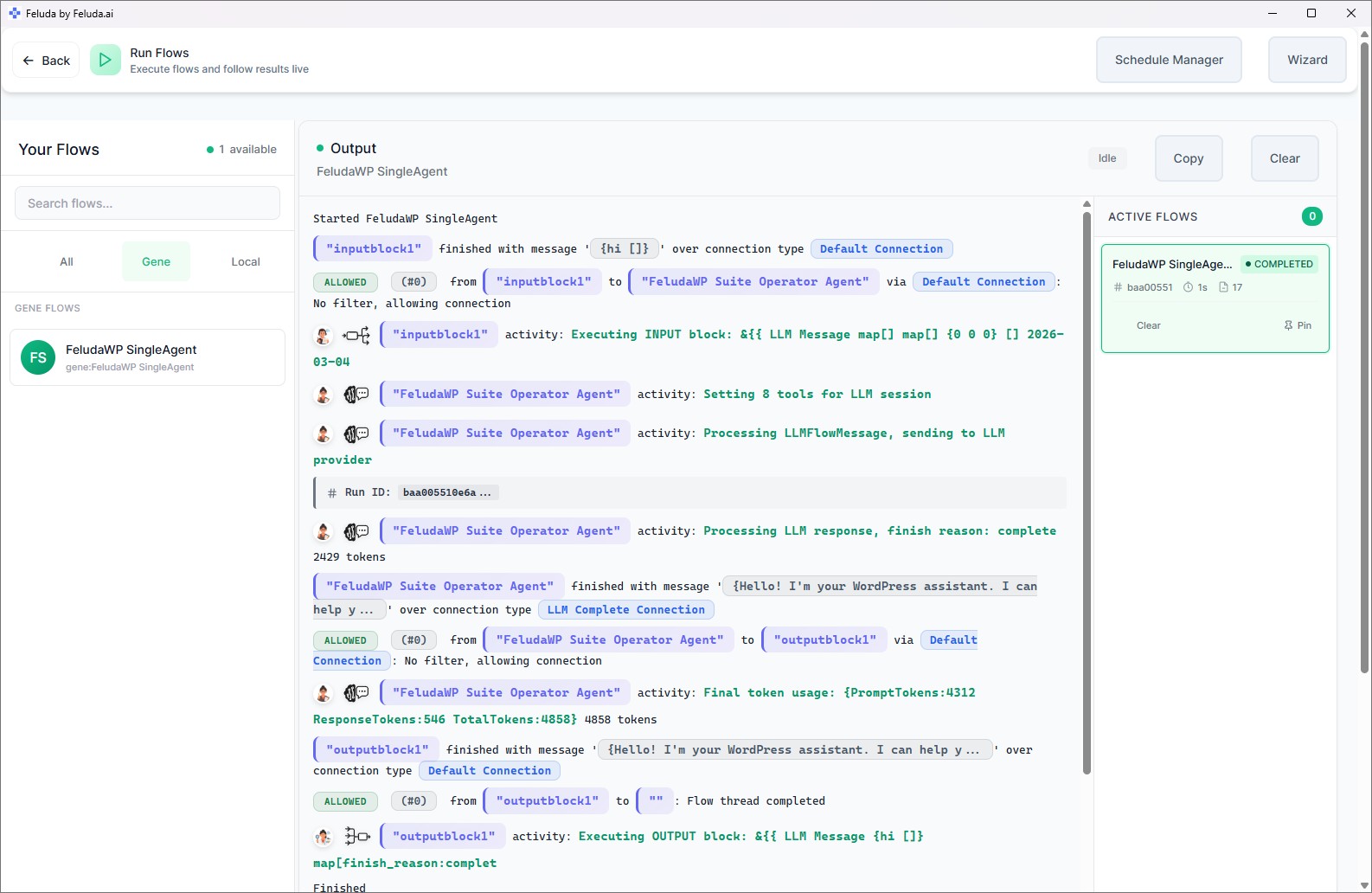
Execute your agent with one click and watch results appear in real time. Run multiple agents simultaneously and switch between their outputs.
Workbench
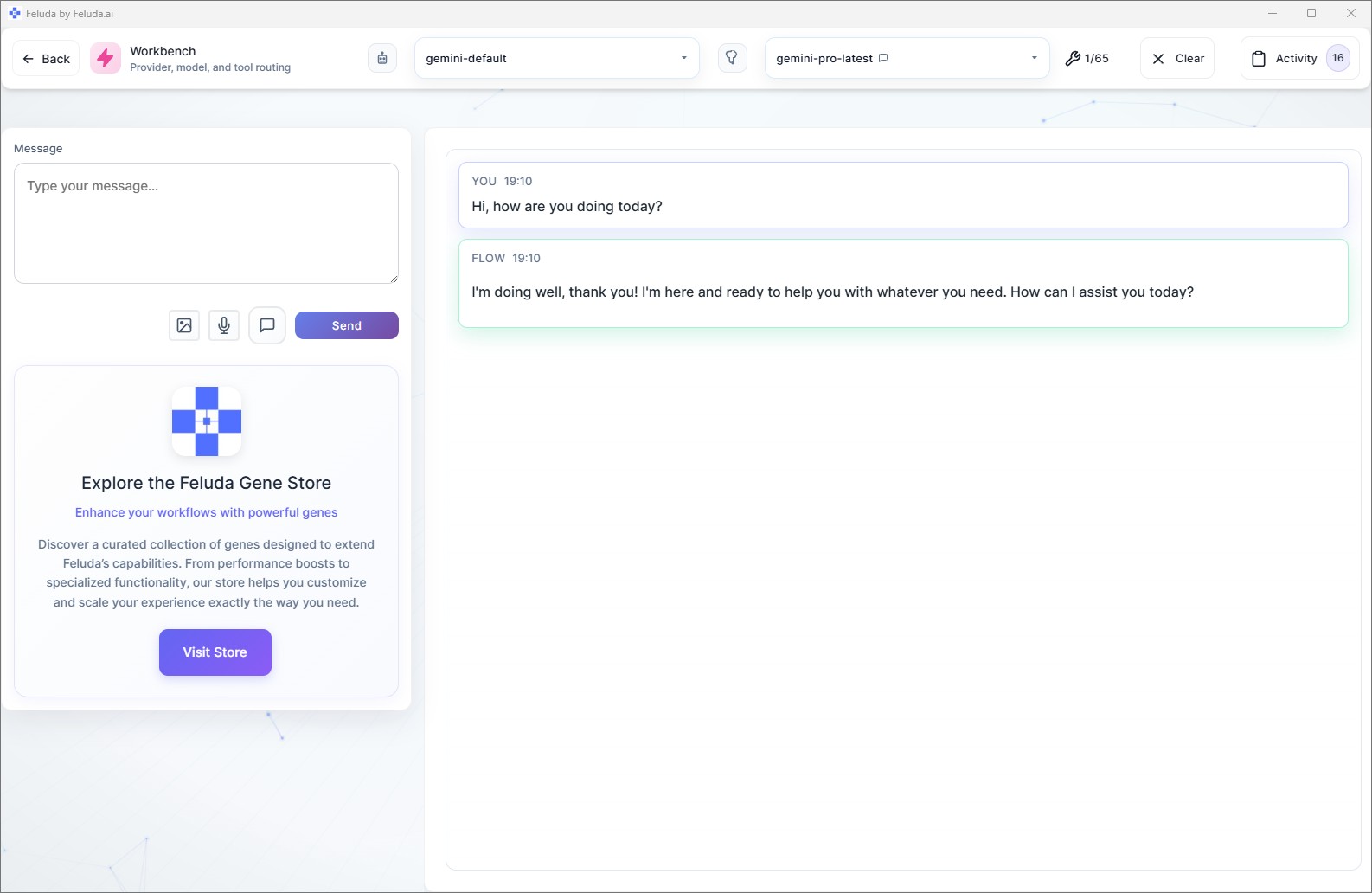
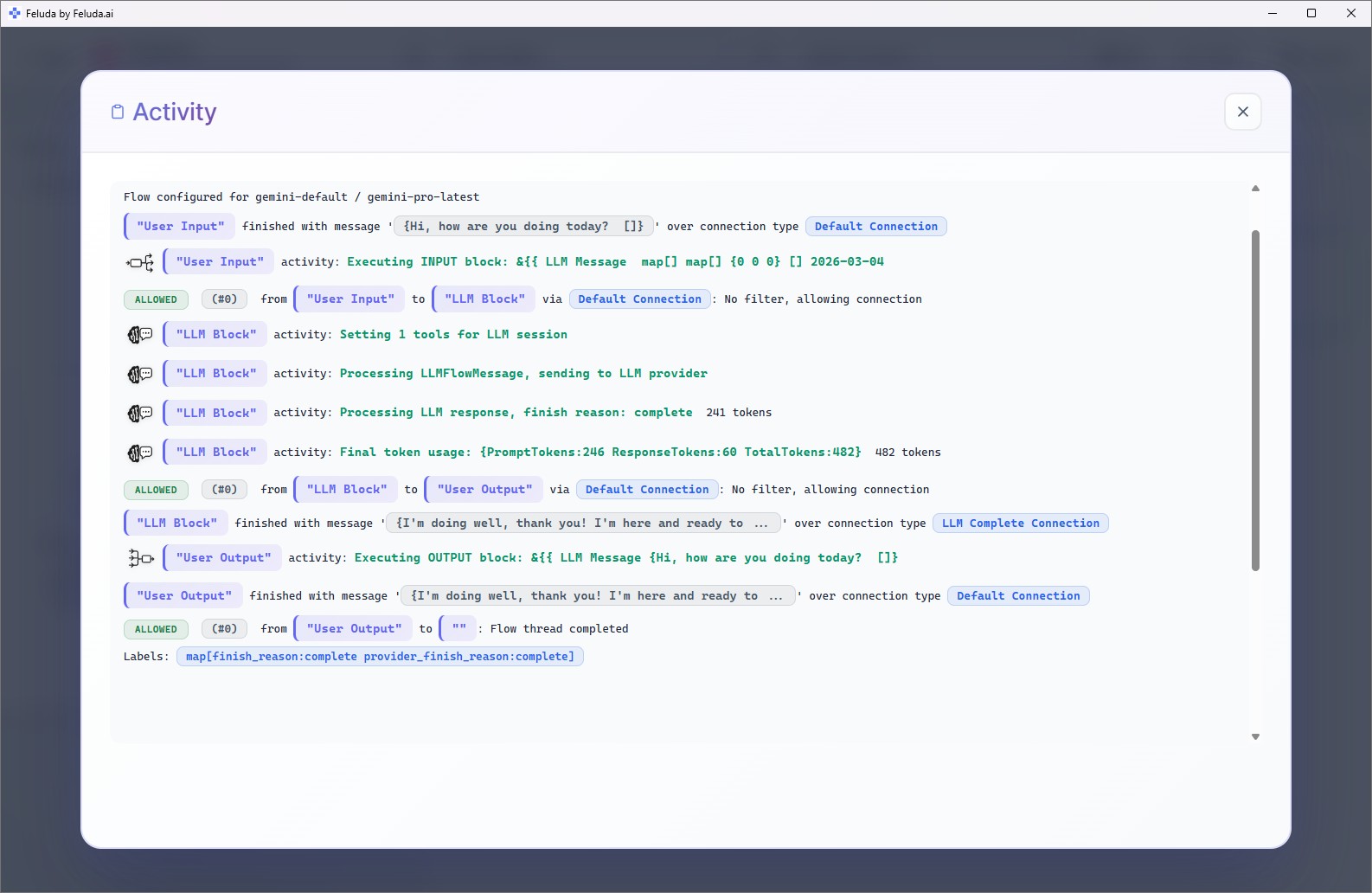
Chat interactively with your agent. Send messages, see tool calls, inspect reasoning, and guide the agent in real time — ideal for testing and debugging.
Schedule Manager
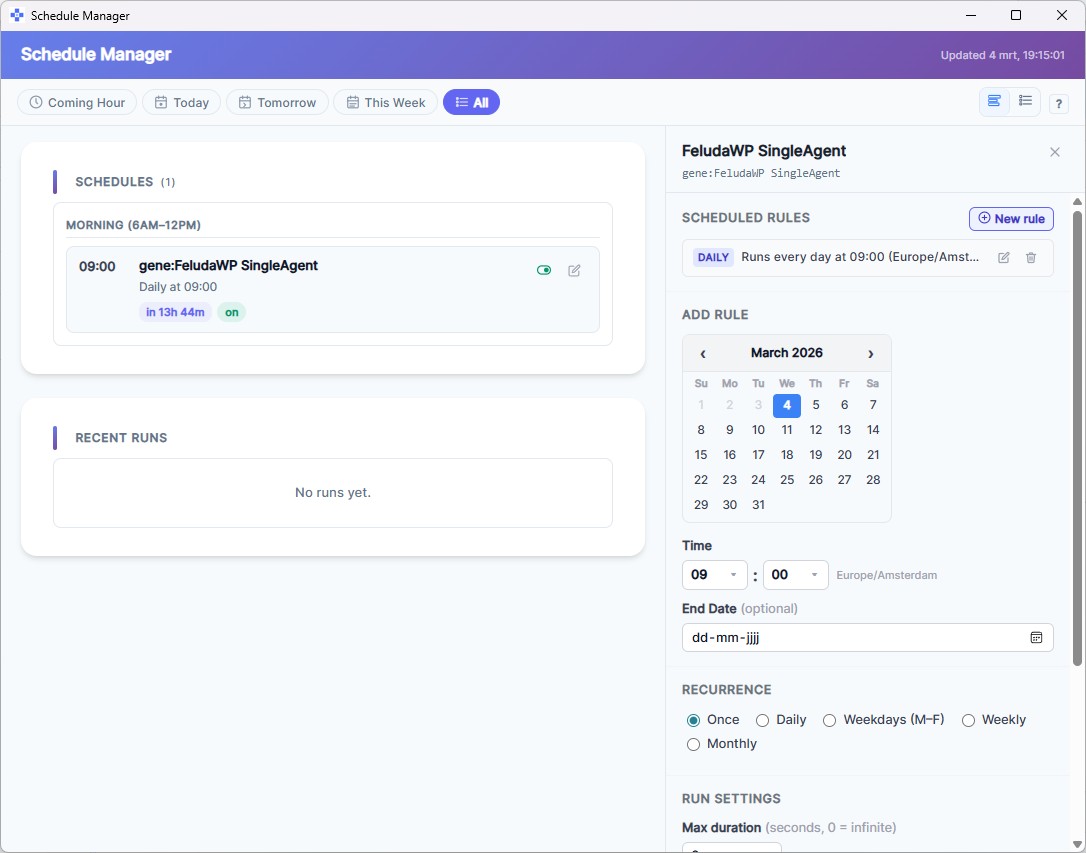
Set your agent to run automatically — hourly, daily, weekly, or on a specific date. Results are logged to the Journal for later review.
Feluda vs. Other AI Agent Builders
| Capability | Code-Based Frameworks LangChain, CrewAI, AutoGen |
Visual Agent Tools Langflow, Flowise, Dify |
Feluda Desktop AI Agent Builder |
|---|---|---|---|
| No code required | No — Python | Yes | Yes |
| Runs on your desktop | Local terminal | Browser / Docker | Native desktop app |
| Data stays on your machine | Depends on setup | Usually cloud-hosted | Always — by design |
| Local AI models | Yes | Some support | Ollama, LM Studio, any local endpoint |
| Tool use with permissions | No — unrestricted | No | URL, IP, file, port, parameter restrictions |
| Typed error routing | Try/catch blocks | Basic retry | 6 error types, each routable |
| Built-in scheduling | External (cron) | Some | Schedule Manager with timezone support |
| Built-in MCP server | No | No | Yes — expose tools to external AI clients |
| Gene marketplace | No | No | Install pre-built agent packages |
| Interactive agent testing | Print statements | Basic chat | Workbench with full tool & activity inspection |
Save and Share Your Agents Instantly
Every agent you build in Studio can be saved as a .feluda.ai.flow file. This single file captures the complete agent — every block, every connection, every model selection, every tool configuration, and every permission setting. Send it to a colleague, a client, or your team. They open it in Feluda and the agent is ready to run immediately — no setup required.
Need to distribute agents at scale? The Developer Kit lets you package flows into Genes — self-contained bundles that include tools, prompts, resources, and ready-made flows. Genes can be published through the Gene Store or shared privately. Contact us to learn about the Developer Kit.
Available on Every Desktop Platform
Build and run AI agents natively on all major operating systems.
Frequently Asked Questions
What is a no-code AI agent builder?
A no-code AI agent builder is a tool that lets you create AI agents — autonomous programs that reason, make decisions, and use tools — without writing any code. You design the agent's behaviour visually by connecting blocks on a canvas.
How is Feluda different from Langflow, Flowise, or CrewAI?
Feluda runs entirely on your desktop — your data never leaves your machine. It supports local models via Ollama and LM Studio alongside cloud providers, includes typed error routing for resilient agents, and provides a built-in MCP server so other AI clients can use your agents' tools.
Do I need coding experience?
No. Feluda Studio is a visual drag-and-drop canvas. You place blocks, draw connections, and configure each step through forms — no programming language required.
Can my AI agent use real tools?
Yes. AI agents in Feluda can call real tools during execution — web search, file system access, port scanning, journal writing, and more. You control exactly which tools each agent block is allowed to use, and set URL, IP, and file path restrictions.
Can I use local AI models to power my agents?
Yes. Feluda supports Ollama, LM Studio, and any OpenAI-compatible local endpoint. You can build agents that run entirely on your machine with no internet connection and no API fees.
How do I test an agent before deploying it?
Use the Workbench — an interactive chat environment where you can talk to your agent, see every tool call, inspect internal reasoning, and debug step by step. Or use RunFlows for a quick execution.
Can I share my agents with others?
Yes. Every agent you build can be saved as a .feluda.ai.flow file — a portable snapshot that anyone can open in Feluda Studio. Just export the file and send it to a colleague, post it to a community, or commit it to a repository. For large-scale distribution, the Developer Kit lets you package flows into Genes for the Gene Store. Learn about the Developer Kit.
Is Feluda free?
Yes. Feluda offers a free plan that includes Studio, Workbench, RunFlows, Journal, and the built-in MCP server. Paid plans unlock scheduling and additional capabilities.
Build Your First AI Agent in Minutes
Download Feluda and start building AI agents visually — no code, no cloud, no credit card.