
What Is Feluda?
Feluda is a desktop application that lets you design, run, and manage AI-powered workflows — all from one place, on your own computer. You decide which AI models to use, what tasks they perform, and how results are delivered — without writing a single line of code.
This guide covers the first three things you should do after installing Feluda: explore the dashboard, configure an AI provider, and send your first chat message.
Feluda runs on Windows, macOS, and Linux. If you have not installed it yet, download Feluda here — it is free.
Step 1 — Know Your Dashboard
When you launch Feluda, you land on the Dashboard. This is your central hub — the starting point for every task. The Dashboard has three main areas:
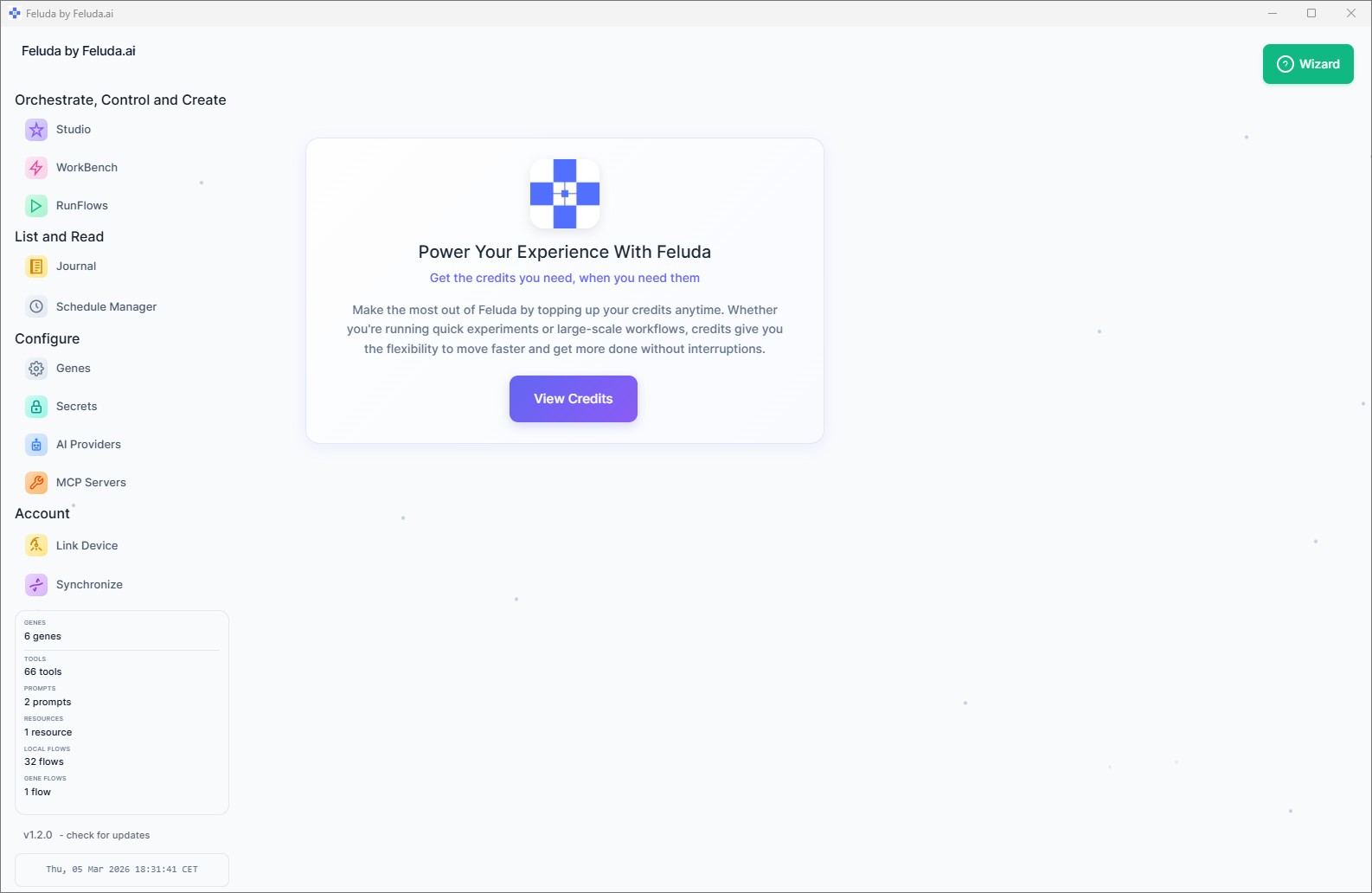
The Left Sidebar
The sidebar is your navigation menu. It provides one-click access to every section of Feluda:
- Studio — visual flow builder (drag-and-drop AI workflows)
- Workbench — interactive AI chat with tools
- RunFlows — execute saved flows and watch output in real time
- Journal — browse entries that AI agents write during execution
- Schedule Manager — automate when flows run
- Secrets — store API keys in your OS's encrypted vault
- AI Providers — connect to OpenAI, Anthropic, Ollama, and more
- MCP Servers — extend Feluda with additional tool capabilities
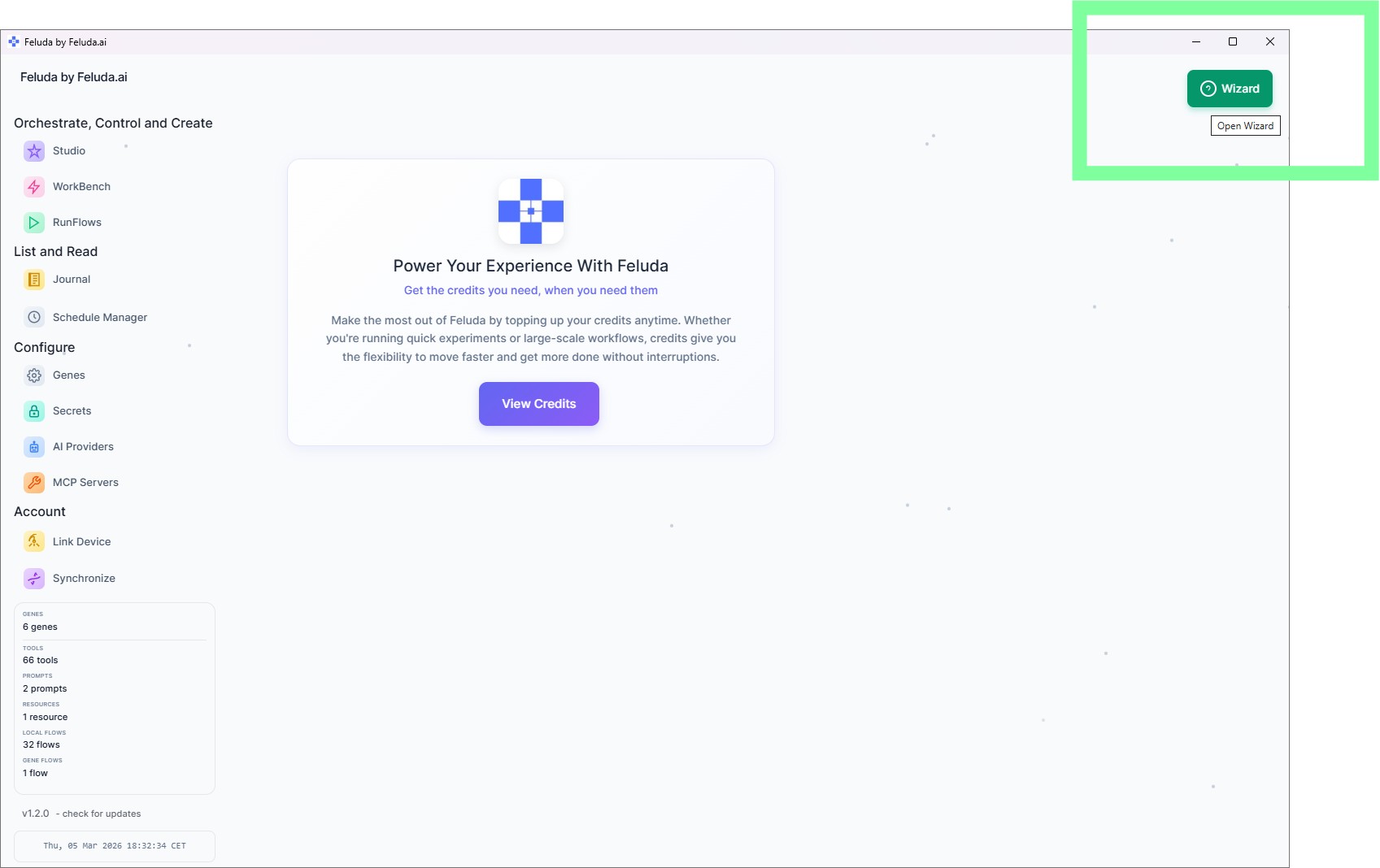
The Wizard
Notice the Wizard button (question-mark icon) in the top-right corner. Click it the first time you use Feluda — it walks you through every section in about one minute.
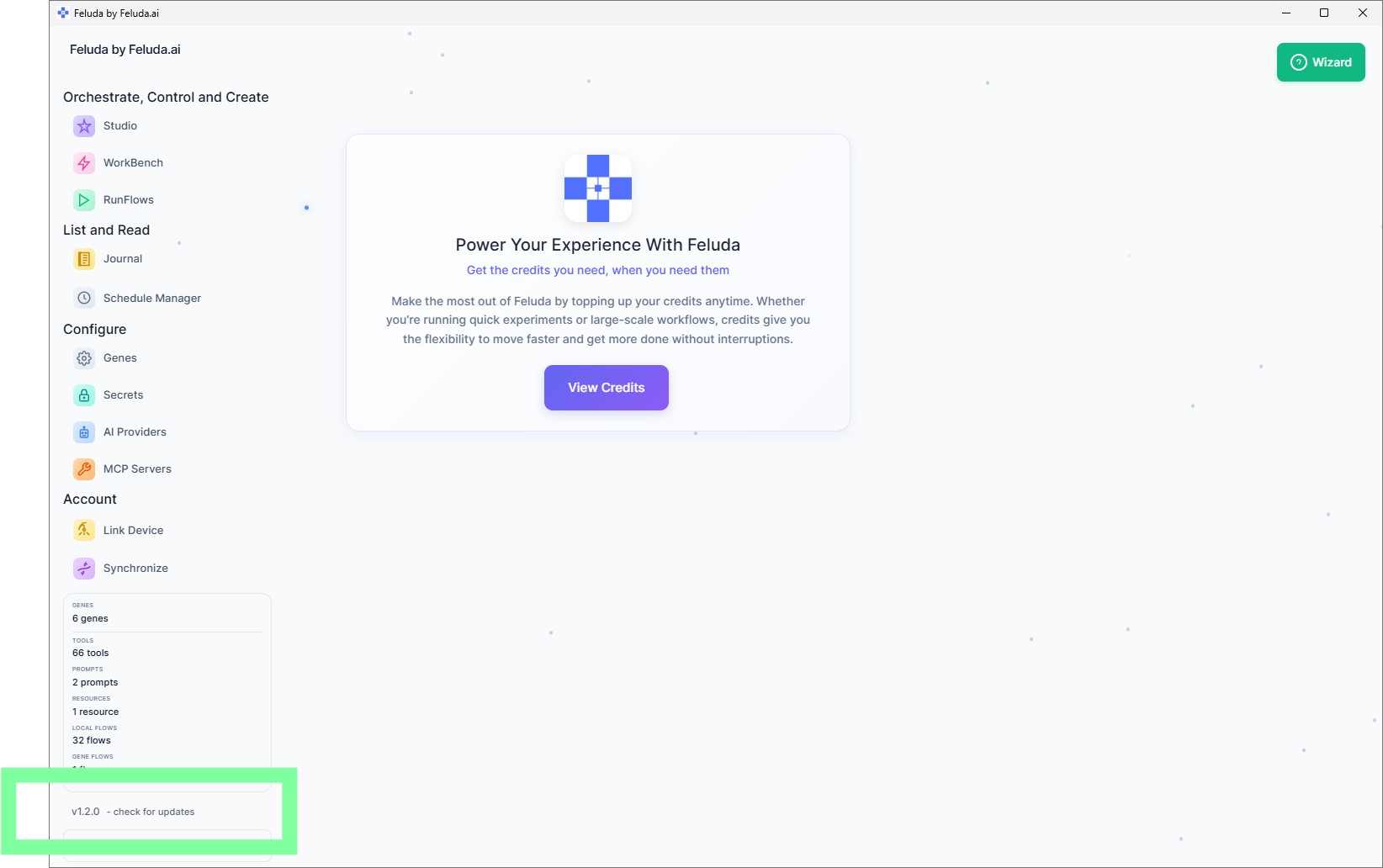
The stats card below the sidebar links shows counts for installed Genes, tools, prompts, resources, and flows. These numbers grow as you configure providers and install Genes.
Step 2 — Configure Your First AI Provider
Feluda needs at least one AI model before chat or workflows can run. You have two paths:
- Cloud provider (OpenAI, Anthropic, Mistral) — requires an API key and internet connection. Gives access to the most powerful models.
- Local provider (Ollama, LM Studio) — runs on your machine. No API key, no internet, no cost per query. Perfect for privacy and offline use.
Pick whichever suits you — you can always add more providers later.
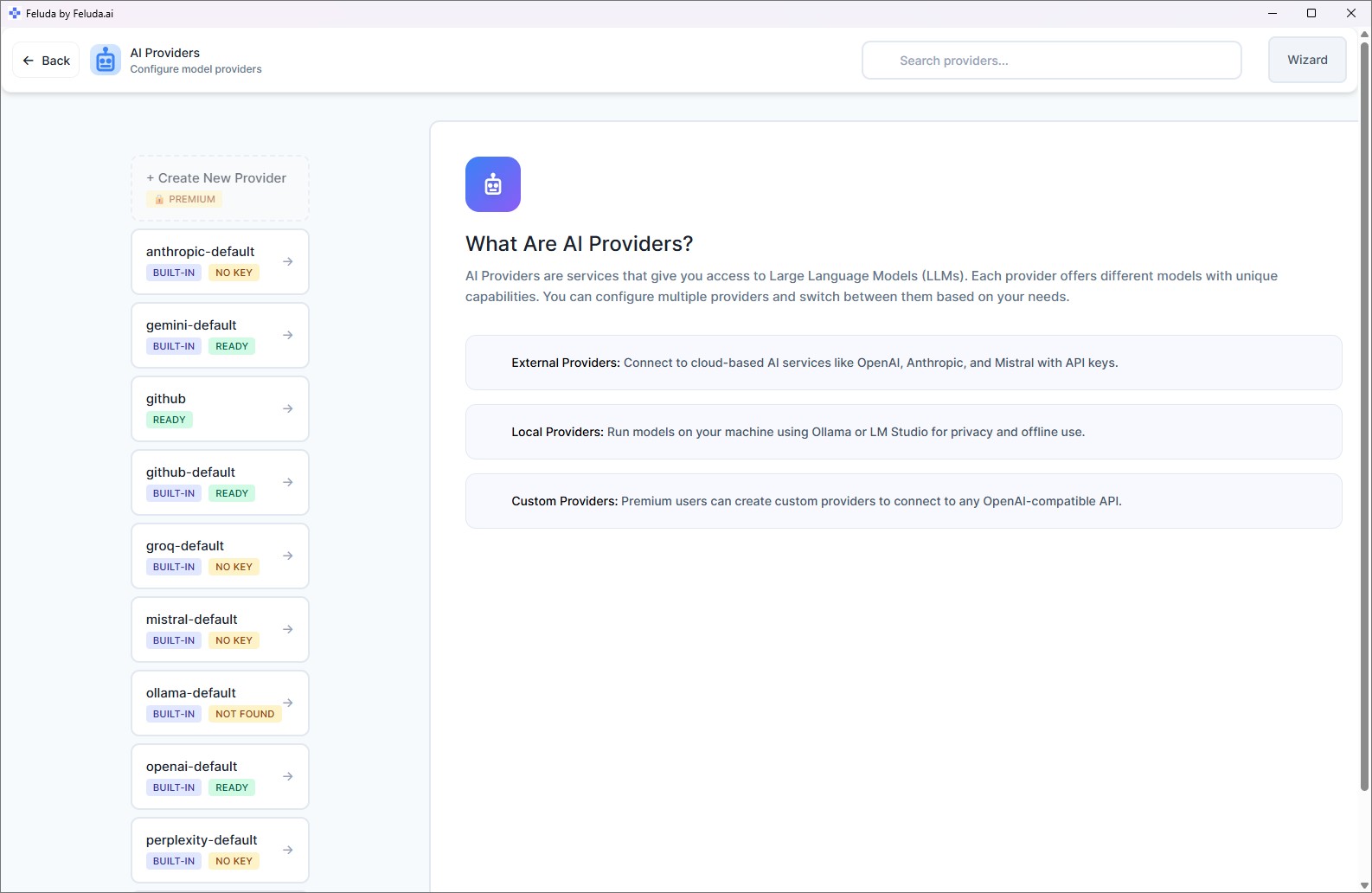
Option A: Cloud Provider (OpenAI, Anthropic, or Mistral)
Open AI Providers
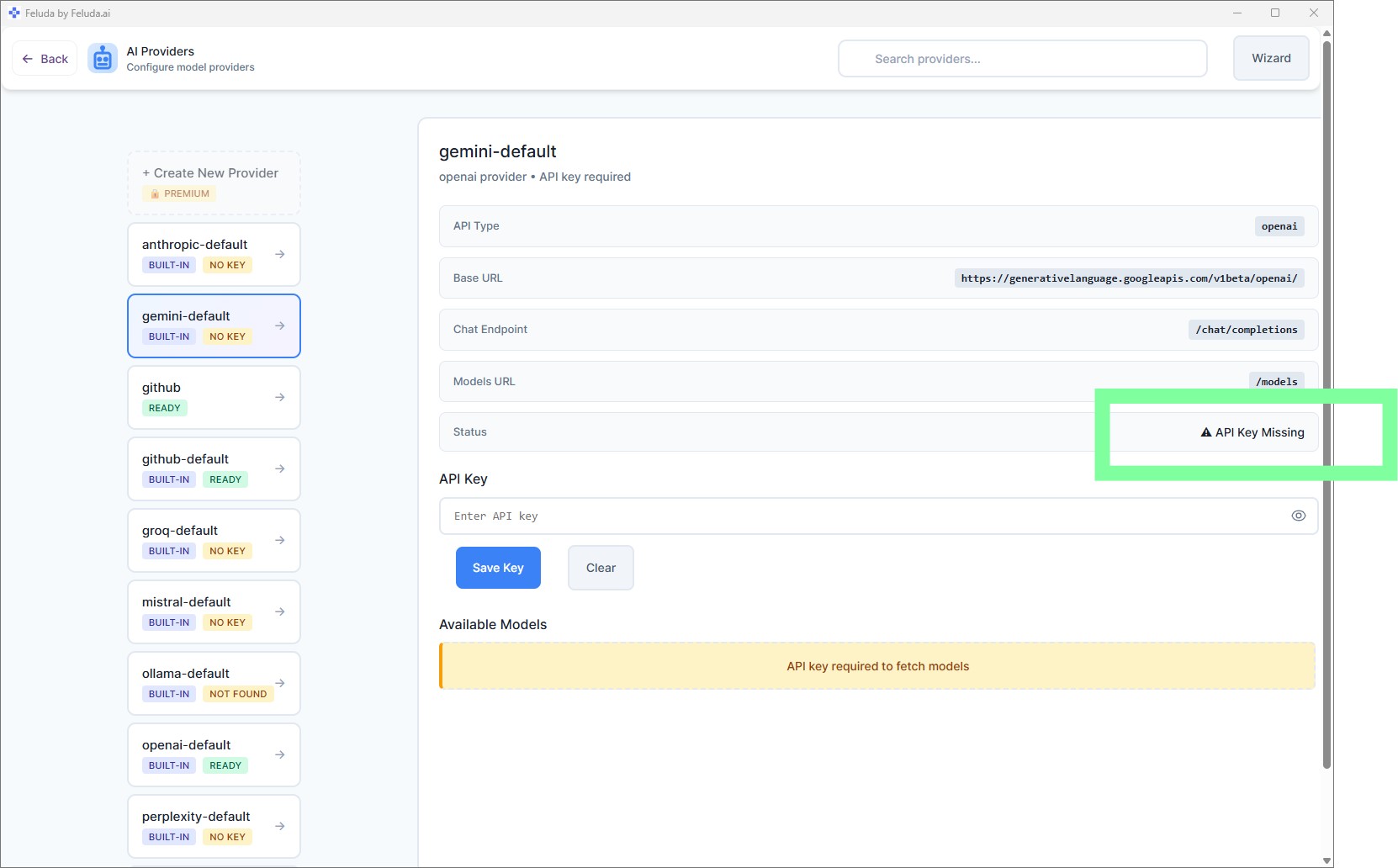
Click AI Providers in the sidebar. Select a cloud provider from the list.
Enter your API key
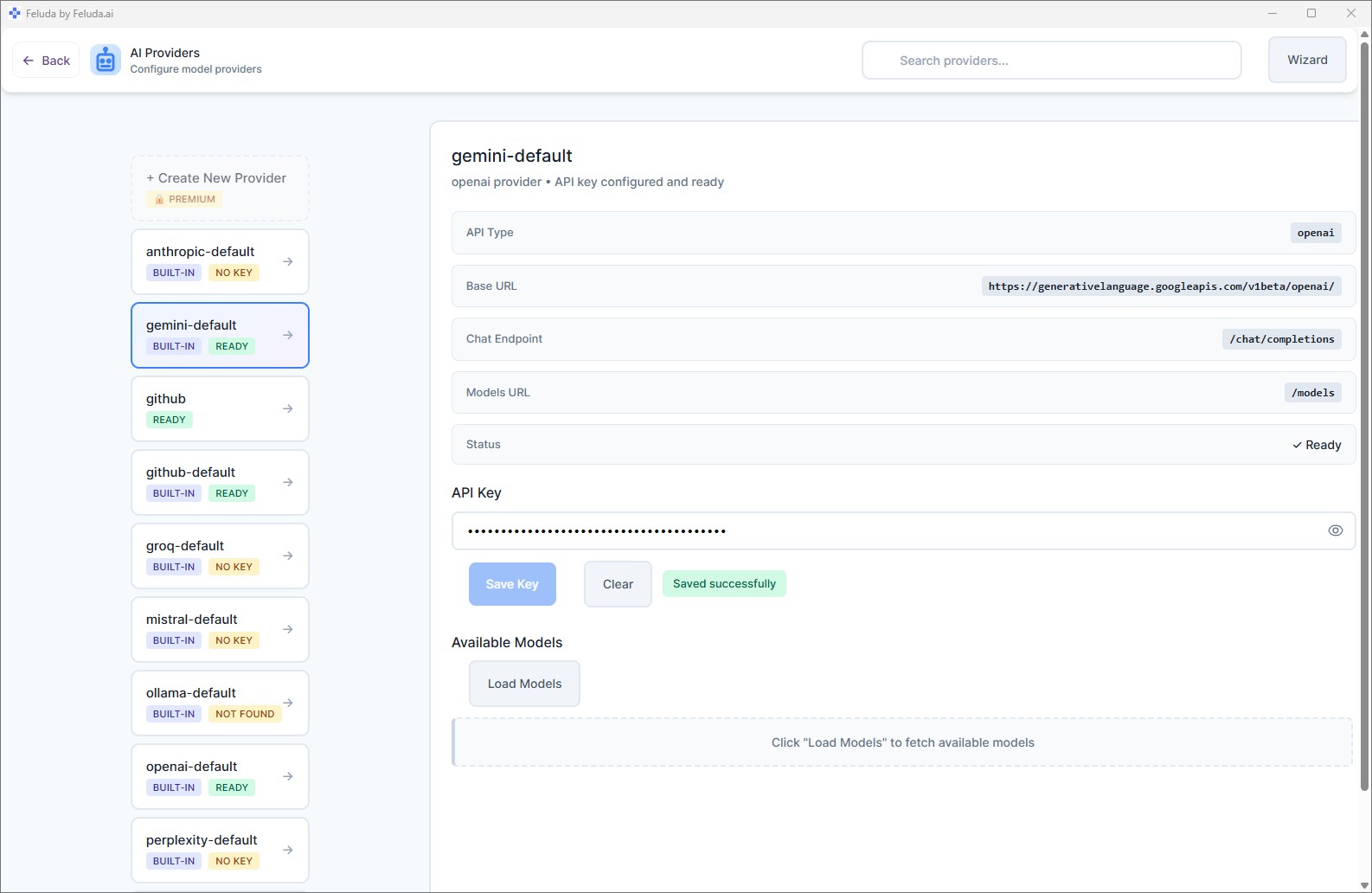
Paste your API key into the input field and click Save Key. It is encrypted and stored in your OS credential vault — not in a plain-text file.
Verify the save
A confirmation message appears when the key is stored. The provider is now ready to use throughout Feluda.
Option B: Local Provider (Ollama or LM Studio)
Local providers run AI models directly on your machine. No API key is needed, and everything stays private and offline. Install Ollama or LM Studio, download a model, then configure the endpoint in Feluda.
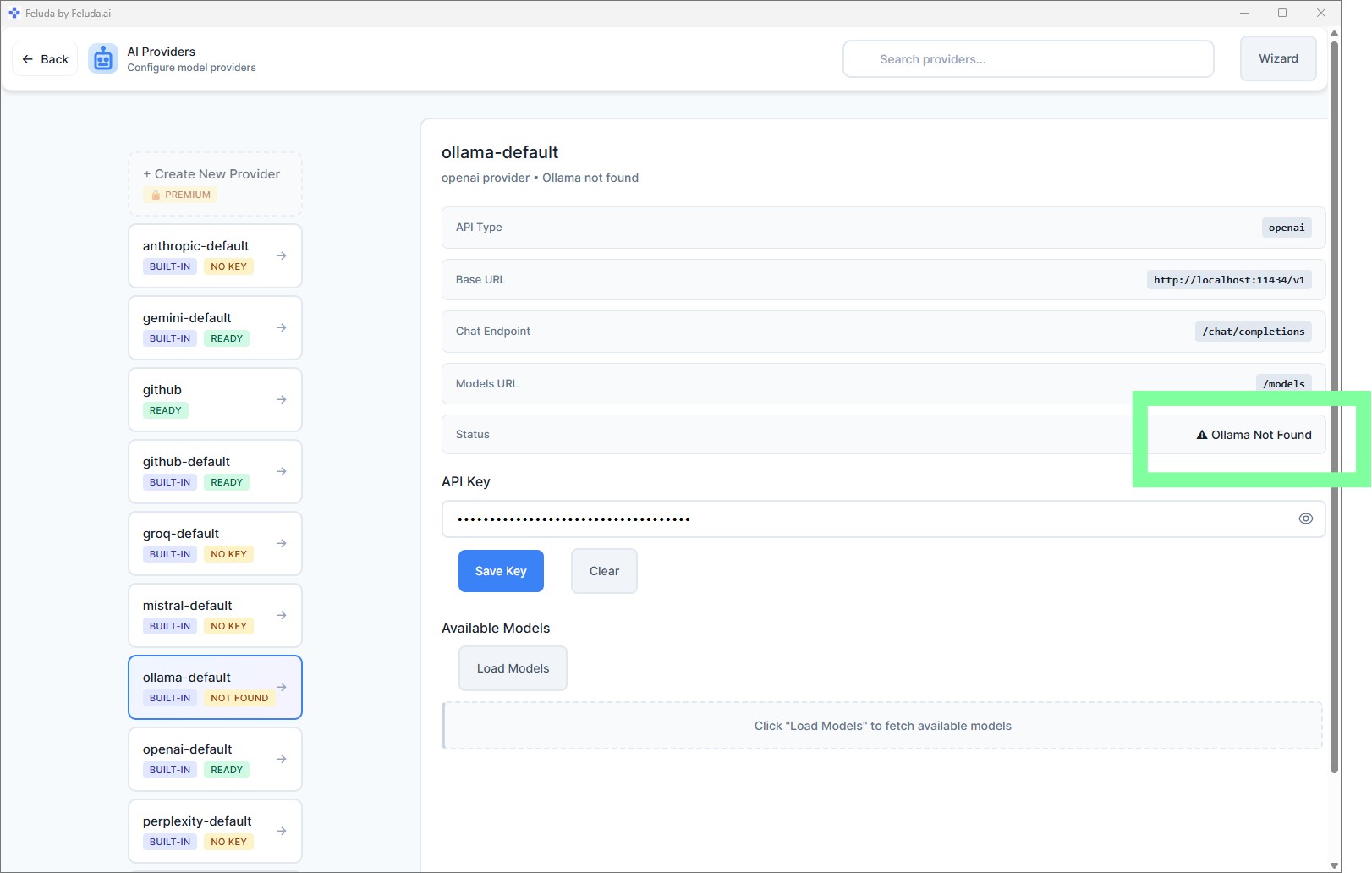
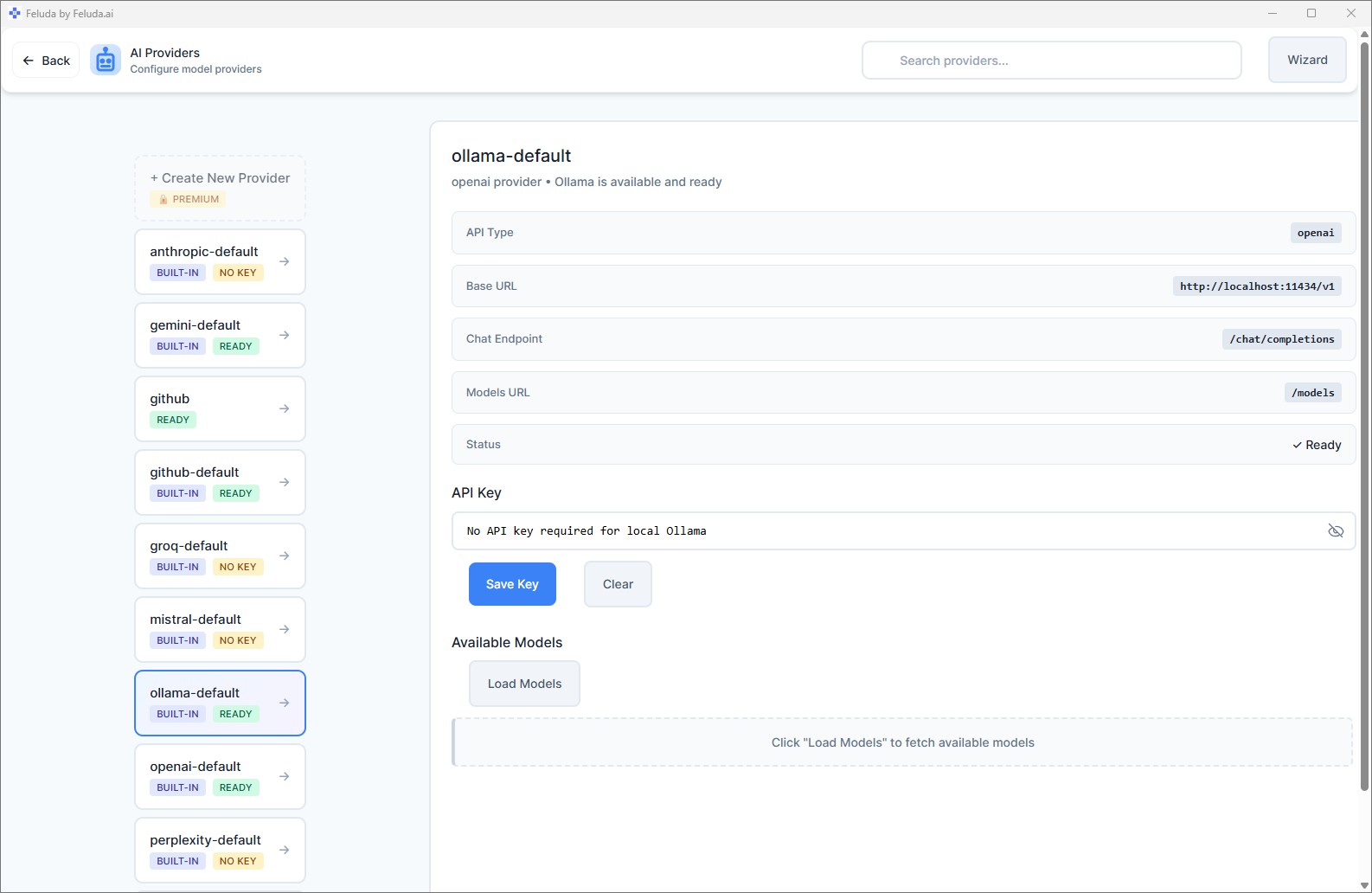
New to local AI? Start with Ollama. Install it, open a terminal, and run ollama pull llama3. In under five minutes you will have a free, private AI model ready to use — no API key, no cloud account.
Step 3 — Send Your First Workbench Chat
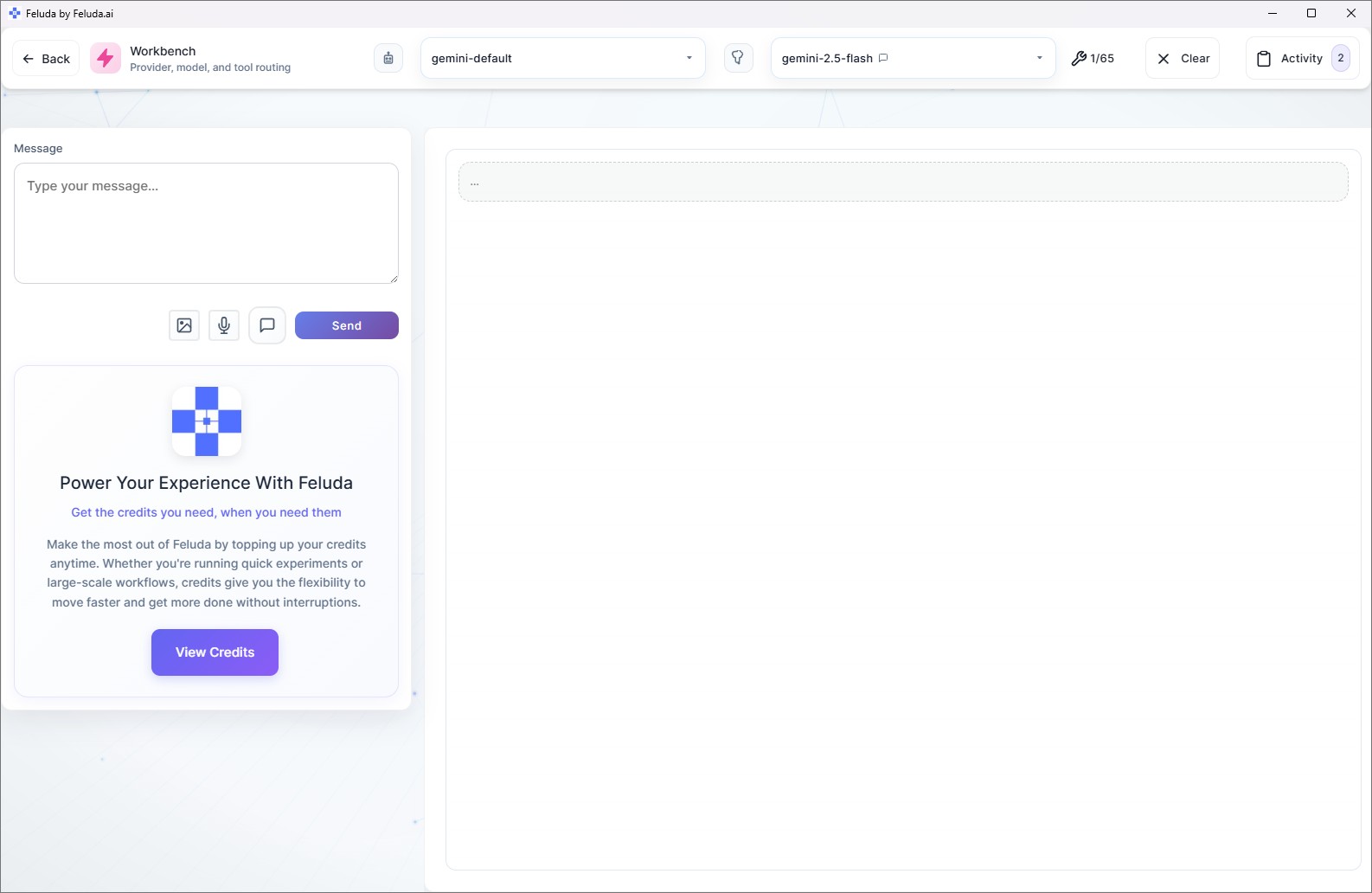
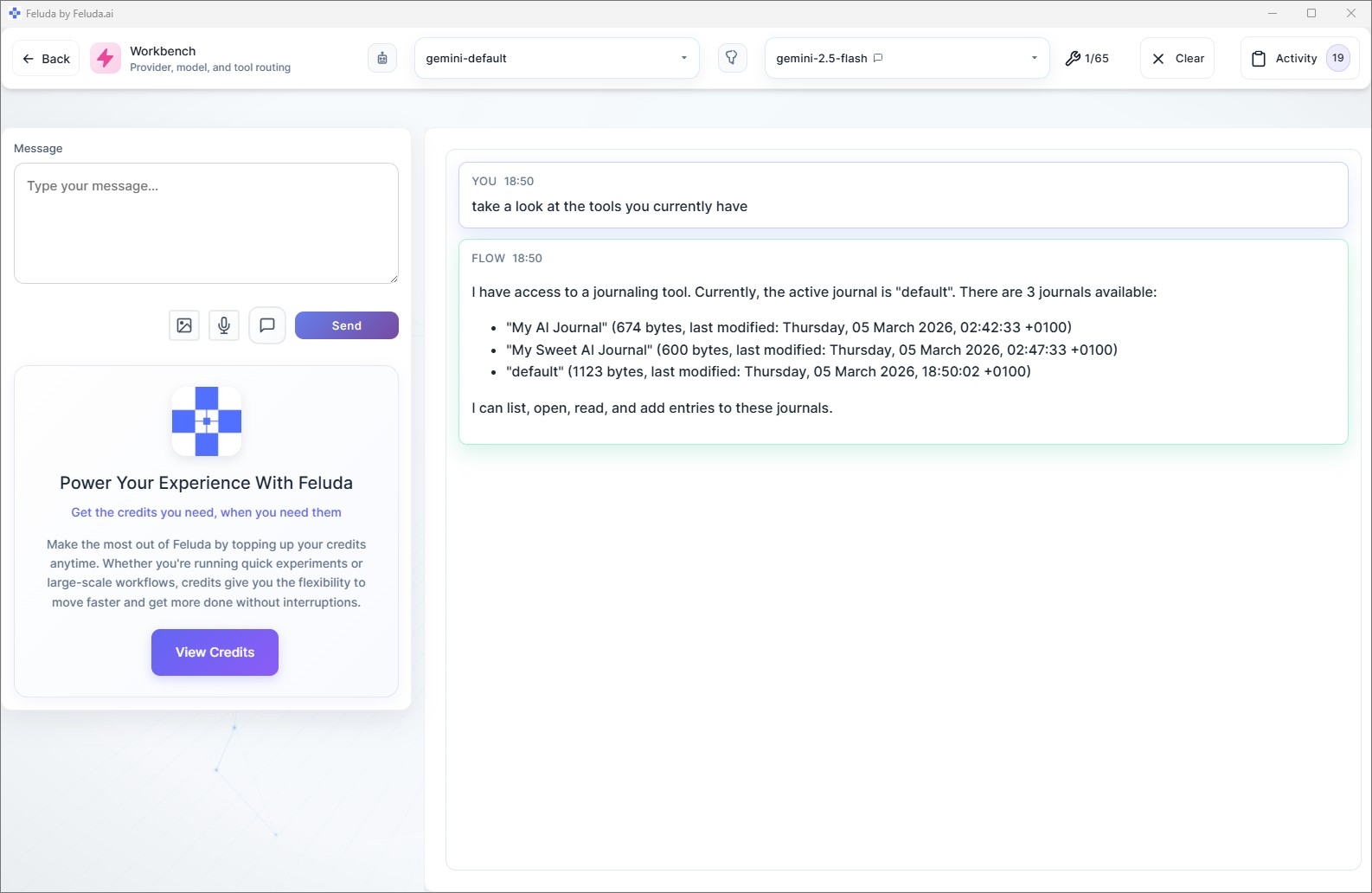
The Workbench is Feluda's interactive chat environment. Think of it as a conversation with an AI model — but with superpowers. You can enable tools that the AI calls during conversation (write journal entries, search the web, scan ports), attach images or audio, and inspect every action in the Activity log.
Send Your First Message
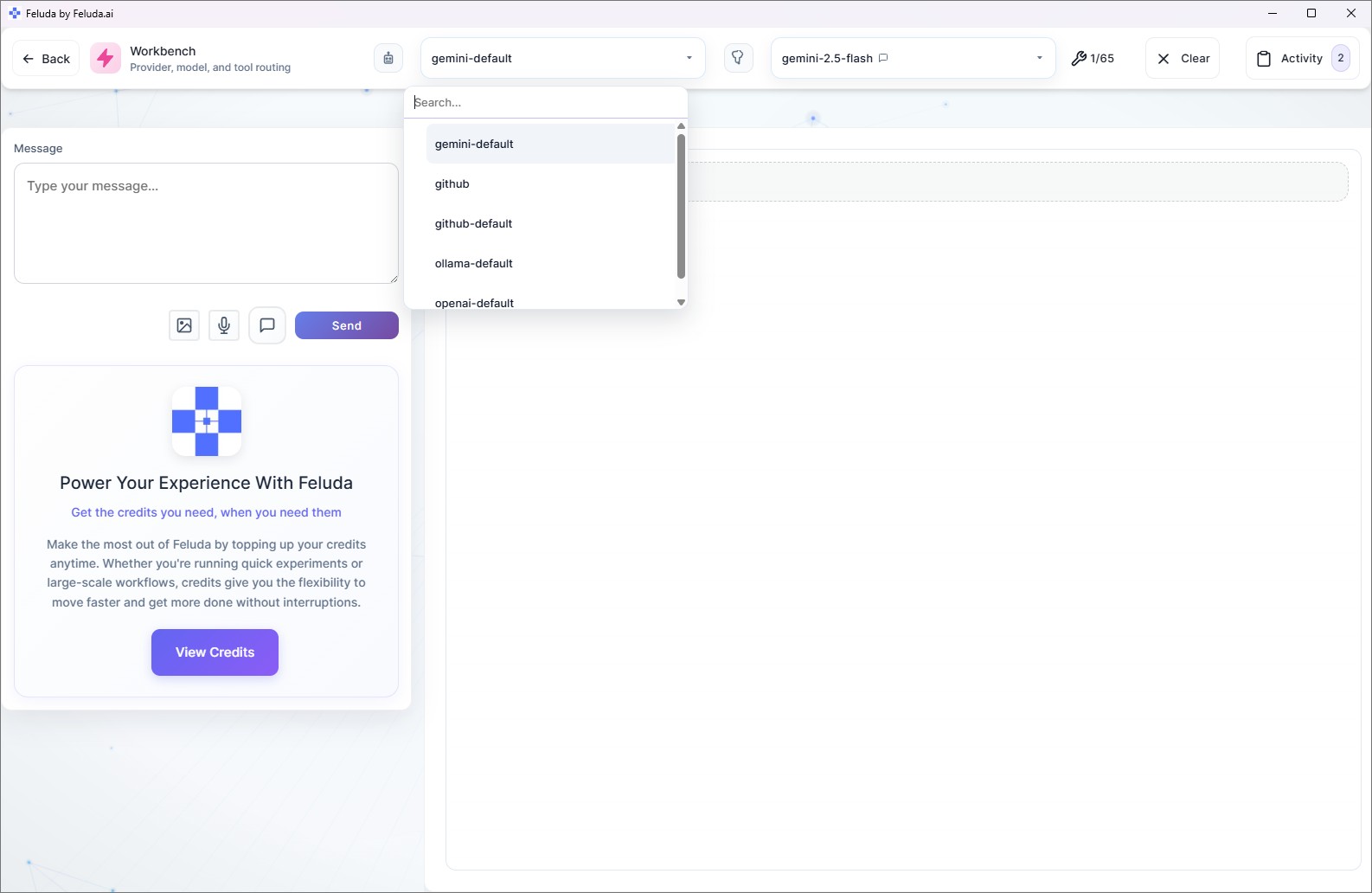
Pick provider and model
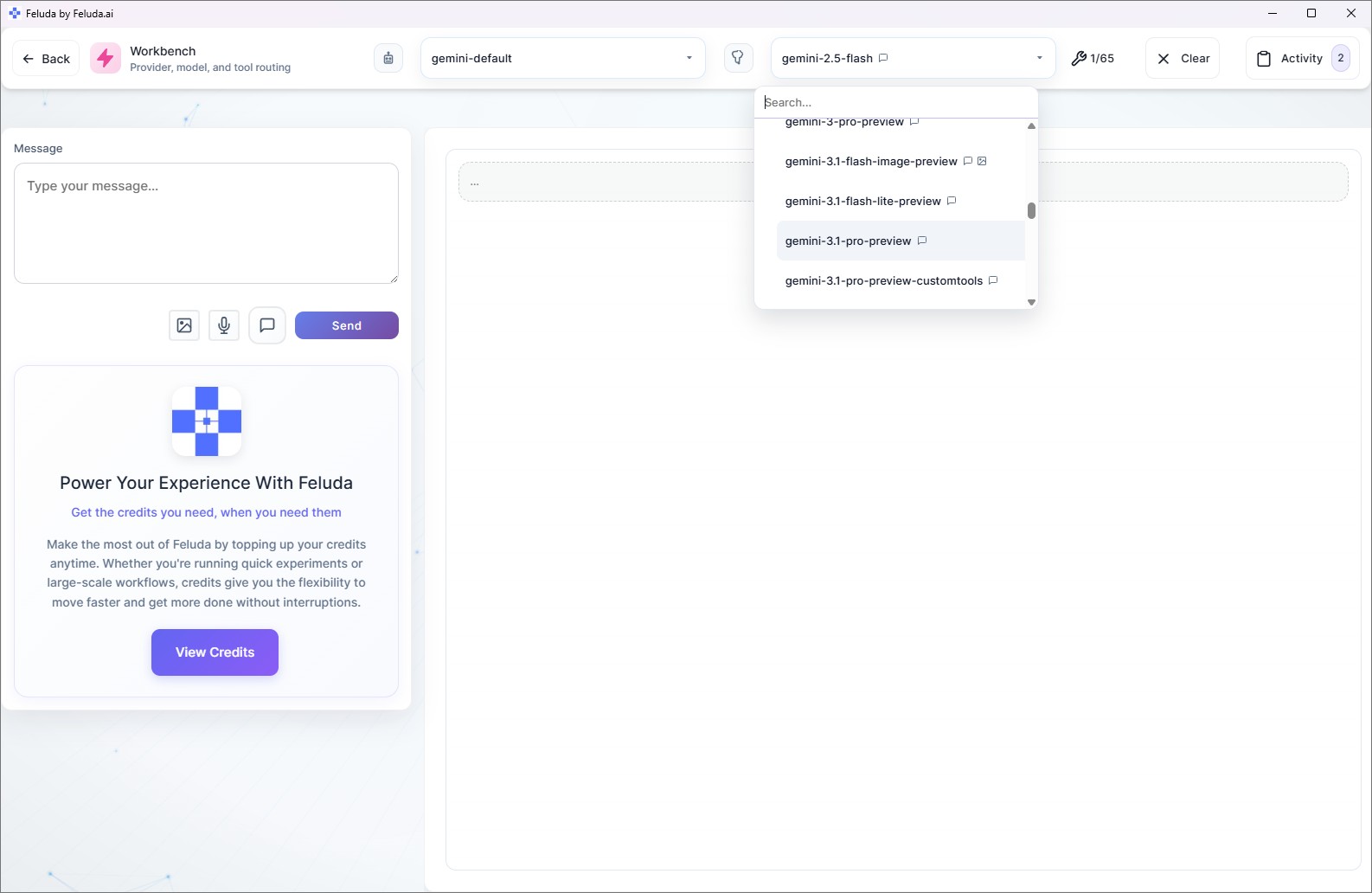
In the header bar, select your provider from the first dropdown and a model from the second.
Type a message
In the message composer, type something like: "Explain what an AI workflow is in simple terms."
Read the response
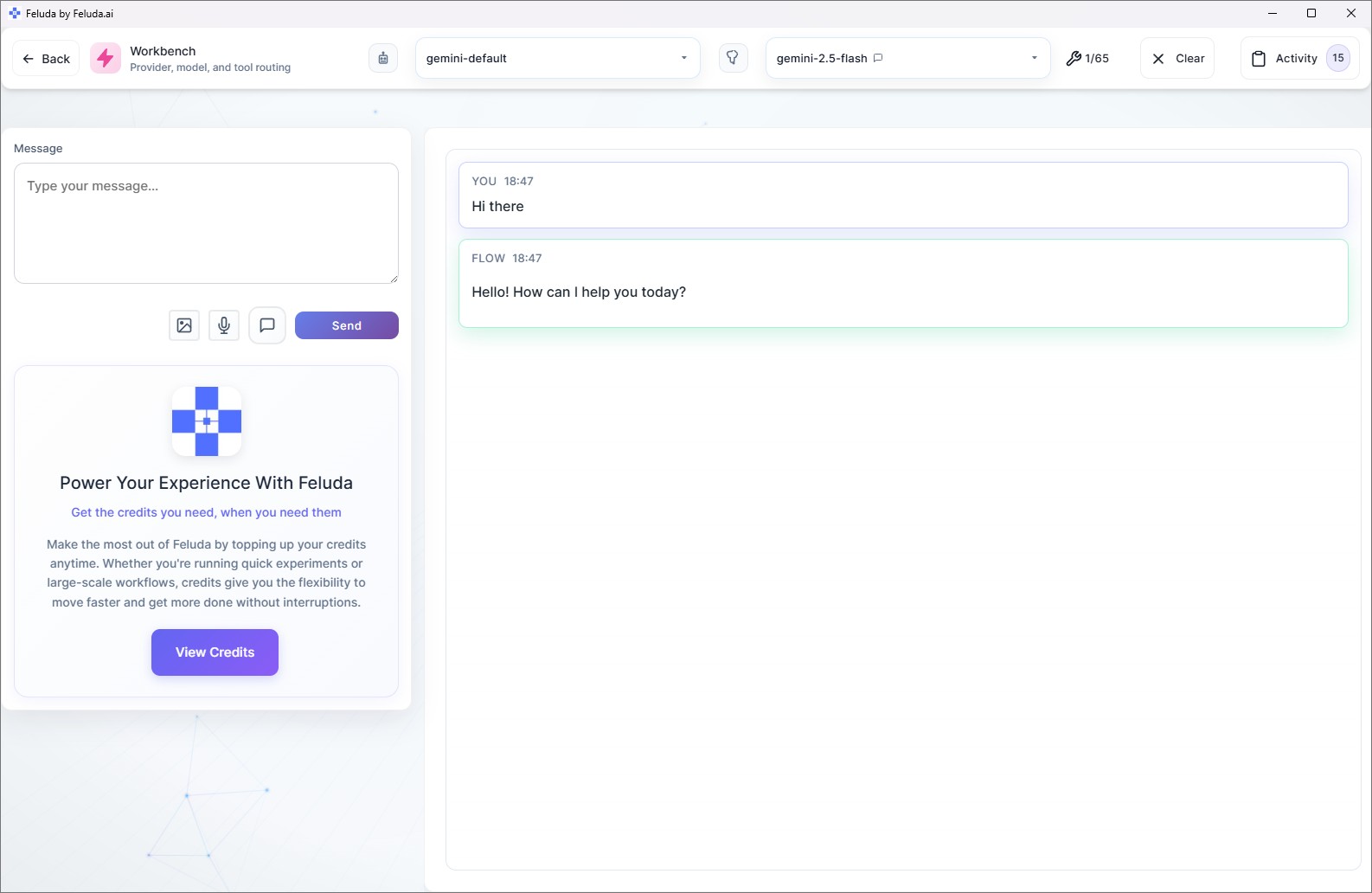
Click Send. The AI responds in the conversation log on the right, rendered as formatted Markdown.
Try Enabling Tools
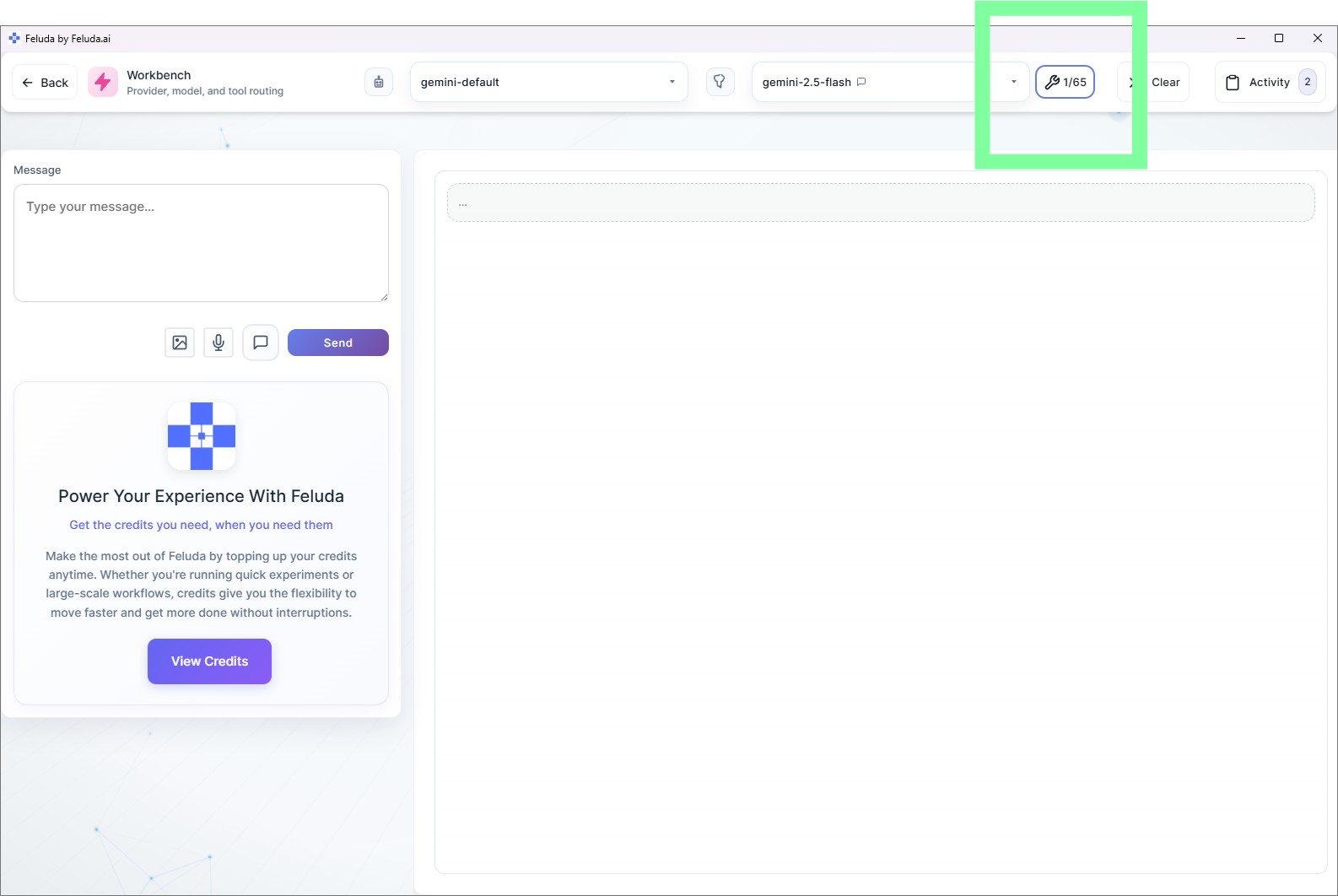
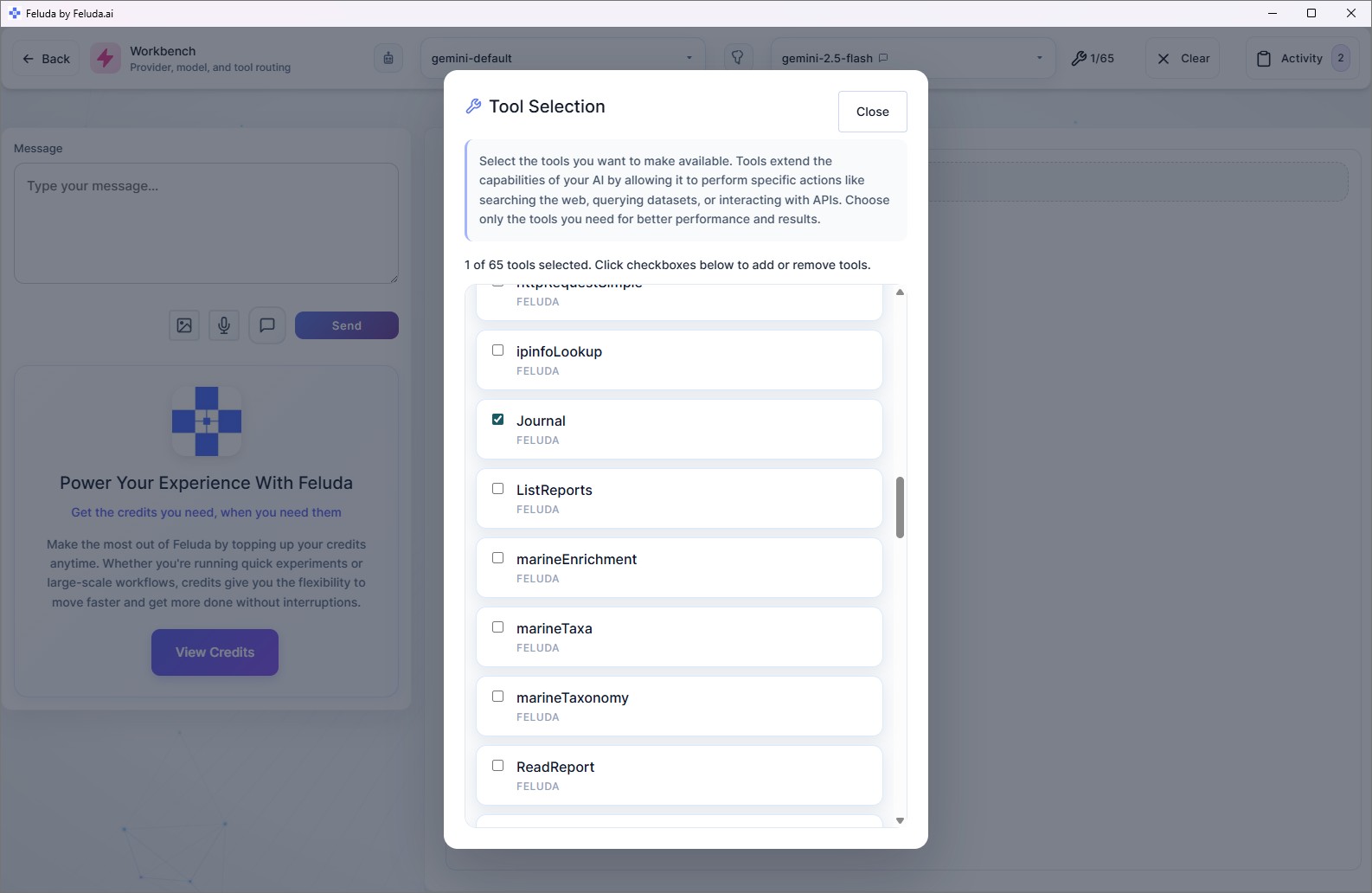
This is where Feluda gets interesting. Tools let the AI do things beyond just generating text — write journal entries, search the web, and more. On the free plan you can enable up to 3 tools per session.
Check the Activity Log
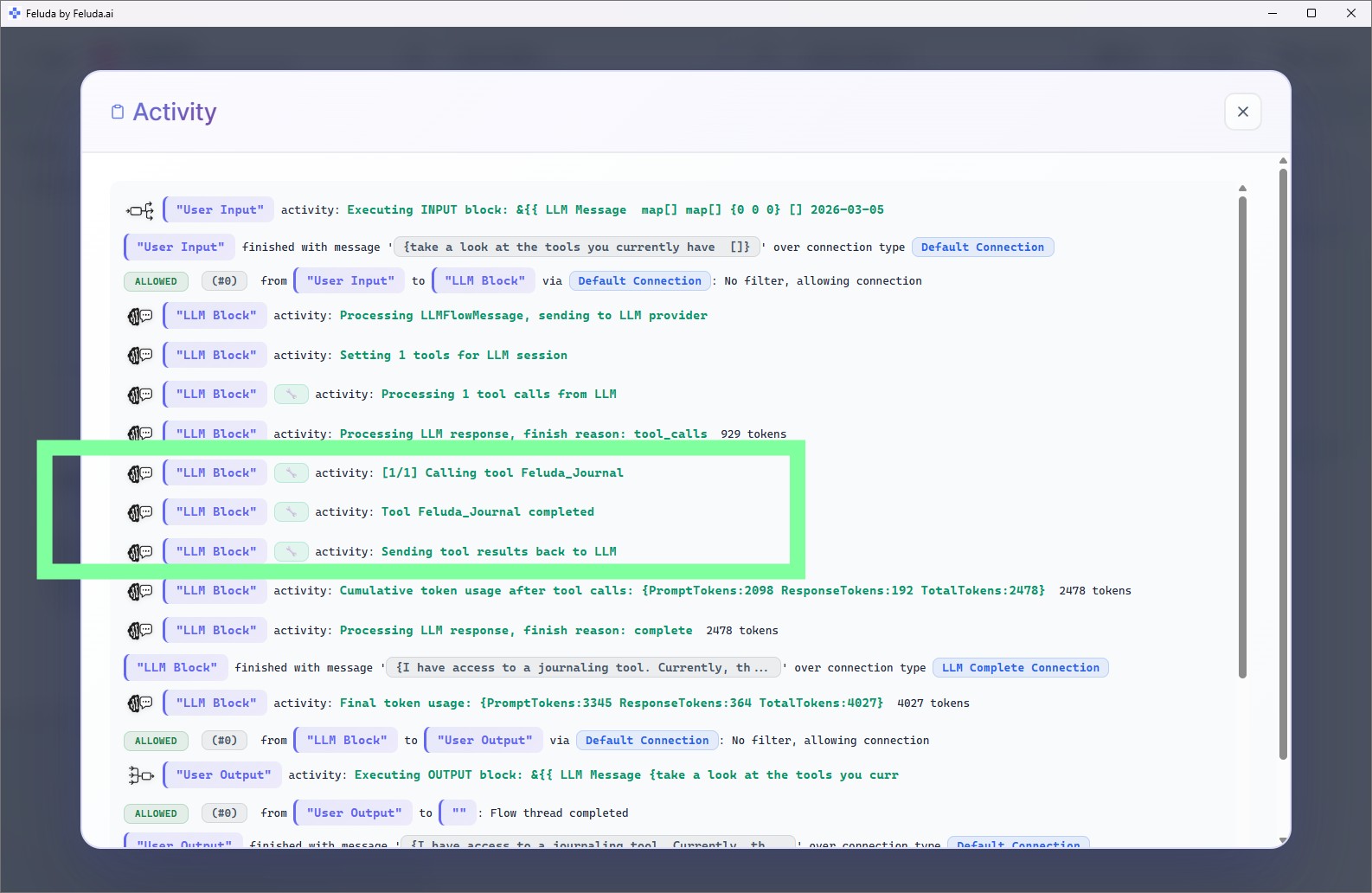
After the AI uses a tool, click the Activity button to see exactly what happened behind the scenes — which tools were called, what parameters were used, and what results came back. It is a transparent look at everything the AI did.
Frequently Asked Questions
What do I need before I can use Feluda?
You need the Feluda desktop application (free download for Windows, macOS, and Linux) and at least one AI provider. You can use a cloud provider like OpenAI, Anthropic, or Mistral (requires an API key), or a local model runner like Ollama or LM Studio (free, no API key needed).
Can I use Feluda without an internet connection?
Yes. If you configure a local AI provider like Ollama, Feluda works completely offline. Your data stays on your machine and no internet connection is required for AI operations.
Is my API key safe in Feluda?
Yes. API keys are encrypted and stored in your operating system's secure credential vault — Windows Credential Manager, macOS Keychain, or Linux keyring. Keys are never sent to Feluda's servers, and AI models never see the raw key values.
What are tools in Feluda?
Tools are functions that AI can call during a conversation or workflow. Examples include writing to a journal, searching the web, scanning a port, or reading a file. You control exactly which tools the AI is allowed to use in each session.
How long does initial setup take?
About five to ten minutes. Install Feluda, configure one AI provider, and you are ready to chat and build workflows. If you use Ollama (local), add a couple of minutes to download a model.
Ready to Build Your First Workflow?
Now that your provider and Workbench are working, continue to the next step and build your first AI workflow in Studio.