
What Is Desktop AI Automation?
Desktop AI automation means using artificial intelligence to perform tasks automatically — directly on your own computer. Instead of relying on cloud platforms like Zapier, Make, or n8n, you build and run everything locally. The AI reads documents, classifies data, generates reports, extracts information, calls tools, and handles complex multi-step processes — all without your data ever leaving your machine.
Feluda is a desktop application built for exactly this. It gives you a visual workflow builder, a built-in scheduler, and connections to any AI model — cloud or local. You design automations by connecting blocks on a canvas, set them to run on a schedule, and let the AI handle the rest.
Why Automate on Your Desktop Instead of the Cloud?
Complete Data Privacy
Your files, documents, and API keys stay on your machine. Nothing is uploaded to a third-party server. Meet GDPR, HIPAA, and data-residency requirements by default.
No Per-Execution Fees
Cloud automation platforms charge per task, per execution, or per row. Feluda runs on your desktop — execute as many automations as you want, as often as you want.
Works Offline
Pair Feluda with a local AI model like Ollama and your automations run without an internet connection. Perfect for air-gapped environments or unreliable networks.
Instant Execution
No cold starts, no queue times, no waiting for a cloud worker to spin up. Your automations run immediately on your hardware.
Real Tool Access
Desktop automations can interact with your local file system, network, and installed software. Cloud platforms can only connect to online SaaS APIs.
Full Control
You choose the AI model, the version, the parameters, and the tools. No surprise updates, no content filtering, no dependency on a vendor's uptime.
How Desktop AI Automation Works in Feluda
From idea to running automation in four steps — no coding required.
Design Your Workflow
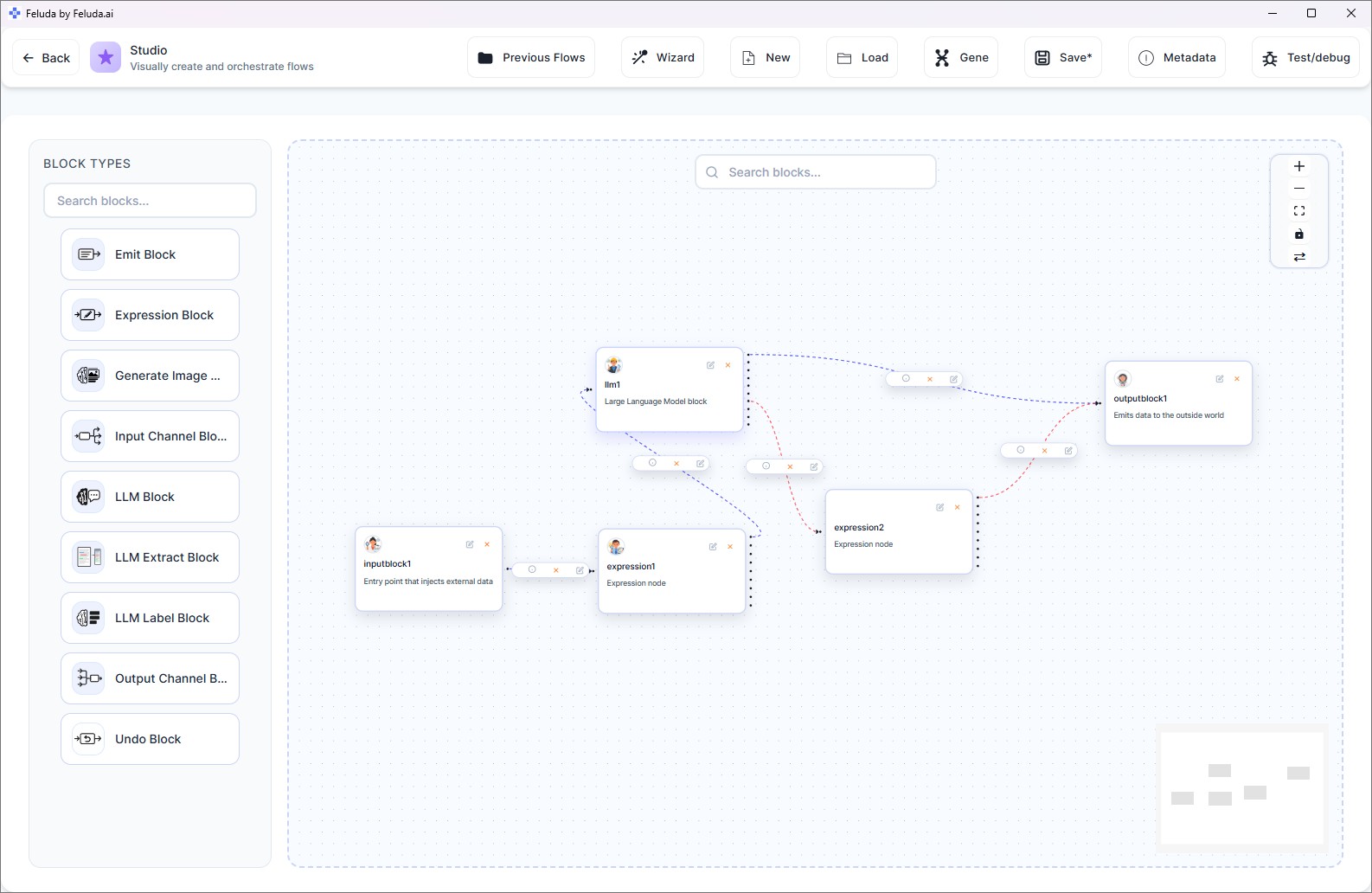
Open Studio and drag blocks onto the canvas. Connect an Input Block to AI reasoning blocks, classification blocks, data extraction blocks, image generators, or expression blocks.
Choose Your AI
Select any AI provider — OpenAI, Anthropic, Mistral, Google, a local Ollama model, or any OpenAI-compatible endpoint. Mix and match providers within the same workflow.
Enable Tools
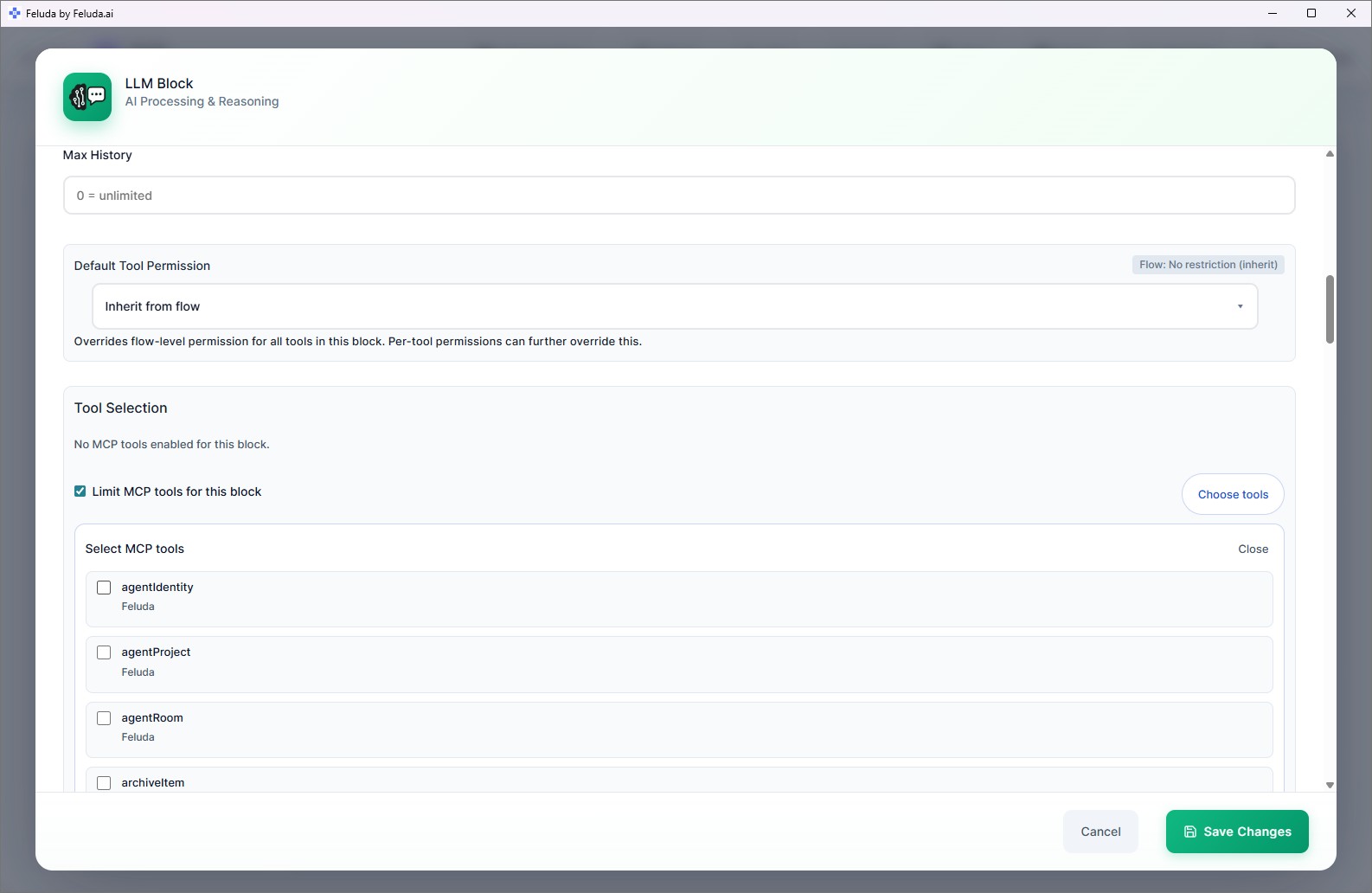
Give the AI access to real tools — web search, file access, port scanning, journal writing, and more. Install Genes to add specialised tool packages instantly.
Run or Schedule
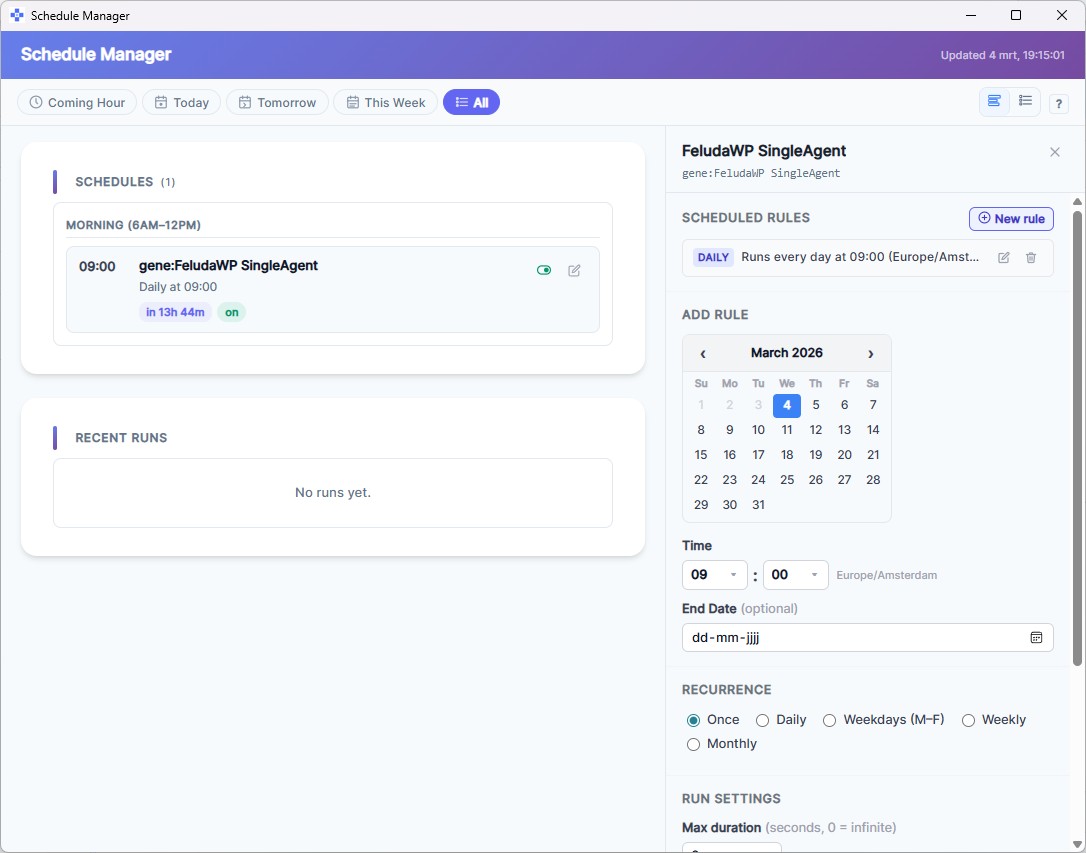
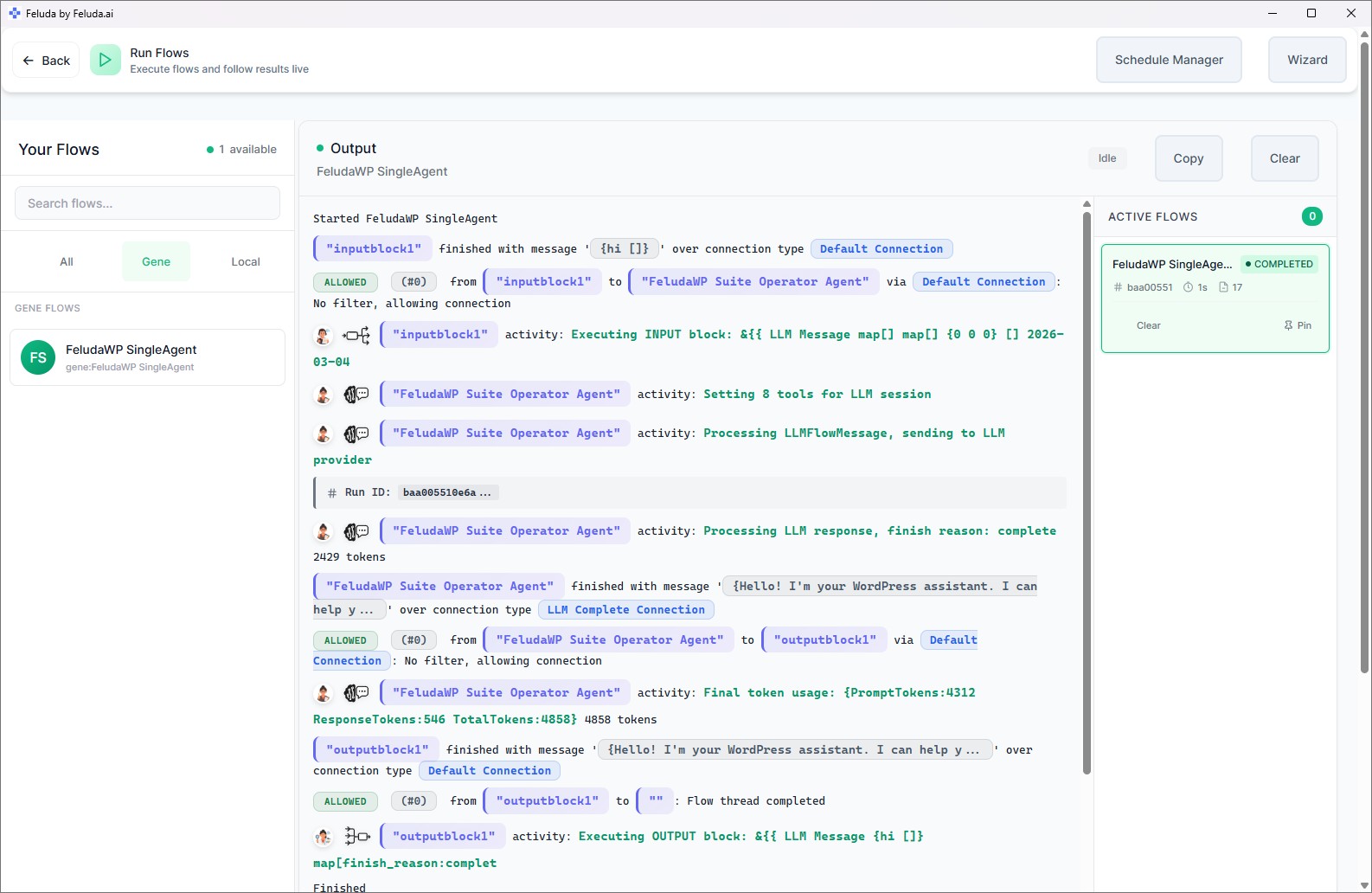
Execute immediately with RunFlows, test interactively in the Workbench, or set up automatic execution in the Schedule Manager — hourly, daily, or weekly.
Building Blocks for AI Automation
Every Feluda automation is built from purpose-built blocks. Each block handles a specific part of the process.
LLM Block
The core AI reasoning block. Analyse, summarise, translate, generate, and call tools. Pair it with any provider and model — cloud or local.
LLM Label Block
Classify and route data using AI. Define labels like "billing", "support", "urgent" and the AI sorts incoming data into the right path automatically.
LLM Extract Block
Extract structured data from unstructured text. Define classes and attributes — the AI returns clean, structured output from any document.
Expression Block
Deterministic logic without AI overhead. Transform data, evaluate conditions, filter PII, and route results based on rules — fast and predictable.
Generate Image Block
Create images from text descriptions using models like DALL-E. Automate visual content creation as part of a larger pipeline.
Emit & Undo Blocks
Emit intermediate results during processing. Undo rolls back to a previous state for retry logic and error recovery.
Resilient Automation — Errors Don't Break Your Workflow
Real-world automations encounter failures. AI services hit rate limits, tool calls time out, content gets filtered. In Feluda, every block has typed error outputs — you can route each type of failure to a different recovery path.
| Error Type | What Happens | Your Recovery Path |
|---|---|---|
| Rate Limit | Provider throttles your requests | Route to a backup AI block using a different provider |
| Content Filter | Output blocked by safety filter | Route to a moderation review step |
| Timeout | Operation took too long | Route to a retry path or alert via Emit Block |
| Tool Call Failed | An external tool returned an error | Route to a fallback tool or manual review |
| Max Tokens | Model hit its context limit | Route to a summarisation step, then retry |
| Insufficient Quota | API account out of credits | Switch to a local model automatically |
This means your automations gracefully degrade instead of crashing — retrying, switching providers, or escalating to a human when needed.
What Can You Automate?
Here are real automation scenarios people build with Feluda — every one runs on the desktop, without cloud dependencies.
Email Triage & Classification
Feed incoming emails into an LLM Label Block. The AI sorts them into categories like billing, support, returns, and general — automatically routing each to the right output.
LLM Label Block + SchedulingDocument Data Extraction
Turn unstructured reports into structured data. Define classes like "Person", "Financial Figure", "Location" and the AI extracts every instance with filled attributes.
LLM Extract BlockDaily Report Generation
Schedule a workflow that generates an executive summary every morning. The AI processes your data, writes the report, and logs it to the Journal — ready when you start your day.
LLM Block + Schedule Manager + JournalContent Pipeline
One input brief produces a blog post, social media copy, tone classification, and a generated featured image — all in a single automated flow.
LLM Block + Generate Image + Label BlockSecurity Reconnaissance
Scan ports, look up domain information, and generate security reports — all with AI-powered analysis. Schedule weekly scans and log findings automatically.
Tools + LLM Block + SchedulingPII Detection & Redaction
Scan documents for names, emails, credit card numbers, phone numbers, IBANs, and more. Redact, hash, encrypt, or mask detected information before sharing.
Expression Block + PII FiltersMulti-Provider Model Testing
Route the same input to multiple AI providers in parallel. Compare GPT-4, Claude, Mistral, and a local model side by side — make informed decisions based on real output.
Parallel LLM BlocksInteractive AI Assistant
Build a conversational AI assistant that doesn't just answer questions but takes real actions — searching the web, writing files, scanning networks, and logging to the Journal.
Workbench + ToolsSee It in Action
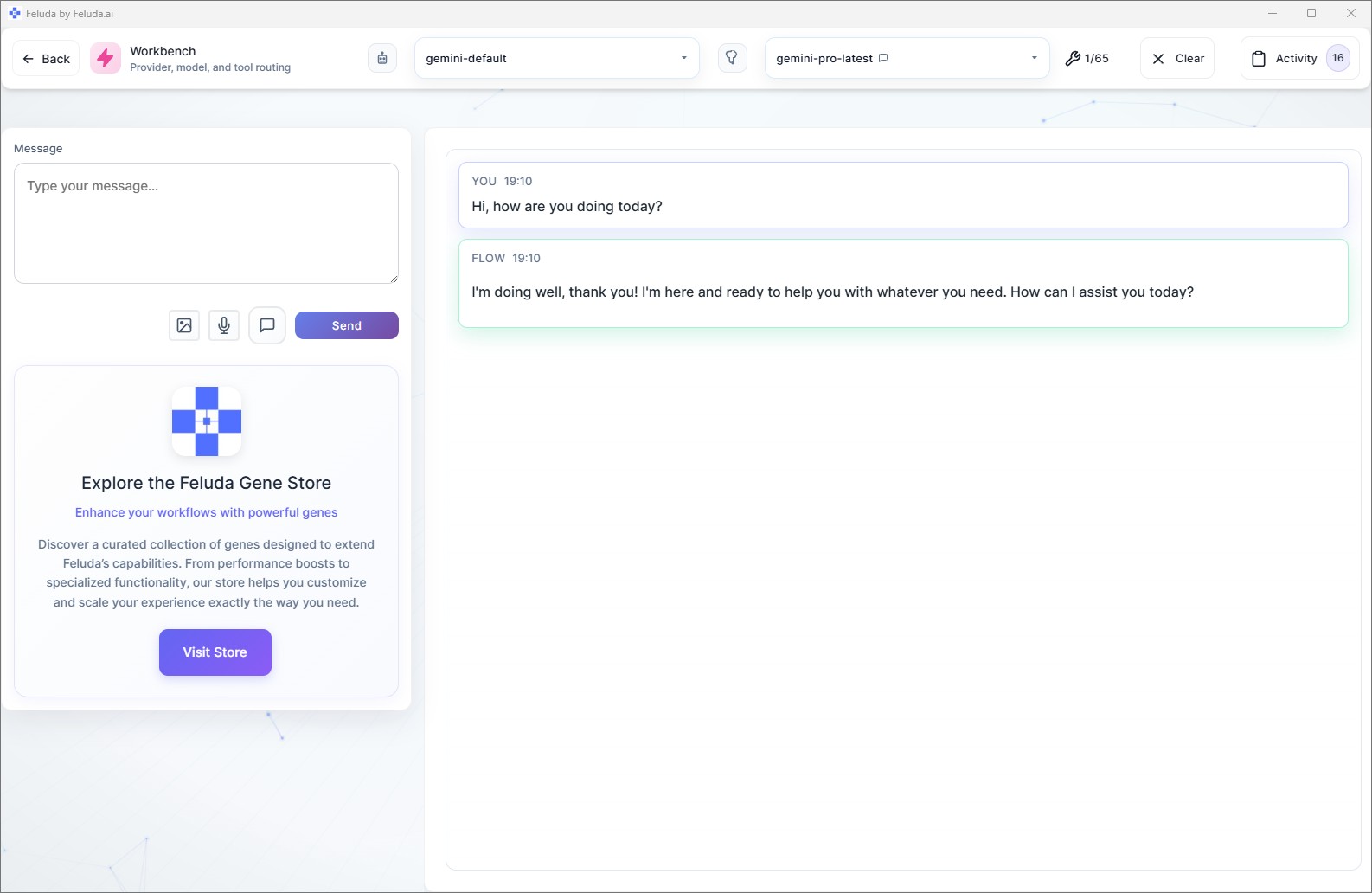
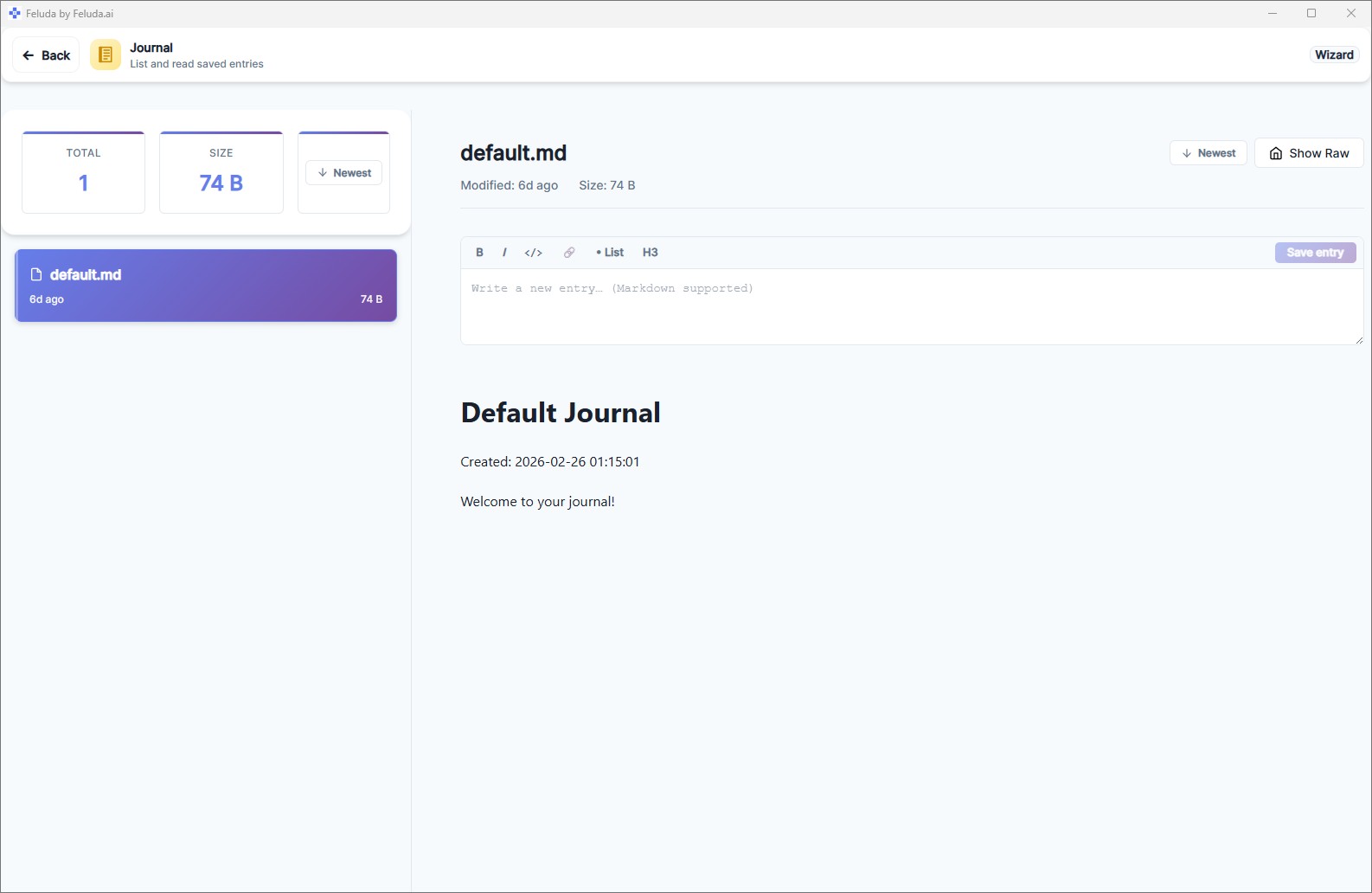
Desktop AI Automation vs. Cloud Automation Platforms
| Capability | Cloud Platforms Zapier, Make, n8n Cloud |
Feluda Desktop AI Automation |
|---|---|---|
| Runs on your computer | No — cloud servers | Yes — fully local |
| Data privacy | Data sent to vendor | Data never leaves your machine |
| Offline capability | Requires internet | Full offline with local models |
| Per-execution fees | Yes — per task/row | No — unlimited local runs |
| Local file access | No | Yes — read/write local files |
| Local AI models | No | Ollama, LM Studio, any local endpoint |
| AI-native workflow blocks | Limited — generic integrations | Purpose-built LLM, Label, Extract, Image blocks |
| Typed error routing | Basic retry only | Route each error type to a recovery path |
| Tool permissions | No | URL, IP, file path, port, and parameter restrictions |
| Built-in scheduling | Yes | Yes — hourly, daily, weekly, specific date |
| MCP server support | No | Built-in MCP server for external AI clients |
Available for Every Desktop Platform
Feluda runs natively on all major operating systems. Download once, automate forever.
Frequently Asked Questions
What is desktop AI automation?
Desktop AI automation means running automated AI-powered tasks directly on your own computer instead of relying on cloud services. You design workflows, schedule them, and the AI executes them locally — processing documents, extracting data, generating reports, and more.
Do I need to write code to automate AI tasks?
No. Feluda provides a visual drag-and-drop workflow builder called Studio. You connect blocks on a canvas to design multi-step AI pipelines — no programming required.
Can I schedule automations to run automatically?
Yes. Feluda includes a built-in Schedule Manager that lets you set any workflow to run hourly, daily, weekly, or at a specific date and time. Results are logged to the Journal so you can review them later.
Does desktop AI automation work offline?
Yes, when paired with a local model runner like Ollama or LM Studio. Your data stays on your machine and no internet connection is needed.
How is this different from Zapier, Make, or n8n?
Unlike cloud automation platforms, Feluda runs entirely on your desktop. Your data never leaves your machine, there are no per-execution fees, and you can use local AI models for complete privacy. Feluda is also purpose-built for AI workflows with specialised blocks for LLM reasoning, classification, extraction, and image generation — not general SaaS webhook integrations.
What AI models can I use?
Any model from OpenAI, Anthropic, Mistral, Google, or any OpenAI-compatible endpoint. You can also use local models via Ollama, LM Studio, or any local server. Mix and match providers within the same workflow.
What happens when an AI service fails during automation?
Every block in Feluda has typed error outputs — rate limits, timeouts, content filters, and tool failures each produce a distinct signal. You can wire each error type to a different recovery path: switch to a backup provider, retry, alert a human, or log the issue.
Is Feluda free?
Yes. Feluda offers a free plan that includes Studio, Workbench, RunFlows, Journal, and the built-in MCP server. Scheduling is available on paid plans. Premium features and Gene packs are available for teams needing advanced capabilities.
Start Automating with AI on Your Desktop
Download Feluda and build your first AI automation in minutes — no cloud account, no credit card, no code.