
What Is a Local LLM?
A Large Language Model (LLM) is the AI technology behind tools like ChatGPT, Claude, and Gemini. Normally these models run on the provider's cloud servers — you send your data over the internet, the model processes it remotely, and results come back.
A local LLM is the same kind of model, but it runs directly on your own computer. Your data never leaves your machine. There are no per-token charges, no rate limits, and no internet dependency. You own the entire process.
Popular local LLMs include Llama 3, Mistral, Mixtral, Phi, Gemma, DeepSeek, Qwen, and CodeLlama. Tools like Ollama and LM Studio make it easy to download and serve these models on Windows, Linux, and macOS.
Feluda connects to these local model runners and lets you put local LLMs to real work — not just chat, but multi-step AI workflows with tools, scheduling, and automation.
Why Use a Local LLM?
- Complete privacy — sensitive documents, internal data, and personal information never leave your machine.
- Zero cost per query — once a model is downloaded, running it is free. Call it as many times as you need.
- Works offline — no internet connection required. Your AI is always available.
- No API key needed — local model runners serve models over a local HTTP endpoint. No accounts, no keys.
- No rate limits — cloud providers throttle requests. A local LLM serves you as fast as your hardware allows.
- Full control — you choose the model, the version, and the parameters. No surprise updates or content filtering.
- Regulatory compliance — satisfy GDPR, HIPAA, and data-residency requirements by keeping inference on-premise.
What You Need
Before you start, make sure you have:
- Feluda — download it here (free, available for Windows, Linux, and macOS).
- A local model runner — one of the following:
- A downloaded model — once your runner is installed, download at least one model (see the model guide below).
If you are new to local LLMs, start with Ollama. Install it, open a terminal, and run ollama pull llama3. Done — you have a local LLM ready to go.
Step-by-Step: Connect a Local LLM to Feluda
Download a model
Ollama: open a terminal and run ollama pull llama3 (or any model name from ollama.com/library).
LM Studio: open the app, search for a model, and click Download.
Start the local server
Ollama: the server starts automatically when you pull a model. Default endpoint: http://localhost:11434.
LM Studio: go to the Server tab and click "Start Server." Default endpoint: http://localhost:1234.
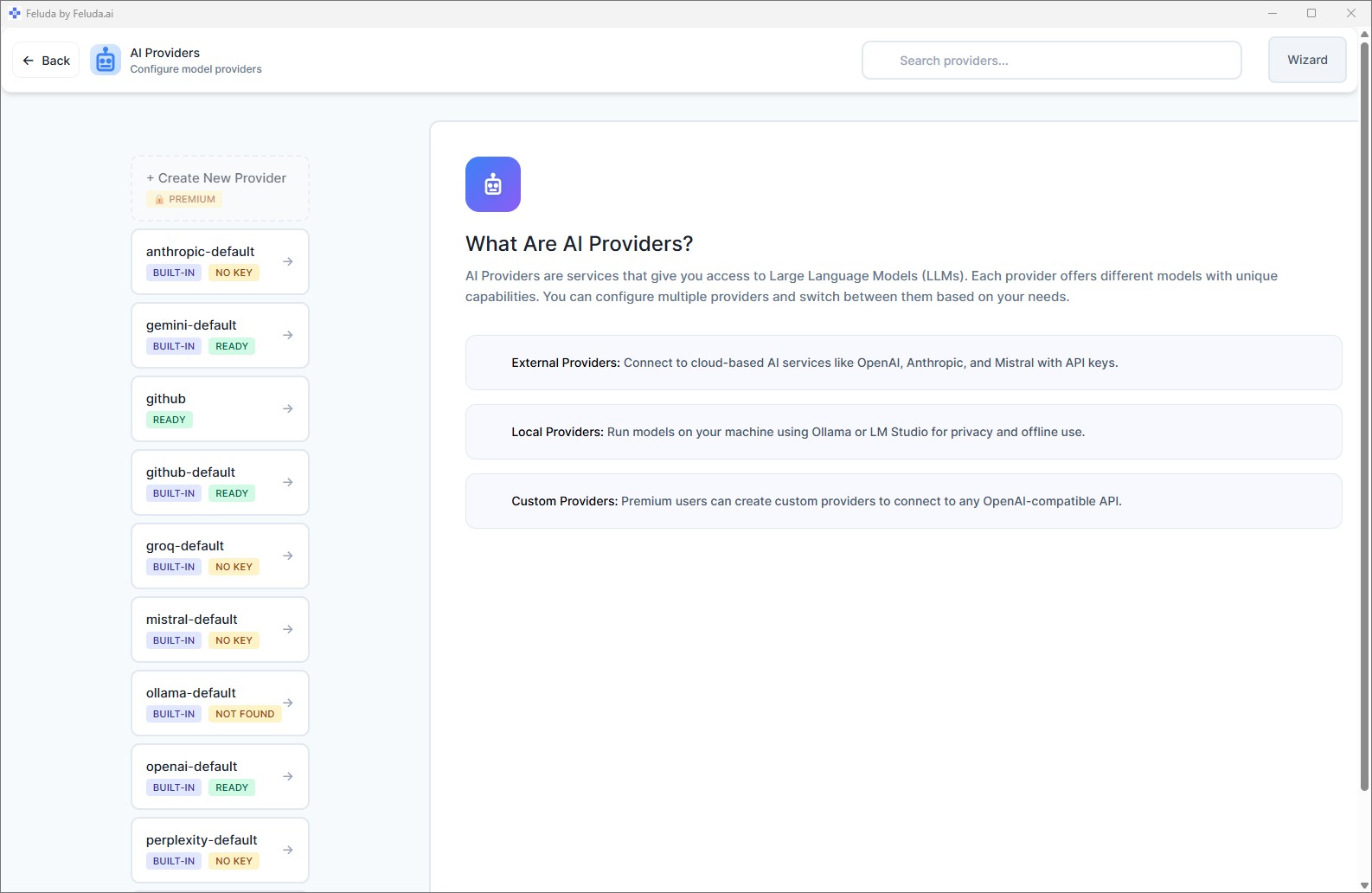
Open Feluda → AI Providers
Launch Feluda and click AI Providers in the left sidebar. You will see a list of pre-configured providers, including Ollama.
Add your local provider
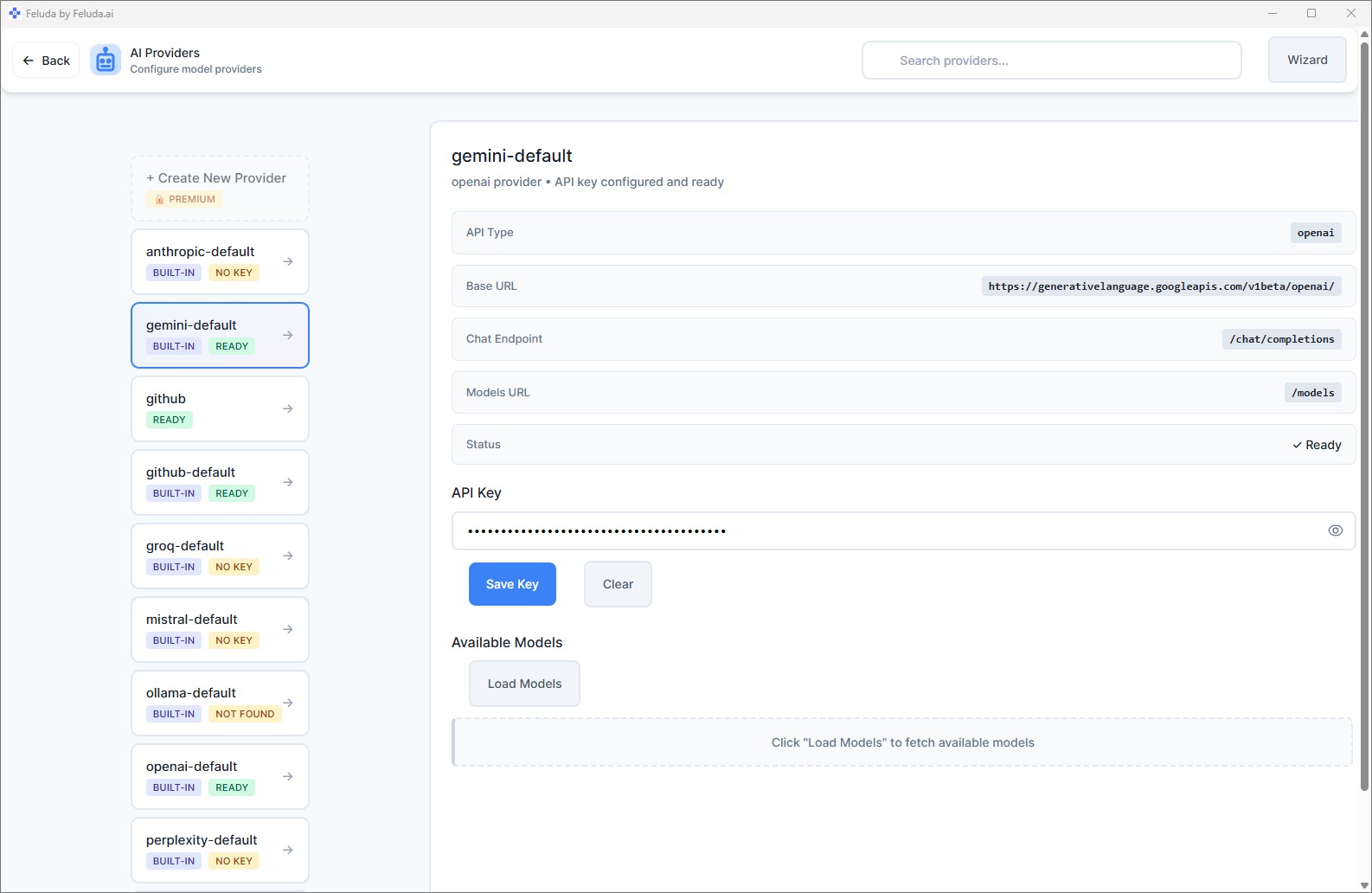
Select Ollama or LM Studio from the list. The base URL is pre-filled for standard setups. If you changed the default port, update the URL. No API key is required.
Fetch available models
Click Fetch Models. Feluda will query your local server and list every model installed on your machine. Select the one you want to use.
Which Local LLM Should I Use?
Choosing the right model depends on your task and hardware. Here is a practical guide.
| Model | Parameters | Good For | Min. RAM / VRAM | Ollama Command |
|---|---|---|---|---|
| Phi-3 Mini | 3.8B | Quick tasks on low-end hardware | ~4 GB | ollama pull phi3 |
| Gemma 2B | 2B | Lightweight general use | ~4 GB | ollama pull gemma:2b |
| Mistral 7B | 7B | Balanced quality and speed | ~8 GB | ollama pull mistral |
| Llama 3 8B | 8B | General tasks, reasoning | ~8 GB | ollama pull llama3 |
| DeepSeek Coder | 6.7B | Code generation, debugging | ~8 GB | ollama pull deepseek-coder |
| CodeLlama | 7B–34B | Code generation, analysis | 8–20 GB | ollama pull codellama |
| Mixtral 8x7B | 46.7B (MoE) | High-quality reasoning | ~32 GB | ollama pull mixtral |
| Llama 3 70B | 70B | Near cloud-quality results | ~40 GB VRAM | ollama pull llama3:70b |
| Qwen 2 | 7B–72B | Multilingual tasks | 8–40 GB | ollama pull qwen2 |
Start with Llama 3 8B or Mistral 7B. Both run well on most modern laptops with 8 GB RAM and deliver excellent results for general tasks like summarisation, classification, and content generation.
Hardware Requirements for Local LLMs
Feluda itself is lightweight. The hardware demands come from the model you run. Here is a rough guide.
| Hardware Tier | Example | Best Models |
|---|---|---|
| Laptop (8 GB RAM, no GPU) | MacBook Air M1, budget Windows laptop | Phi-3 Mini, Gemma 2B |
| Desktop (16 GB RAM, integrated GPU) | MacBook Pro M2/M3, mid-range PC | Llama 3 8B, Mistral 7B, DeepSeek Coder |
| Workstation (32+ GB RAM, discrete GPU) | PC with RTX 3090/4090, Mac Studio | Mixtral 8x7B, Llama 3 70B, Qwen 72B |
Apple Silicon note: M1, M2, M3, and M4 Macs have unified memory shared between CPU and GPU. Ollama and LM Studio take full advantage of this — a MacBook with 16 GB unified memory can comfortably run 7B–13B parameter models.
What Can You Do with a Local LLM in Feluda?
Chat is just the beginning. With Feluda, your local LLM becomes the engine of a full automation platform.
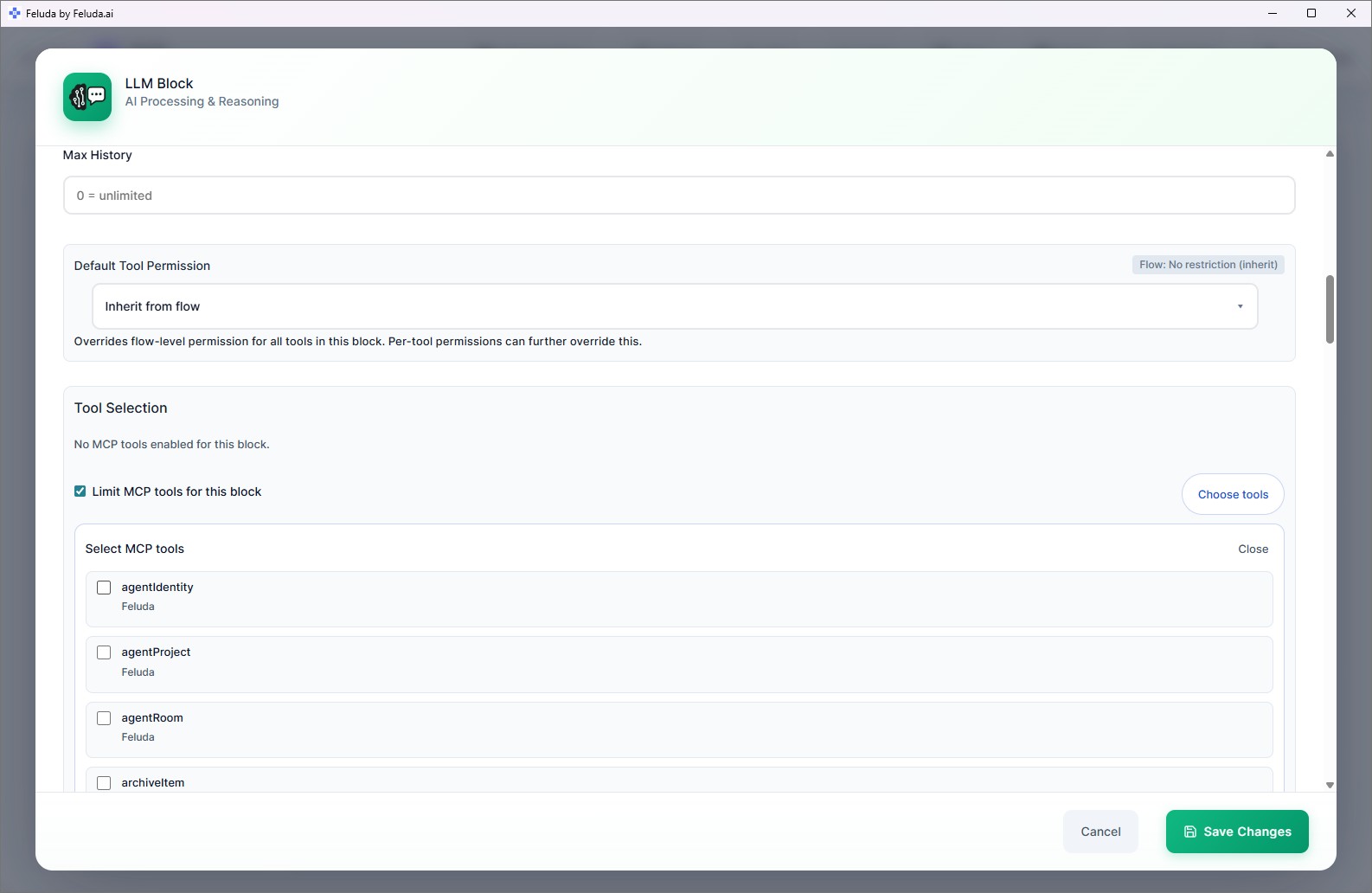
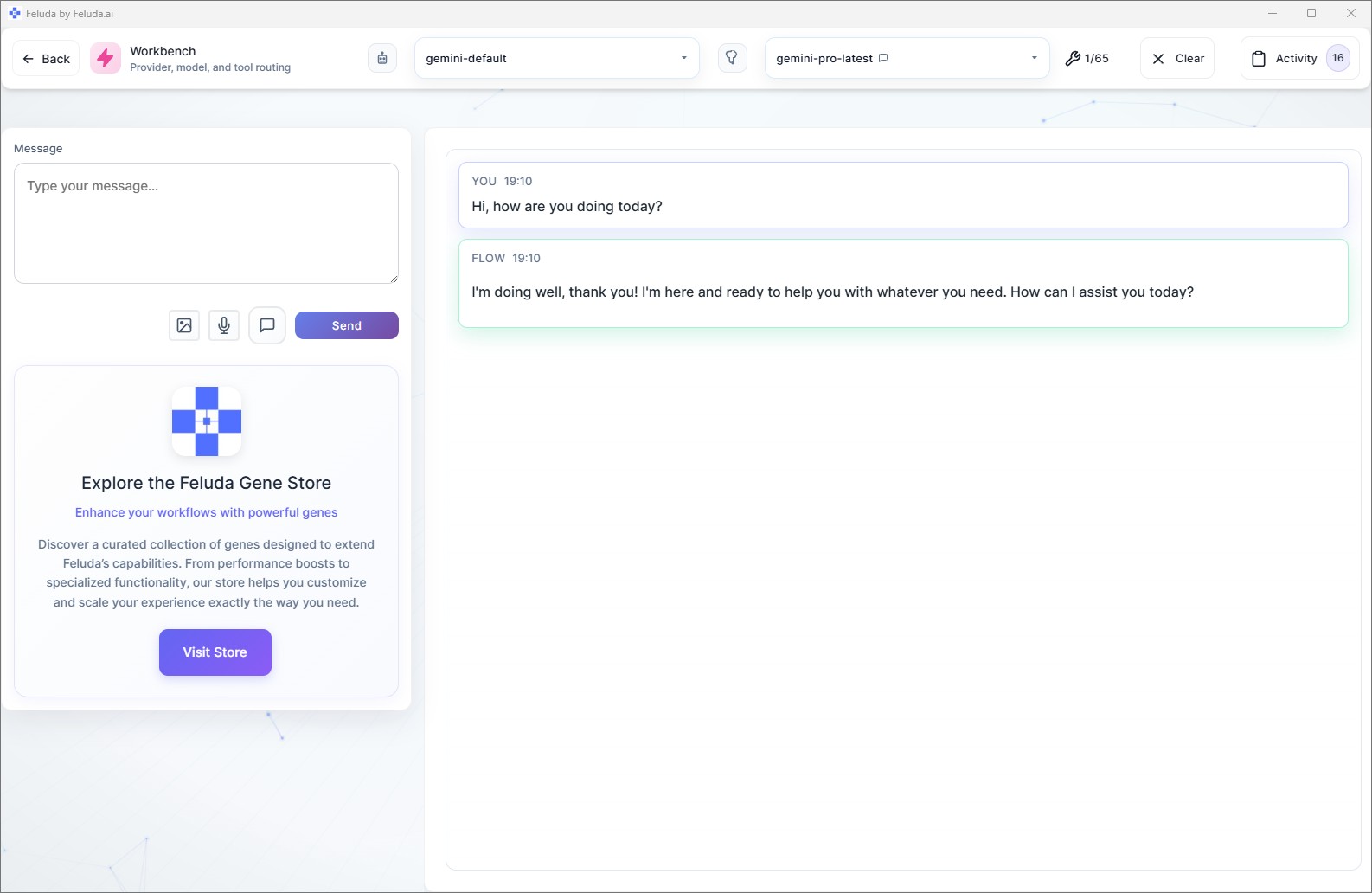
- Chat interactively — in the Workbench, chat with your local model and enable real tools (web search, file access, journal writing).
- Build visual workflows — in Studio, connect blocks to create multi-step AI pipelines. Classify text, extract data, generate images, route results — all using your local LLM.
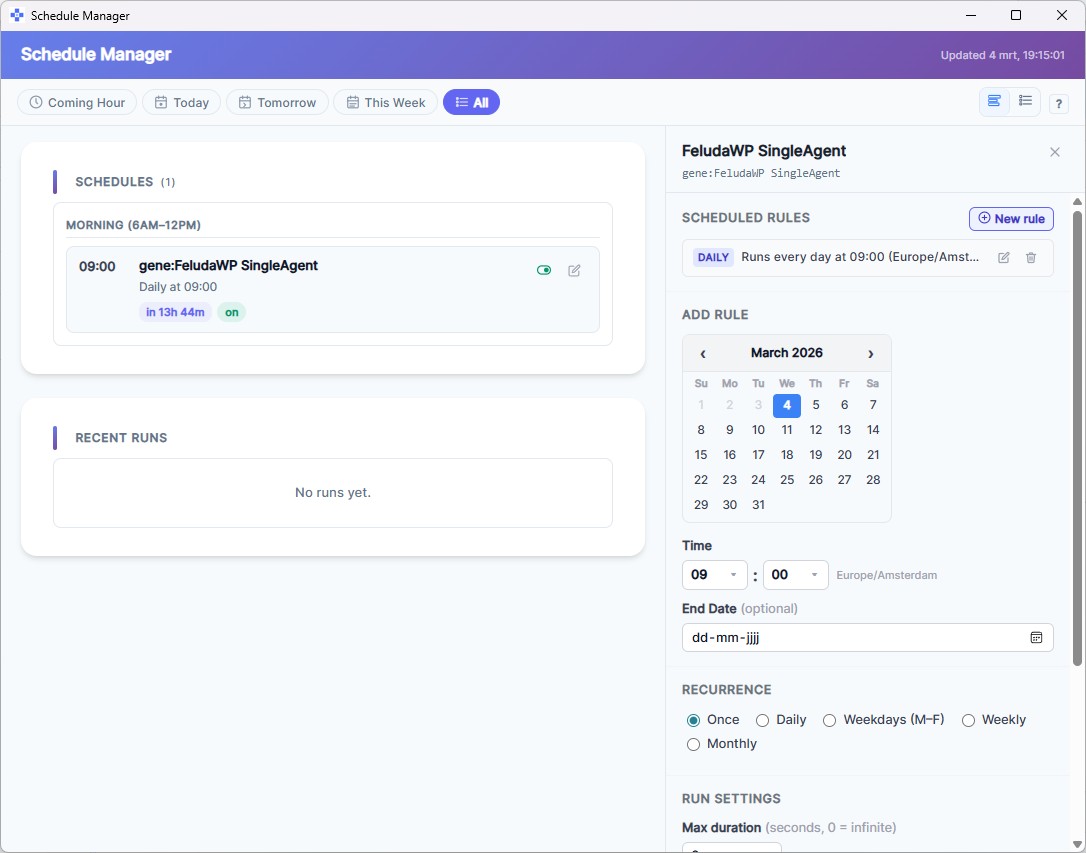
- Schedule automated tasks — set a workflow to run daily, weekly, or hourly. Reports, data processing, and checks run automatically and log to the Journal.
- Use tools — your local LLM can call real tools during execution: search the web, read files, scan ports, write journal entries, and more.
- Mix local and cloud models — use a local model for sensitive processing and switch to a cloud model for tasks that need maximum quality, all in the same workflow.
- Test and compare models — use the Workbench to try the same prompt across different local models and compare their responses side by side.
Troubleshooting
Feluda does not see my local models
- Make sure your model runner (Ollama or LM Studio) is actually running and serving on the expected port.
- Check the base URL in AI Providers. Ollama defaults to
http://localhost:11434, LM Studio tohttp://localhost:1234. - Click Fetch Models again after confirming the server is running.
Responses are very slow
- Try a smaller model. A 7B-parameter model is much faster than a 70B model on consumer hardware.
- If you have a GPU, make sure your model runner is configured to use it (Ollama does this automatically on supported hardware).
- Close other memory-intensive applications to free up RAM.
Model gives poor-quality answers
- Smaller models are less capable than large cloud models. This is expected. Try a larger model if your hardware supports it.
- Write clearer, more specific prompts. Local models benefit greatly from detailed system messages in Studio.
- Consider using a cloud provider for complex reasoning tasks and a local model for privacy-sensitive or high-volume tasks.
Frequently Asked Questions
What is a local LLM?
A local LLM (Large Language Model) is an AI model that runs directly on your own computer rather than on a remote server. Examples include Llama 3, Mistral, Phi, and Gemma, served through tools like Ollama or LM Studio.
Do I need a powerful computer to run a local LLM?
It depends on the model size. Small models like Phi-3 or Gemma 2B run well on most modern laptops with 8 GB RAM. Larger models like Llama 3 70B or Mixtral 8x7B benefit from a GPU with 16+ GB VRAM. Feluda itself is lightweight — the hardware requirements come from the model you choose.
Can I use both local and cloud models in Feluda?
Yes. Feluda is provider-agnostic. You can use a local LLM for privacy-sensitive tasks and a cloud model like GPT-4 or Claude for tasks requiring maximum quality — even within the same workflow.
Do I need an API key for local LLMs?
No. Local model runners like Ollama and LM Studio serve models over a local HTTP endpoint. No API key or online account is required.
Which local LLM should I start with?
For general tasks, Llama 3 8B or Mistral 7B are excellent starting points — they balance quality and speed on consumer hardware. For coding tasks, try CodeLlama or DeepSeek Coder. For very limited hardware, Phi-3 Mini runs well even on laptops without a GPU.
Ready to run a local LLM? Download Feluda and connect your first model in under five minutes.