
What Is the Model Context Protocol?
Think of MCP as a USB-C port for AI. Instead of building custom integrations for every tool your AI might need, MCP provides a single, open standard that lets any AI client — your IDE, a chatbot, a desktop app — discover and call tools from any MCP server. The server exposes capabilities; the client uses them. No glue code, no per-tool plugins, no vendor lock-in.
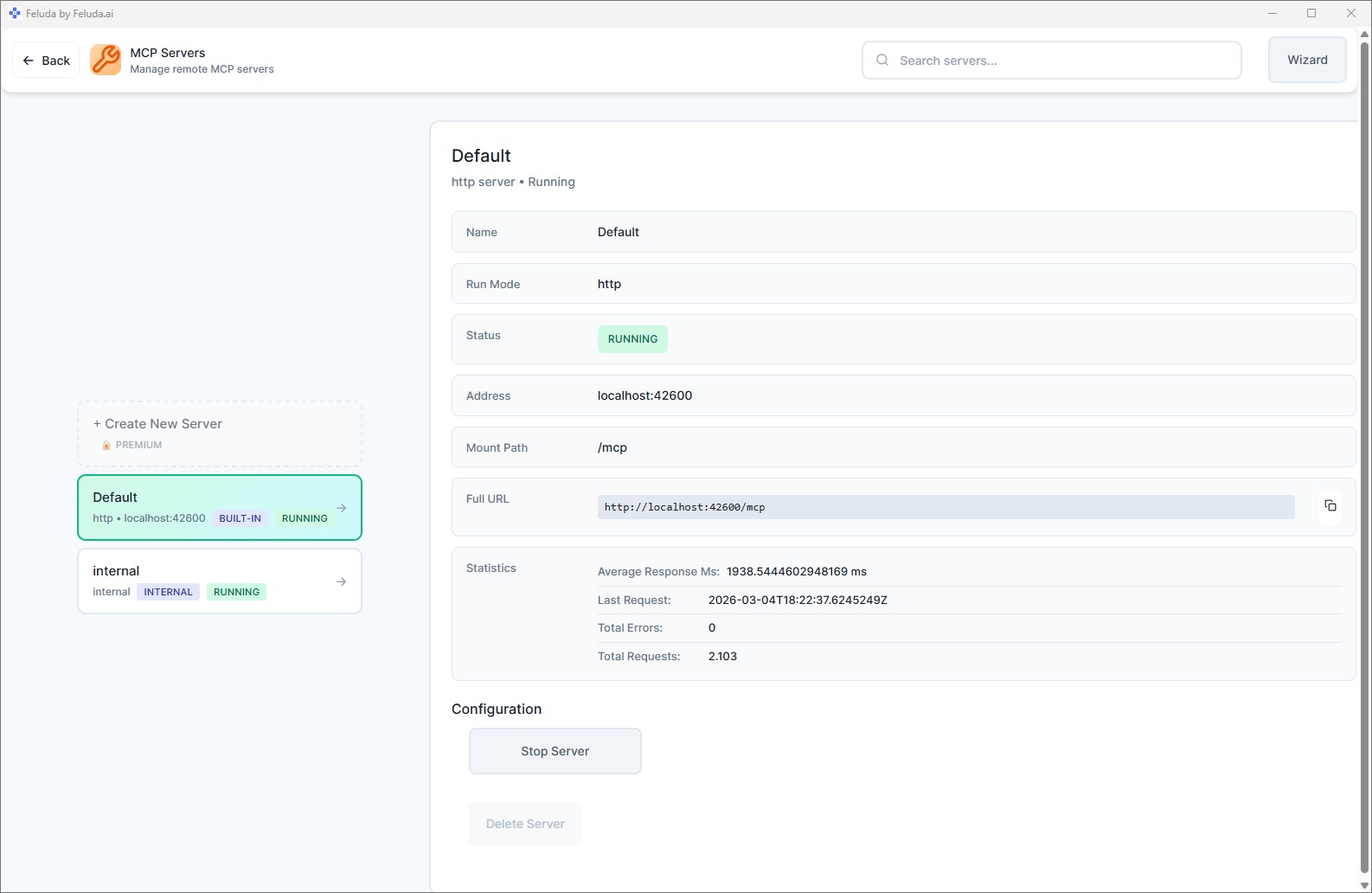
Feluda includes a built-in MCP server that starts automatically when you launch the desktop app. It runs at http://localhost:42600/mcp over standard HTTP — the same streamable-HTTP transport that VS Code, Trae.ai, and Cursor already support. Every Gene you install registers its tools with this server instantly.
Why Feluda Is the Best MCP Server for Your IDE
Most MCP servers need Docker, Node.js, or Python. Feluda needs nothing except the app itself.
🚀 No Docker, No Node, No npx
Feluda is a native desktop app. Download, install, launch — the MCP server is already running. No containers to pull, no runtimes to manage, no terminal commands to remember.
🖥️ Windows, macOS & Linux
First-class builds for all three platforms. While many community MCP servers are Unix-only or require WSL on Windows, Feluda runs natively everywhere — including Windows 10+ without any compatibility layers.
🧬 Pre-Loaded Tools via Genes
Install a Gene and its tools are immediately available to your IDE. Web search, file operations, port scanning, journal writing, RSS feeds — all discoverable through the MCP protocol without manual registration.
🔒 Privacy & Governance
Tool permissions restrict which URLs, IPs, file paths, and ports the AI can access. Audit logs track every tool call. Your data stays on your machine — nothing is sent to Feluda's servers.
🆓 Generous Free Plan
The built-in MCP server is included in the Free plan with up to 3 tools per session. That's enough to connect your IDE and start using real tools immediately. Paid plans unlock more tools and custom MCP servers.
⚡ Streamable HTTP Transport
Feluda serves MCP over standard HTTP — the modern protocol that VS Code, Trae.ai, and other editors expect. No stdio pipes, no process spawning, no fragile IPC. Just a clean HTTP endpoint at localhost:42600/mcp.
🔀 Multiple Agents, One MCP Server
If your IDE supports multiple sessions to an MCP server (instead of a single session), multiple agents can use Feluda tools at the same time. Feluda supports this by default — no extra configuration needed. Open VS Code and Trae.ai side by side, or run two Copilot agent sessions at once. Each session gets full access to the same set of tools.
Setup Guides
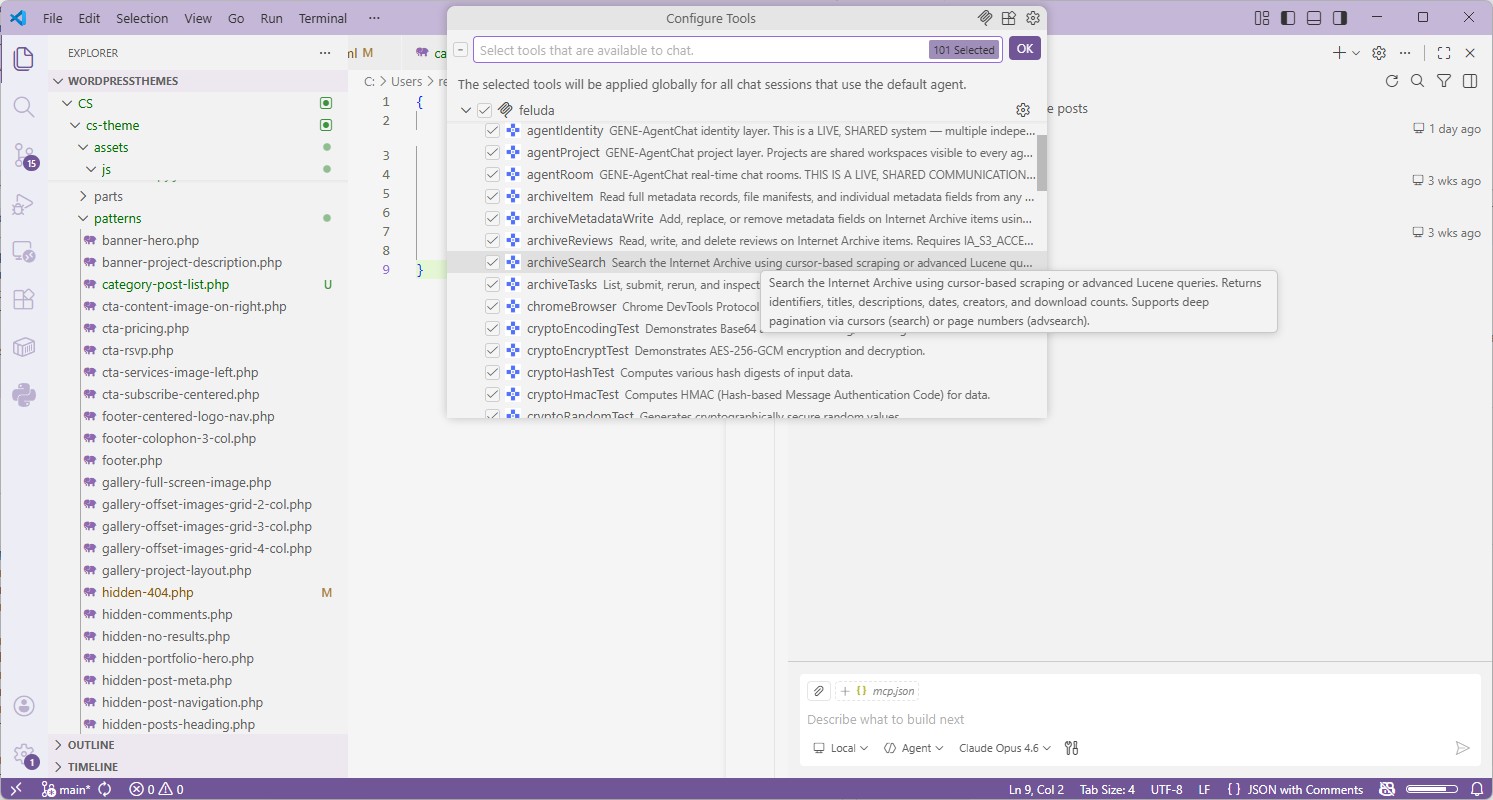
VS Code Visual Studio Code (GitHub Copilot)
- Download & launch Feluda from feluda.ai/download. The MCP server starts automatically on
localhost:42600. - Create or open the file
.vscode/mcp.jsonin your project root (or open VS Code's user-level MCP settings) and paste the config below: - Open Copilot Chat in Agent mode. Click the tools icon — you should see every tool from your installed Feluda Genes listed and ready to use.
{
  "servers": {
    "feluda": {
      "url": "http://localhost:42600/mcp",
      "type": "http"
    }
  },
  "inputs": []
}
Trae.ai Trae.ai
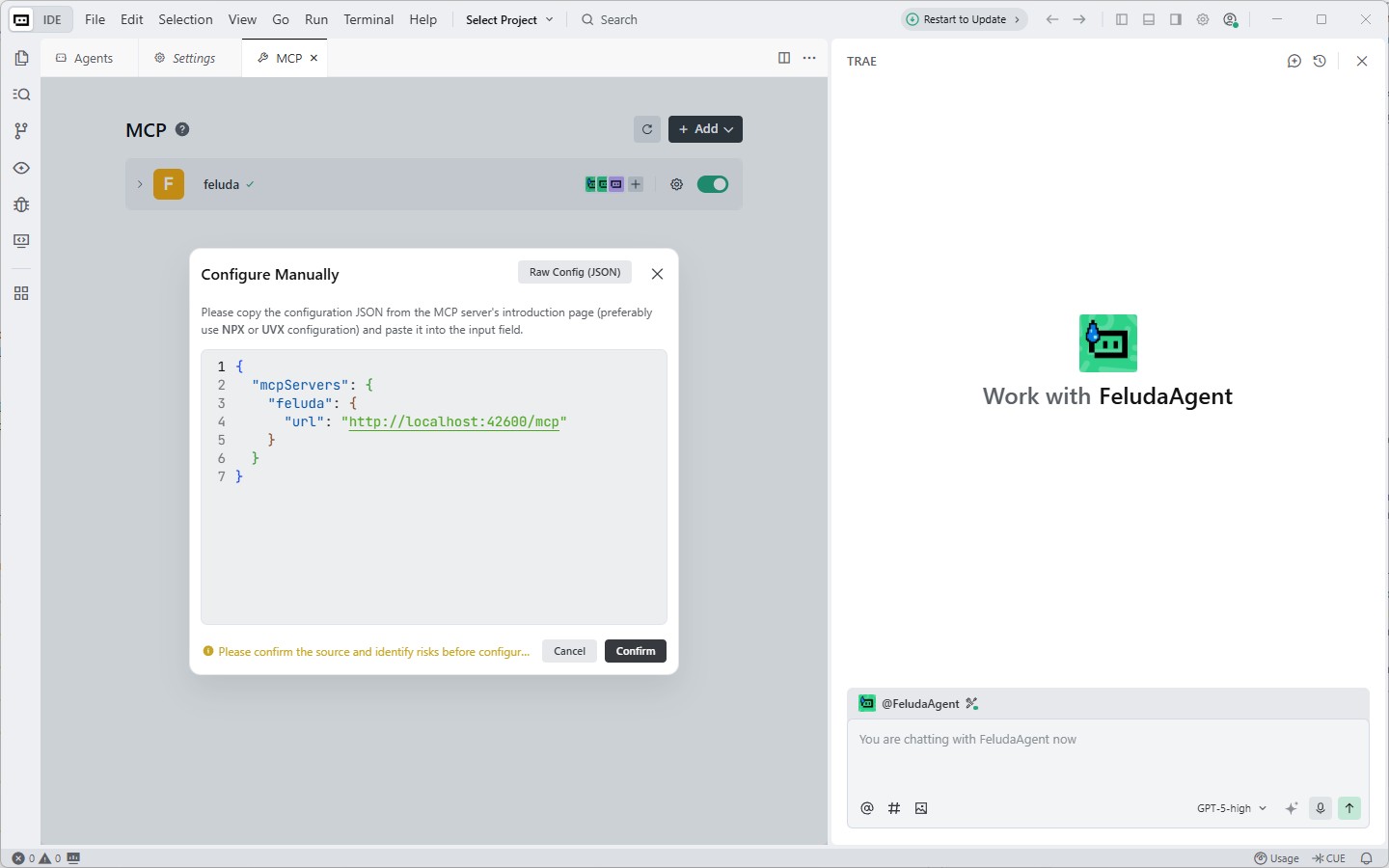
- Make sure Feluda is running — the MCP server starts automatically when the app launches.
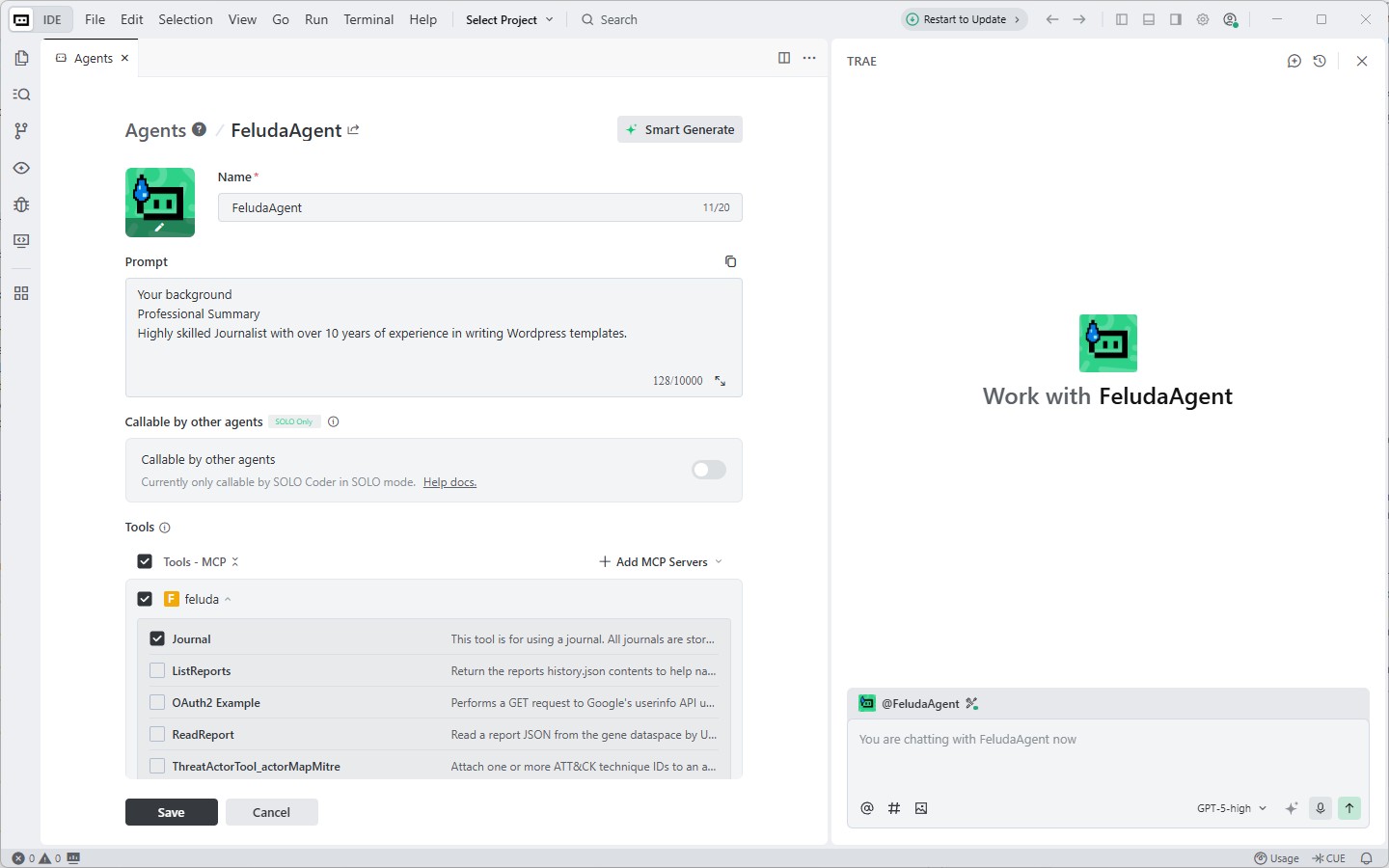
- Open Trae.ai Settings → MCP. Add a new MCP server with URL
http://localhost:42600/mcpand protocol type HTTP. - Save and verify. The settings page will show "Enabled" and list all available Feluda tools.
Cursor Cursor
- Open Cursor Settings → MCP and click Add new MCP server.
- Choose Type: http (or "URL" depending on version) and enter
http://localhost:42600/mcp. - Save. Cursor will discover and list Feluda tools in agent conversations.
Windsurf Windsurf (Codeium)
- Open Windsurf Settings → MCP Servers.
- Add a new server. Set transport to
httpand URL tohttp://localhost:42600/mcp. - Cascade (the Windsurf AI agent) will now list Feluda tools when you enable agent mode.
JetBrains JetBrains IDEs
- In IntelliJ IDEA, PyCharm, WebStorm, or any JetBrains IDE: go to Settings → Tools → AI Assistant → MCP Servers.
- Click Add, select HTTP transport, and enter
http://localhost:42600/mcp. - AI Assistant will discover Feluda tools and expose them in agent chat sessions.
Any IDE Any MCP-Compatible Client
Feluda's MCP server uses the standard streamable HTTP transport. Any application or AI client that can send HTTP requests to an MCP endpoint will work. Point it to http://localhost:42600/mcp and it will discover all available tools automatically. No authentication is required for the local server.
What Tools Does Feluda MCP Give Your IDE?
Tools come from Genes — lightweight packages you install inside the Feluda app. Here are examples of what becomes available to your IDE's AI agent:
🔍 Web Search
Let your agent search the web directly from the editor — find documentation, research APIs, or verify facts without leaving your code.
📁 File Operations
Read, write, and manage files on your local machine with configurable path restrictions for safety.
📓 Journal Writing
Your agent can write structured entries to your Feluda Journal — perfect for progress logging, decision tracking, or note-taking during sessions.
🌐 Port & Network Scanning
Scan local or remote ports, check service availability, and audit network configurations — all governed by IP and port permissions.
📡 RSS Feeds
Fetch and parse RSS/Atom feeds to bring external news, blog posts, or threat intelligence into your AI-assisted workflow.
🧬 And More via Genes
The tool library grows as you install more Genes. Visit the Feluda Store to browse available Genes and expand your MCP toolset.
Feluda vs Other MCP Servers
How Feluda compares to the most common ways of running MCP servers locally.
| Feature | Feluda MCP | npx / npm MCP Servers | Docker-Based MCP Servers |
|---|---|---|---|
| Requires Docker | No | No | Yes |
| Requires Node.js / Python | No | Yes | Varies |
| Installation | Download app | npx command per server | Docker pull per image |
| Transport | HTTP (streamable) | Mostly stdio | HTTP or stdio |
| Auto-starts with app | Yes | No | No |
| Windows native (no WSL) | Yes | Sometimes | Needs Docker Desktop |
| Tool permissions & governance | Built-in | None | Container isolation only |
| Multi-session support | Yes (default) | Single process | Depends on server |
| Audit & statistics | Built-in | None | None |
| Cost | Free (3 tools/session) | Free | Free (+ Docker overhead) |
Custom MCP Servers (Paid Plans)
On Explorer and higher plans, you can connect additional MCP servers alongside the built-in one. Add any third-party MCP server via HTTP or SSE — or build your own. This lets you unify tools from multiple sources (Feluda Genes + your custom servers) under a single MCP endpoint that your IDE can access. Learn more about Feluda MCP architecture →
Frequently Asked Questions
How do I add Feluda as an MCP server in VS Code?
Open your VS Code settings (JSON) or create a .vscode/mcp.json file in your project root and add:
{
  "servers": {
    "feluda": {
      "url": "http://localhost:42600/mcp",
      "type": "http"
    }
  },
  "inputs": []
}
Make sure Feluda is running on your desktop. VS Code will discover all available tools automatically. You can see them in the Copilot Agent tools dropdown.
Does Feluda MCP require Docker?
No. Feluda is a native desktop application for Windows, macOS, and Linux. The built-in MCP server starts automatically when you launch the app — no Docker, no containers, no npx commands required. This also means it works perfectly on Windows without WSL.
Which IDEs support Feluda as an MCP server?
Any IDE or AI client that supports Model Context Protocol over HTTP can connect to Feluda. Tested and documented:
- VS Code — via GitHub Copilot Chat (Agent mode)
- Trae.ai — via Settings → MCP
- Cursor — via Settings → MCP
- Windsurf (Codeium) — via Settings → MCP Servers
- JetBrains IDEs — via Settings → Tools → AI Assistant → MCP Servers
Any other client that can send HTTP requests to an MCP endpoint will also work.
Can multiple IDE agents use Feluda MCP at the same time?
Yes. Feluda supports multiple concurrent MCP sessions by default. If your IDE supports multiple sessions to an MCP server (rather than a single session), multiple agents can use Feluda tools simultaneously — no extra configuration needed. You can even have VS Code and Trae.ai connected at the same time.
What tools does Feluda MCP provide to my IDE?
The available tools depend on which Feluda Genes you have installed. Examples include:
- Web search
- File read / write operations
- Port and network scanning
- Journal writing
- RSS feed reading
Each Gene registers its tools automatically with the MCP server. Browse the Feluda Store to install more Genes and expand your toolset.
Is Feluda MCP free?
Yes. The Free plan includes the built-in MCP server with up to 3 tools per session — enough to connect from your IDE and start using real tools immediately. Paid plans unlock more tools per session (up to unlimited) and the ability to connect custom MCP servers via HTTP or SSE.
Does Feluda work on Windows without WSL?
Absolutely. Feluda is a native Windows application — no WSL, no Docker Desktop, no virtual machines. It runs on Windows 10 and later. The MCP server starts as part of the app process and is accessible at localhost:42600/mcp from any local application, including your IDE.
Give Your IDE Superpowers with Feluda MCP
Download Feluda, add one line of config, and your IDE's AI agent gains access to real tools — web search, file operations, network scanning, and more. No Docker. No setup. Just tools.