
Offline Matters When AI Has to Be Dependable, Not Just Convenient
Many AI products assume constant connectivity. They send prompts to a remote API, wait for a response, and become unusable the moment the connection drops. That is fine for casual experimentation, but it becomes a real operational problem when you are travelling, working in a secure environment, supporting field teams, or dealing with unstable networks.
Feluda gives you a different operating model. Because it runs on your own computer, you can use local AI models and keep multi-step workflows running without depending on a web service being reachable at the exact moment you need the result.
What You Need Before Going Offline
- Feluda installed locally — get the desktop application from the download page and install it on Windows, macOS, or Linux.
- A local model runner — install Ollama or LM Studio, which Feluda supports for local model execution.
- At least one model downloaded in advance — the model has to exist on your machine before you disconnect.
- Any optional packages already synced — if you plan to use purchased Genes or updates, fetch them before you go offline.
Once that setup is done, Feluda can continue operating locally. The important distinction is simple: installation, model download, and optional sync tasks may need connectivity first, but day-to-day local execution does not.
What Still Works Offline Inside Feluda
Studio
Studio is the visual flow builder described in the product docs. You can create blocks, connect paths, edit prompts, configure routing, and save flows locally without needing a browser session or cloud backend.
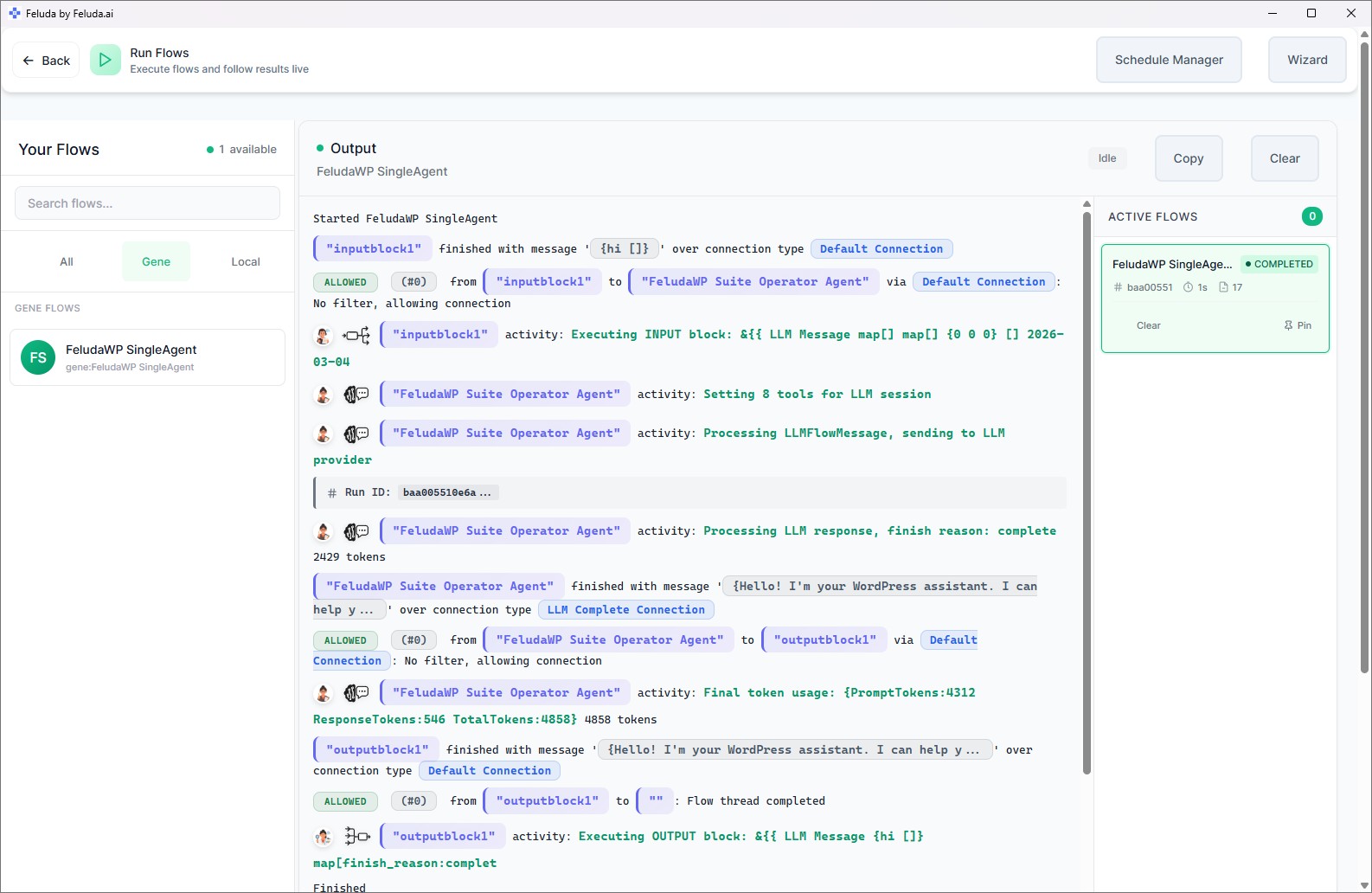
RunFlows
Saved workflows can execute locally in Feluda's desktop environment. LLM blocks that use local models, plus expression, combine, route, input, output, and extraction logic, continue to run on your own machine.
Schedule Manager
The built-in scheduler is part of the desktop application. If your flow is local-model based, you can still run it automatically on a cadence without depending on internet access.
Local Tools And Journal Writes
Local MCP-style tools such as file operations, local commands, and journaling can keep working offline. What matters is whether the tool itself depends on a remote endpoint, not whether Feluda is open.
Non-AI Logic Blocks
Expression, combine, and routing blocks operate as local workflow logic. They are useful offline because they let you validate, transform, branch, and recover from errors without adding any network dependency at all.
Local Secrets Storage
Feluda stores secrets in the operating system vault, including Windows Credential Manager, macOS Keychain, and Linux Secret Service. Credentials are kept locally rather than looked up from a hosted control plane.
What Breaks When A Workflow Depends On The Network
Offline does not mean every possible step can run without connectivity. It means Feluda can operate locally when the workflow itself is built from local components.
- Cloud AI providers — blocks configured for OpenAI, Anthropic, or another hosted provider still need that provider to be reachable. For disconnected use, switch those blocks to a local model.
- Remote-data tools — web search, external API calls, and anything else that fetches outside data will fail if the workflow expects live internet access.
- Downloading Genes or updates — new packages and application updates must be fetched while connected. Previously downloaded items remain available.
- Manual synchronization — Feluda does not auto-sync, but if you want to pull purchased items from your account, that manual sync step needs a network connection.
How To Design A Workflow That Survives Going Offline
Choose Local Models For AI Steps
Use local AI models in workflows for the parts that must keep operating when connectivity disappears.
Prefer Local Inputs And Outputs
Keep files, prompts, notes, and outputs on the machine. Avoid live dependencies on SaaS APIs unless the workflow has a fallback path.
Route Around Failures
Feluda supports multi-step flow design, so you can build workflows that send failures down a different path instead of simply stopping.
Test It While Disconnected
Before relying on it in the field, disable Wi-Fi and run the flow in RunFlows. You will immediately see which blocks are truly local and which ones still expect the internet.
Frequently Asked Questions
Can Feluda really run AI workflows fully offline?
Yes, if the workflow uses local components. Install Feluda, configure a local model through Ollama or LM Studio, download the model before disconnecting, and then build or run the flow locally. That is different from a cloud AI tool that stops being useful as soon as the connection drops.
Does the scheduler still work offline?
Yes. The Schedule Manager is part of the desktop application, so it does not need internet by itself. What matters is whether the scheduled workflow calls local models and local tools, or whether it relies on remote providers and live online data.
Can one workflow mix offline and online steps?
Yes. Feluda is provider-agnostic, so one block can use a local model and another can use a cloud provider. That makes it possible to design hybrid flows, but only the local parts will keep working when the internet is unavailable. Mixing providers is supported; disconnected execution still depends on what each step needs.
What happens if the internet drops mid-run?
Local-model steps continue. Cloud-model or remote-tool steps can fail at that point, which is why offline-ready workflows should either avoid those steps entirely or route failures to a local fallback. Feluda's multi-step design makes that kind of recovery path practical.
Build Workflows That Do Not Depend On Perfect Connectivity
Download Feluda, connect a local model, and build AI workflows that can keep operating when the network is slow, restricted, or completely unavailable.