
What Is Local AI?
Local AI means running artificial intelligence models directly on your own computer — instead of sending data to a remote cloud service. When you run AI locally, your documents, conversations, and queries stay on your machine. You decide which models to use, how they process your data, and where the results go.
Until recently, running AI locally required command-line tools and programming skills. Feluda changes that. It gives you a visual, no-code interface to build and run local AI workflows — multi-step automations that classify text, extract data, generate content, and call real tools — all powered by models running on your own hardware.
Why Run AI Locally?
There are compelling reasons to keep AI on your own machine instead of relying on cloud services.
Sensitive documents, customer data, and confidential information never leave your machine. There is no third-party server involved.
Local AI models run without an internet connection. No outage, no rate limit, no VPN required. Your AI is always available.
Cloud AI services charge per request or per token. A local model on your hardware costs nothing to run — call it as many times as you need.
Local inference avoids network round-trips. Responses can be faster, especially for smaller models running on capable hardware.
You choose the model, the version, and the configuration. No surprise updates, no vendor lock-in, no content filtering you did not ask for.
For organisations subject to GDPR, HIPAA, or other data-residency rules, local AI keeps processing inside your controlled environment.
How Feluda Makes Local AI Easy
Model runners like Ollama and LM Studio let you download and serve AI models locally. Feluda connects to those runners — and gives you a complete platform to actually use local AI productively.
Install a local model runner
Download Ollama or LM Studio and pull a model (Llama 3, Mistral, Phi, Gemma, etc.).
Connect it to Feluda
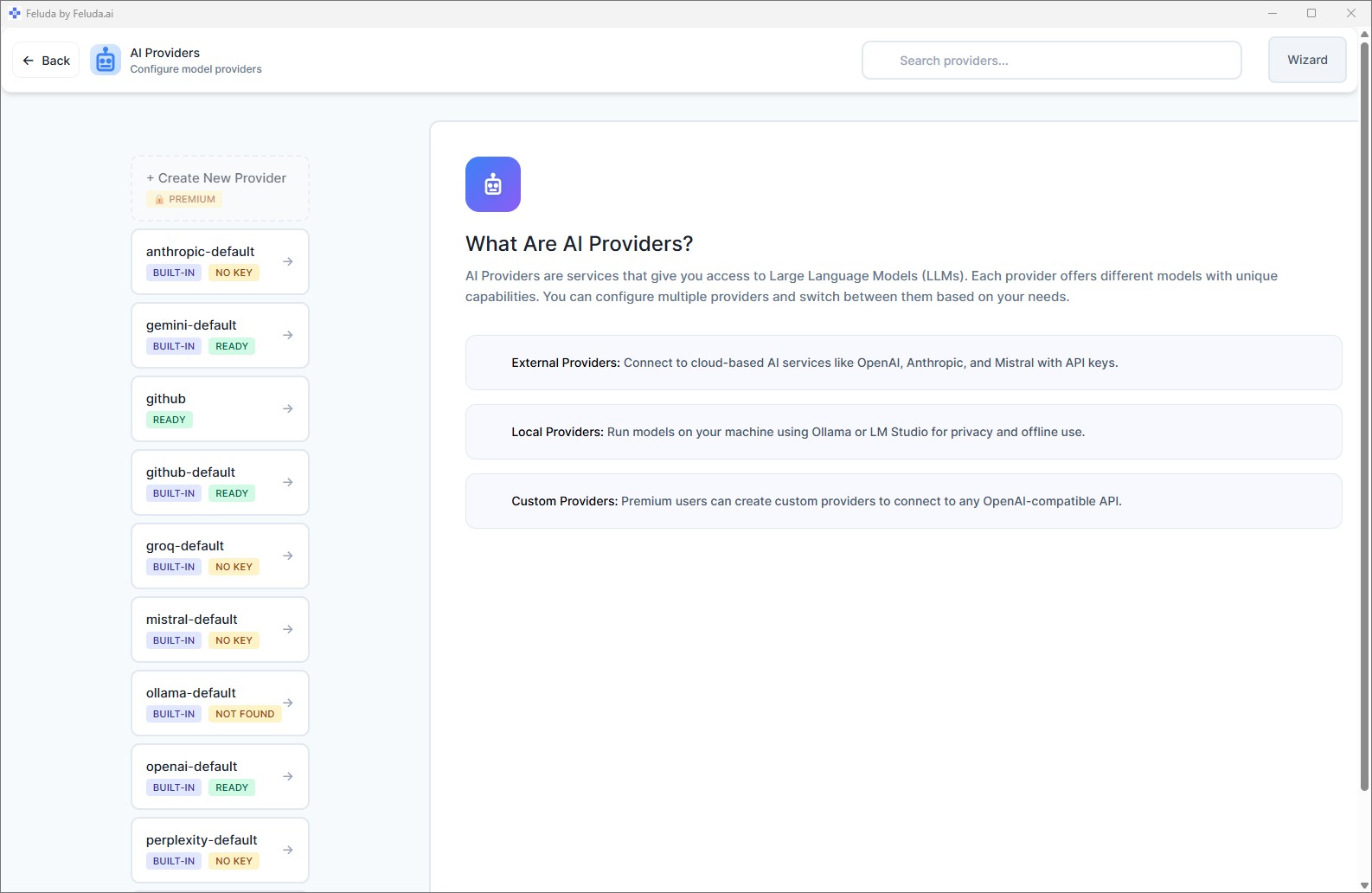
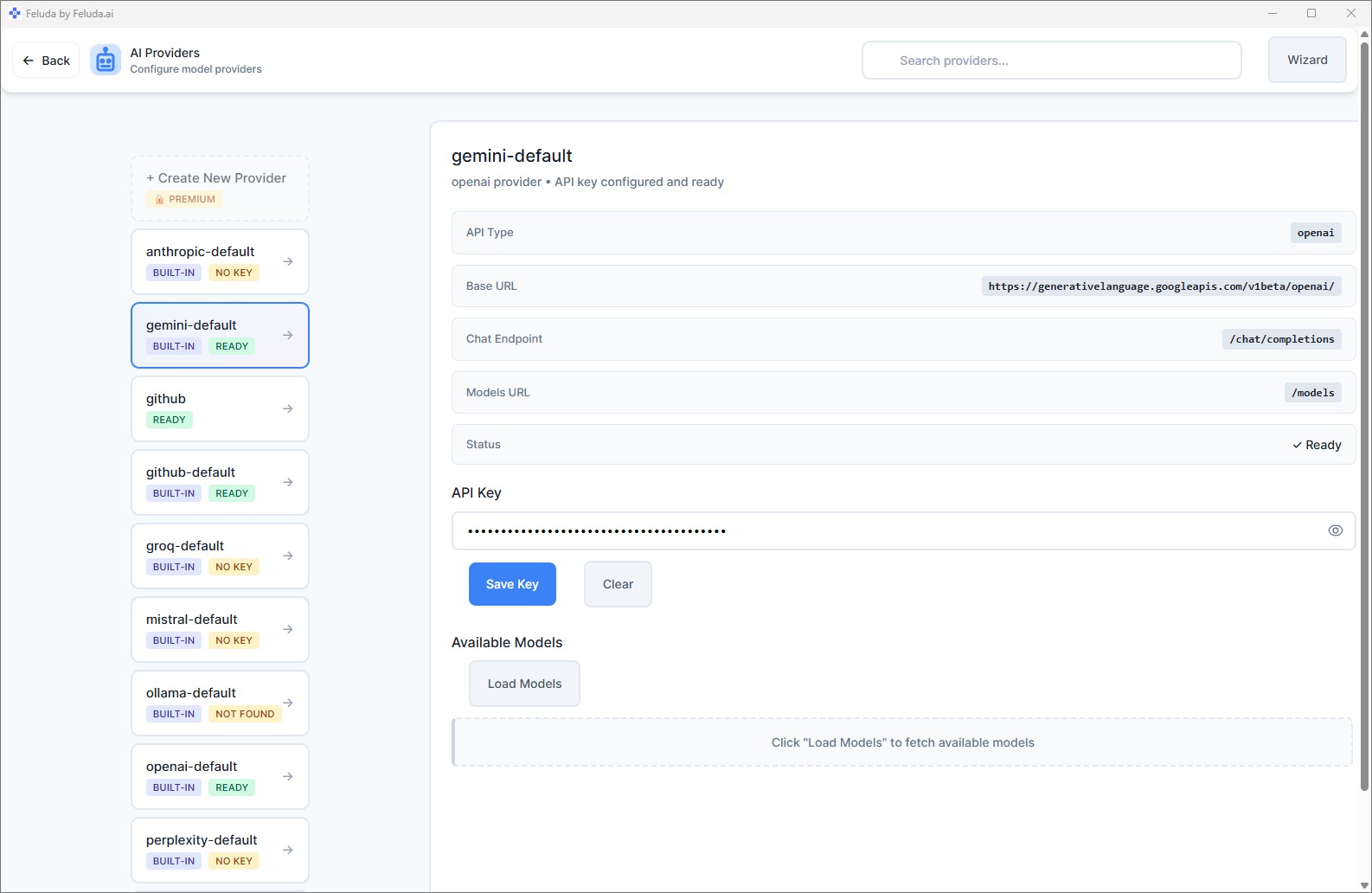
Open AI Providers in Feluda, add your local endpoint (e.g. http://localhost:11434). No API key needed.
Build local AI workflows
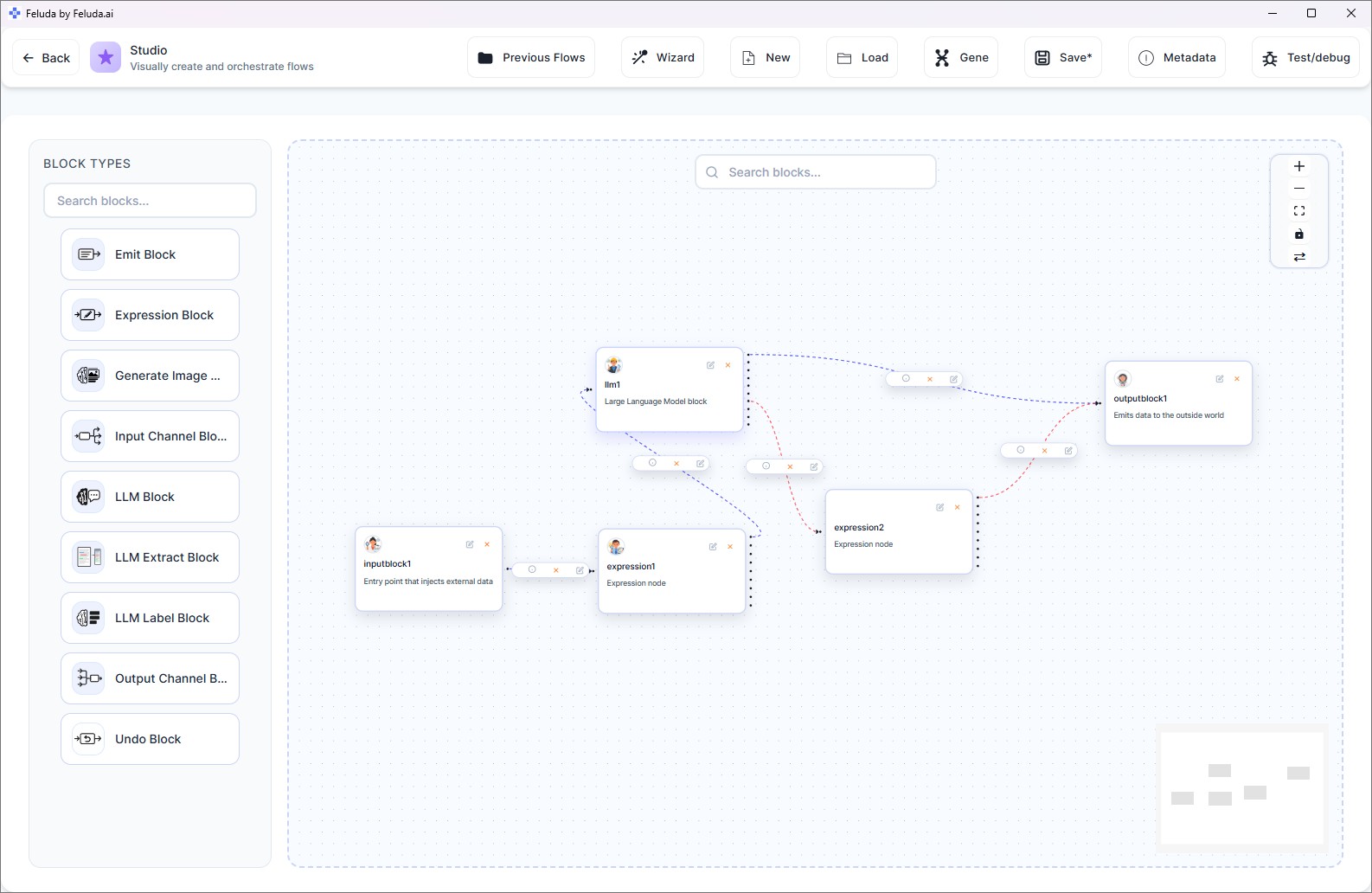
Open Studio, drag blocks onto the canvas, select your local model, and connect the steps. Save and run.
Run — completely offline
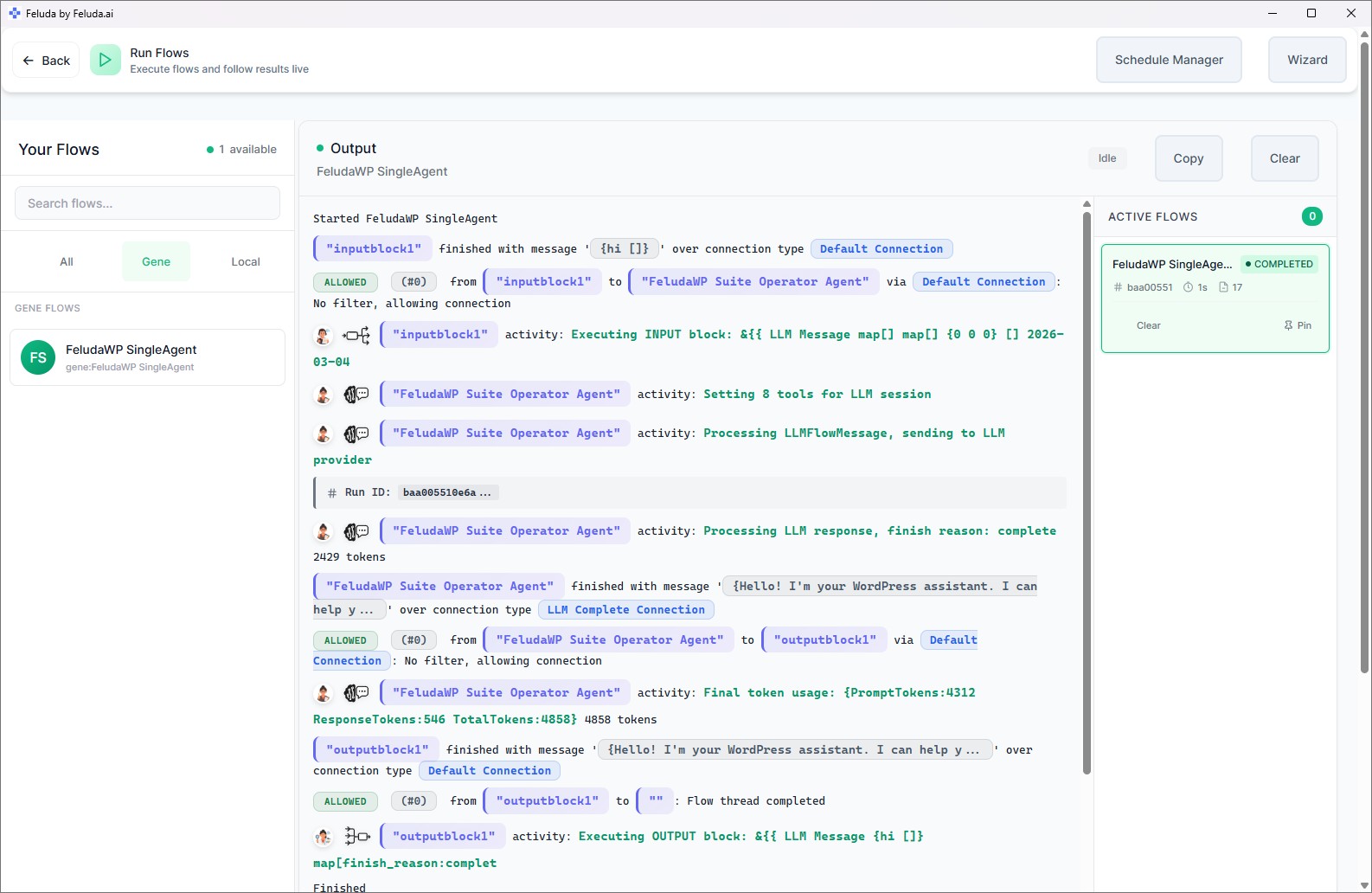
Execute your workflow. Every AI inference happens on your machine. No internet, no cloud, no data leakage.
What You Can Do with Local AI in Feluda
Feluda is not just a chat interface. It turns local AI into a full automation platform with visual workflow building, scheduling, tool use, and more.
Visual Workflow Builder
Design multi-step AI pipelines in Studio. Drag blocks, connect them, and build complex automations — classification, extraction, generation, routing — without writing a line of code.
Chat with Local Models
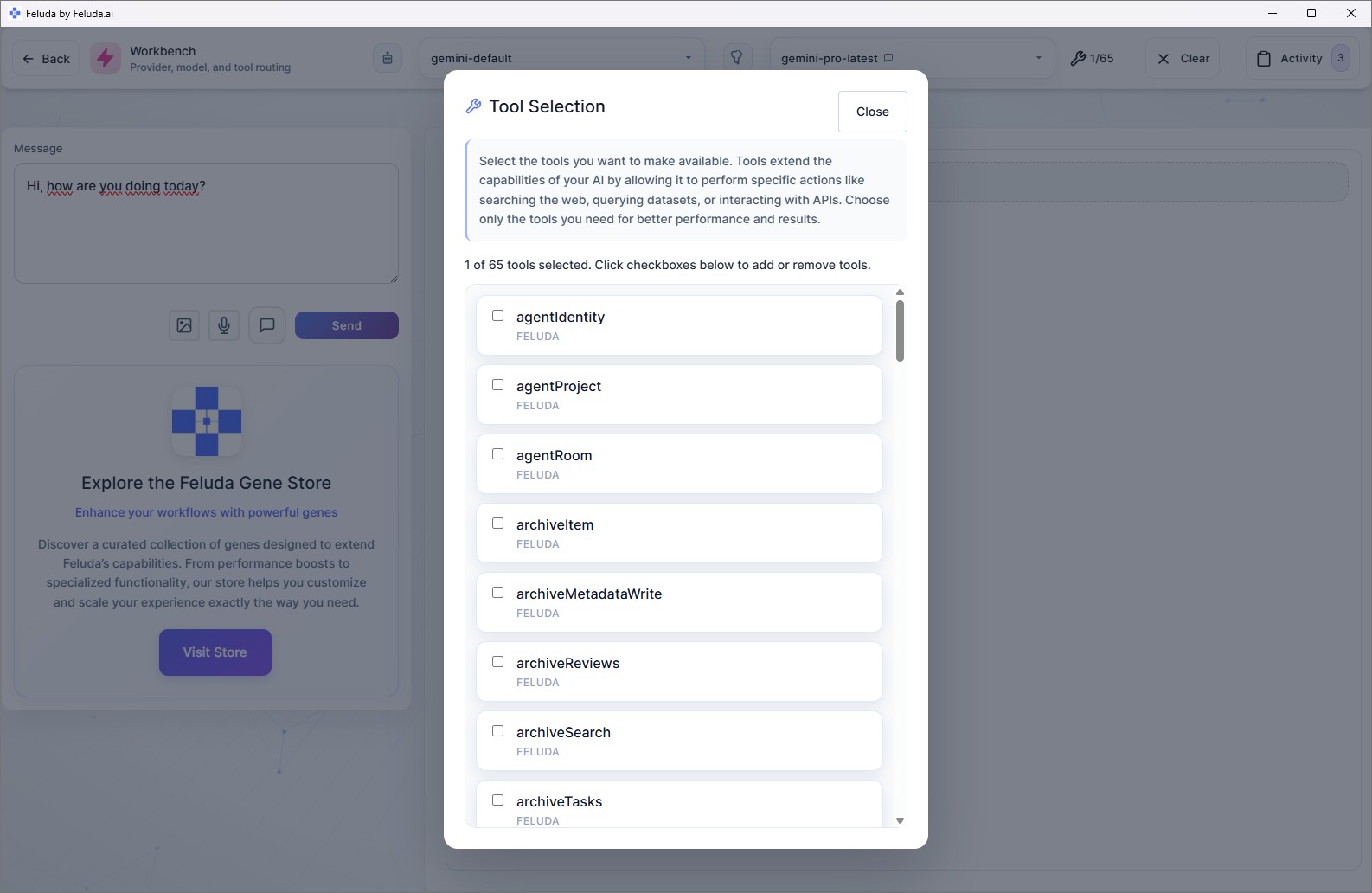
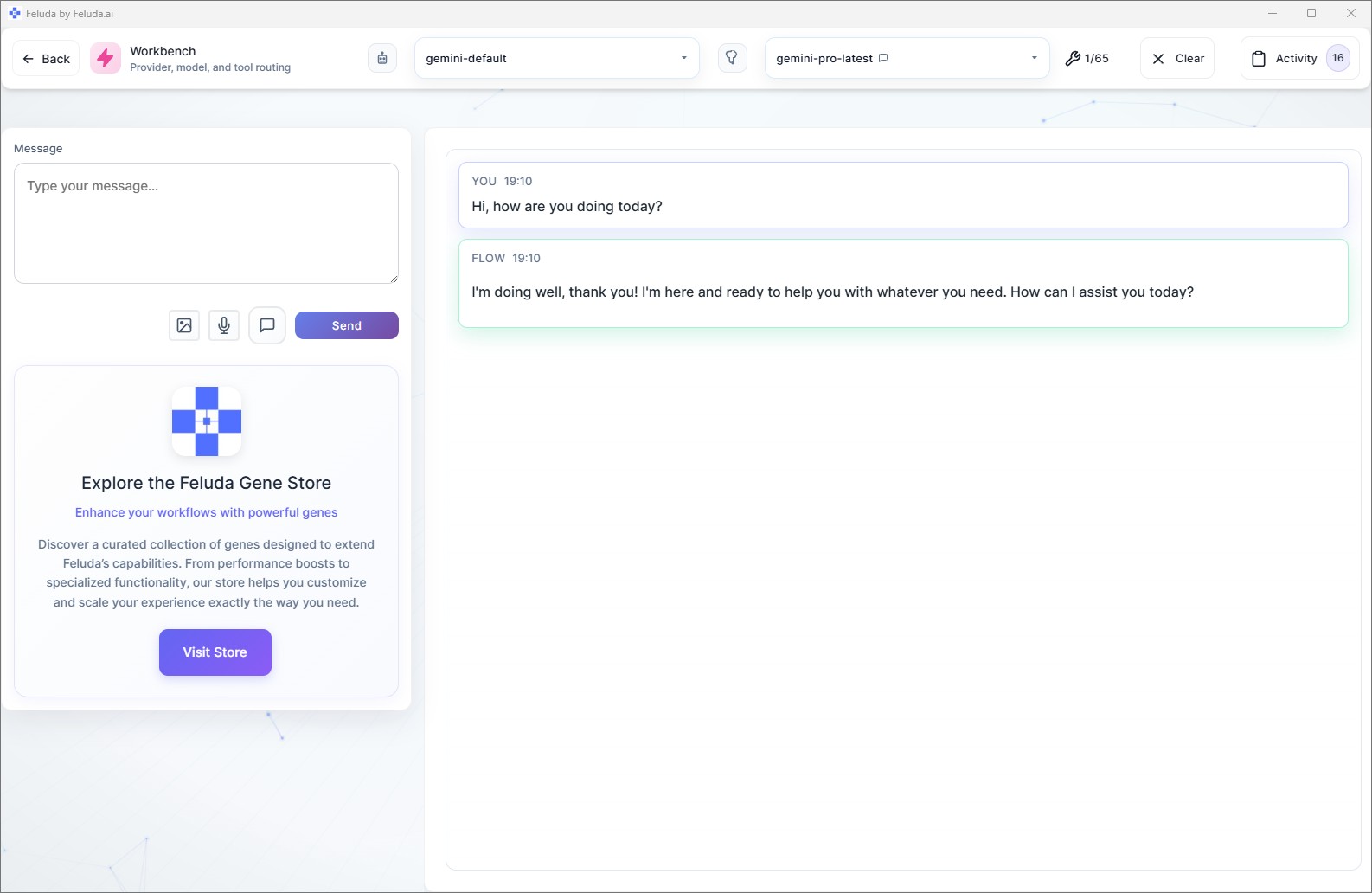
The Workbench gives you an interactive chat session with any local model. Enable tools so the AI can search the web, read files, write to your journal, and more.
Tool-Augmented Local AI
Local models in Feluda are not limited to text generation. They can call real tools — web search, file system access, port scanning, database queries — during workflow execution.
Schedule Local AI Workflows
Set any local AI workflow to run automatically on a schedule — daily reports, nightly data processing, weekly checks — all executed locally and logged to the Journal.
Error Handling & Fallbacks
If a local model fails, route the error to a cloud provider as a fallback — or to a different local model. Configure it visually with typed error connections.
PII Detection & Redaction
Built-in Expression Blocks detect and redact personally identifiable information (names, emails, credit cards, IBANs) before data reaches any model — local or cloud.
Supported Local AI Providers
Feluda connects to any local provider that exposes an OpenAI-compatible API. The most popular options are:
Popular models you can run locally:
Local AI + Cloud AI — Best of Both Worlds
Going fully local is great for privacy, but sometimes a cloud model is better for a specific task. Feluda lets you mix and match. Use a local model for sensitive processing and a cloud model for tasks where quality or speed matters more.
| Local AI (Ollama, LM Studio) | Cloud AI (OpenAI, Anthropic) | |
|---|---|---|
| Privacy | Data stays on your machine | Data sent to provider's servers |
| Cost | Free after hardware | Per-token or per-request pricing |
| Internet | Works offline | Requires connection |
| Model quality | Good — improving rapidly | State-of-the-art on many benchmarks |
| Speed | Depends on your hardware | Optimised infrastructure |
| In Feluda | Fully supported as a provider | Fully supported as a provider |
In a single Feluda workflow, you can use different providers for different blocks. For example: classify emails with a fast local model, then send only the flagged ones to a cloud model for deeper analysis.
Use Cases for Local AI
Here are real-world scenarios where running AI locally with Feluda makes a difference.
Process patient notes, lab results, and clinical summaries with local AI — no data leaves the hospital network.
Classify, extract, and summarise legal documents using local models. Maintain attorney-client privilege by keeping everything on-premise.
Enrich indicators, scan ports, and automate threat reports — entirely offline. No sensitive IOCs touch the public internet.
Automate report generation, email triage, and data extraction without exposing internal documents to external servers.
Compare models side by side, test prompts, and iterate on workflows — all for zero cost beyond your own hardware.
Meet data-residency and sovereignty requirements by keeping AI inference inside your controlled infrastructure.
Local AI Chat — The Workbench
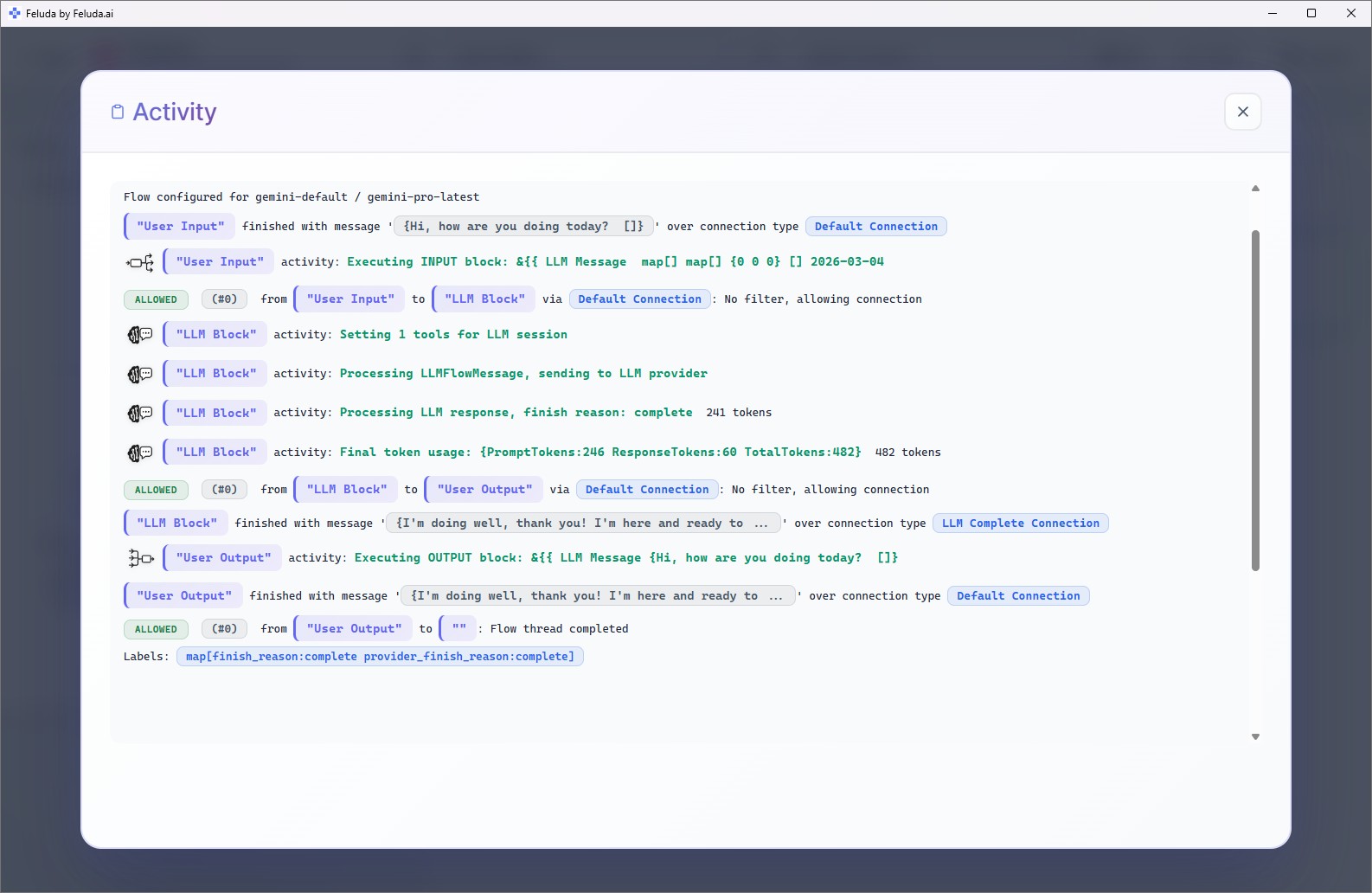
Not everything needs a pipeline. Sometimes you just want to chat with a local model. The Workbench gives you a full-featured chat environment connected to your local AI — with the ability to use real tools during the conversation.
How Is Feluda Different from Other Local AI Tools?
There are several tools for running AI locally. Feluda fills a unique gap in the ecosystem.
| Feature | Ollama / LM Studio | n8n / Make / Zapier | Feluda |
|---|---|---|---|
| Runs on your desktop | Yes | Cloud-hosted | Yes |
| Visual workflow builder | No | Yes | Yes |
| Multi-step AI pipelines | No | Limited AI support | Yes — AI-first |
| Tool-augmented AI | No | Via integrations | Built-in — MCP-based tools |
| Works offline | Yes | No | Yes |
| Supports local + cloud models | Local only | Cloud only | Both |
| No-code | Requires CLI | Yes | Yes |
| Free plan | Free | Limited free tier | Full-featured free plan |
In short: Ollama and LM Studio are model runners — they serve models. Feluda is the platform that puts those models to work in real, multi-step, tool-augmented workflows.
Available on Every Desktop Platform
Feluda runs natively on Windows, Linux, and macOS. Download it and start running local AI in minutes.
Windows
Windows 10 or later. Installer or portable executable.
Linux
AppImage, .deb, .rpm, or standalone binary.
macOS
Apple Silicon, Intel, or universal binary.
Frequently Asked Questions about Local AI
What is local AI?
Local AI means running artificial intelligence models directly on your own computer instead of sending data to a cloud service. Your data stays private, you control which models run, and you can even work completely offline.
Can I run AI without an internet connection?
Yes. Feluda works fully offline when paired with a local model runner like Ollama or LM Studio. Your data never leaves your machine and no cloud account is required to get started.
Which local AI models does Feluda support?
Feluda supports any model available through Ollama, LM Studio, or any OpenAI-compatible local API endpoint. Popular choices include Llama 3, Mistral, Mixtral, Phi, Gemma, DeepSeek, Qwen, and CodeLlama.
Do I need to write code to use local AI with Feluda?
No. Feluda provides a visual drag-and-drop flow builder called Studio. You design AI workflows by connecting blocks on a canvas — no programming required.
Is Feluda free?
Yes. The free plan gives you full access to the visual flow builder (Studio), the AI chat environment (Workbench), flow execution (RunFlows), the Journal, and the built-in MCP server. Paid plans unlock more tools per session and custom provider support.
How is Feluda different from Ollama or LM Studio?
Ollama and LM Studio are model runners — they download and serve AI models on your machine. Feluda is a workflow platform that connects to those runners (and cloud providers) to let you build multi-step, tool-augmented AI automations visually. You can use Ollama or LM Studio as a local provider inside Feluda.
What hardware do I need to run local AI?
It depends on the model. Small models (Phi, Gemma 2B) run well on most modern laptops. Larger models (Llama 3 70B, Mixtral) benefit from a GPU with 16+ GB VRAM. Feluda itself is lightweight — the hardware requirements come from the AI model you choose to run.
Can I mix local and cloud AI in one workflow?
Absolutely. In a single Feluda workflow, different blocks can use different providers. For example, classify documents with a local model for privacy, then summarise with a cloud model for quality — all in the same pipeline.
Ready to run AI on your own machine? Download Feluda for free and start building local AI workflows in minutes.