
Why "Automatic" Changes Everything
Most people use AI manually. They type a prompt, get a response, and move on. If they want to run the same process tomorrow, they do it again by hand. This works for one-off tasks, but it fails for anything that needs to happen regularly.
AI workflows that run automatically are different. You build the workflow once, set a schedule, and it executes on its own — every hour, every day, every Monday at 9 AM. Results appear in the Output — or in a journal if the AI uses the journal tool to write them down. You review them when you are ready. The AI works while you focus on something else.
How the Schedule Manager Works
- Build your workflow in Studio — place blocks, draw connections, configure AI instructions, add tools and error handling.
- Save the workflow as a file. It is now reusable.
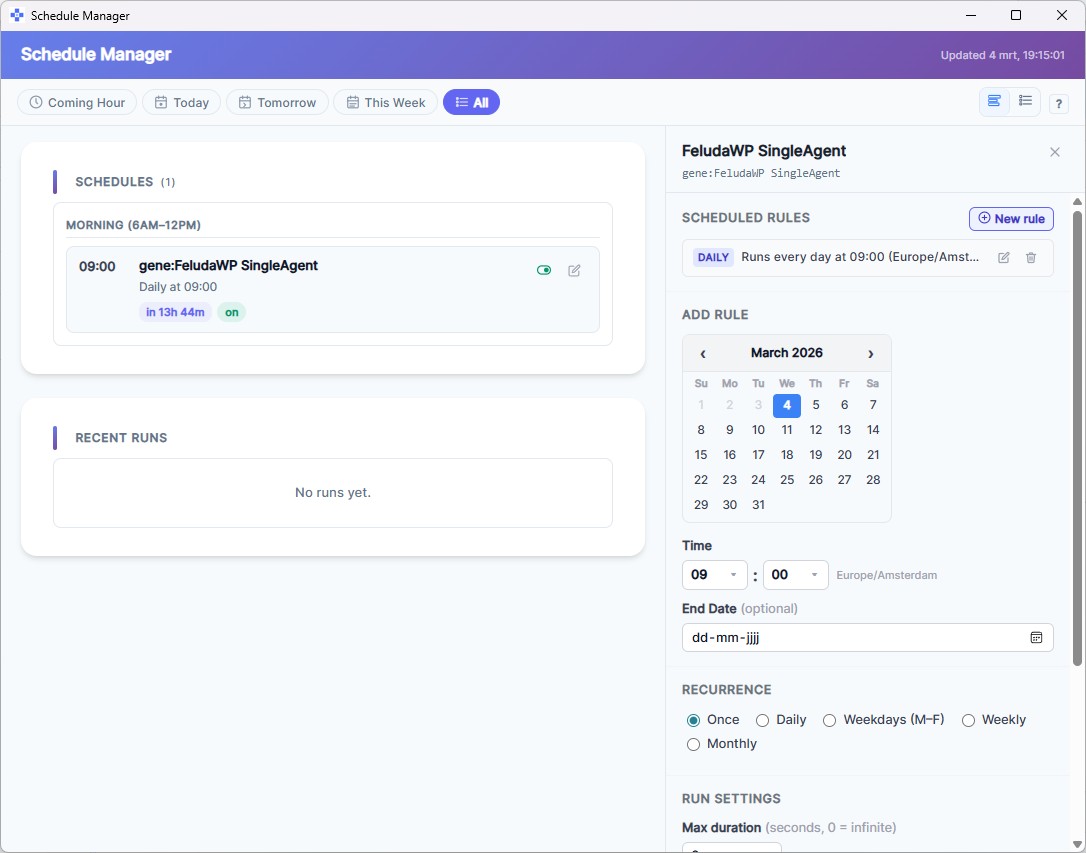
- Open the Schedule Manager and select your saved workflow.
- Set the schedule — choose a cadence (hourly, daily, weekly) or a specific date and time.
- Activate the schedule. As long as Feluda is running on your desktop, the workflow executes automatically at the times you set.
No cloud service is involved. No server to maintain. No cron syntax to learn. The Schedule Manager is a visual interface built into the Feluda desktop app.
What Makes This Different
Desktop-Native
No cloud subscriptions. No hosted services. The schedule runs on your machine. Your data stays local unless you explicitly call a cloud AI provider.
Full Visibility
Enable the journal tool and the AI writes down what it does as it works — findings, decisions, results. Browse the Journal page afterwards to see exactly what happened. Nothing in a black box.
Error Recovery Built In
Automatic workflows include the same error routing as manual runs. If a provider rate-limits, the workflow fails over to an alternative. If a tool times out, the error route activates. No silent failures.
Any Workflow, Any Schedule
Any workflow you build in Studio can be scheduled — research pipelines, analysis workflows, report generation, monitoring tasks. If you can build it, you can schedule it.
Automatic Workflow Scenarios
Daily Briefing Generation
Schedule a workflow that gathers information from web sources (via MCP tools), summarises the key points, and writes a morning briefing to a journal. It runs at 6 AM every day — your briefing is ready when you start work.
Weekly Report Compilation
Build a workflow that extracts data from multiple documents, classifies findings by theme, and generates a structured weekly report. Schedule it for Friday at 5 PM. The report compiles itself while you wrap up for the week.
Hourly Threat Monitoring
A security workflow that checks vulnerability feeds, extracts indicators of compromise, classifies severity, and writes alerts to a journal. Runs every hour. Your security posture stays current without manual checking.
Scheduled Content Analysis
Analyse incoming customer feedback daily. Classify sentiment, extract feature requests, and generate trend summaries. The AI writes them to a journal — review weekly to spot patterns without reading individual messages.
Frequently Asked Questions
How can I build AI workflows that run automatically?
Build your workflow in Feluda Studio, save it, and open the Schedule Manager. Set the cadence (hourly, daily, weekly) and activate. The workflow runs automatically as long as Feluda is open on your desktop.
Do I need a cloud service for automatic scheduling?
No. The Schedule Manager runs entirely on your desktop. No cloud subscription, no external server. As long as the Feluda app is running, your schedules execute on time.
Can I see what happened during an automatic run?
Yes. Enable the journal tool and the AI writes entries as it works — what it found, what it decided, what it produced. Browse the Journal page after the run to review everything.
What happens if the Feluda app is closed when a schedule triggers?
The scheduled run will not execute while the app is closed. When you reopen Feluda, pending schedules will be evaluated based on their configured cadence. For critical workflows, keep the app running.
Set It. Schedule It. Forget It.
Download Feluda for free. Build an AI workflow and let it run itself.