
Why Building AI Pipelines Still Feels Hard
You know what you want your AI pipeline to do: take data in, process it through multiple AI steps, and deliver a structured result. But every tool you find expects you to write Python, manage dependencies, or wrestle with YAML configuration files. If you are a business analyst, a researcher, a content creator, or anyone without a programming background, the barrier to entry is unreasonably high.
What if you could build AI pipelines the same way you draw a flowchart — by placing boxes on a canvas and connecting them with lines? That is exactly what Feluda does.
Feluda Studio: A Visual Canvas for AI Pipelines
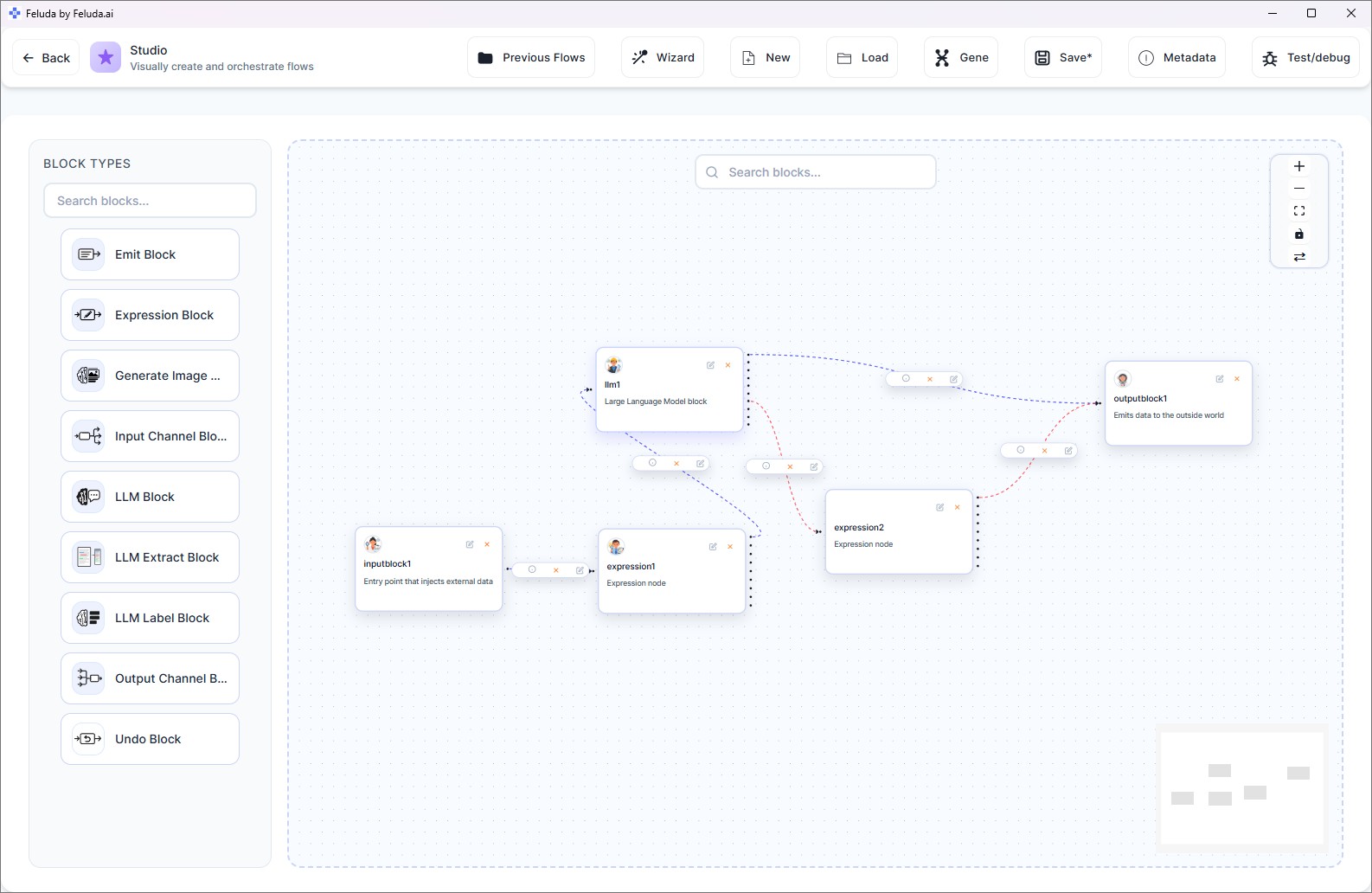
Feluda Studio is a visual AI pipeline builder inside the Feluda desktop application. You open a blank canvas, drag blocks from a palette, connect them with lines, and configure each block through simple forms. No terminal. No script files. No framework to install.
Every block represents a step in your AI pipeline. Every connection represents the path your data takes. The result is a complete, executable pipeline that you can run with a single click — or schedule to run automatically.
Every Block You Need to Build AI Pipelines Visually
Feluda provides a purpose-built block for every common AI pipeline step. Each block is configured through forms — you fill in fields, select options, and your pipeline logic is defined.
Input & Output
Define where data enters and exits your pipeline. A pipeline can have multiple outputs for different result paths — for example, one output for successful results and another for flagged items.
LLM Block — AI Reasoning
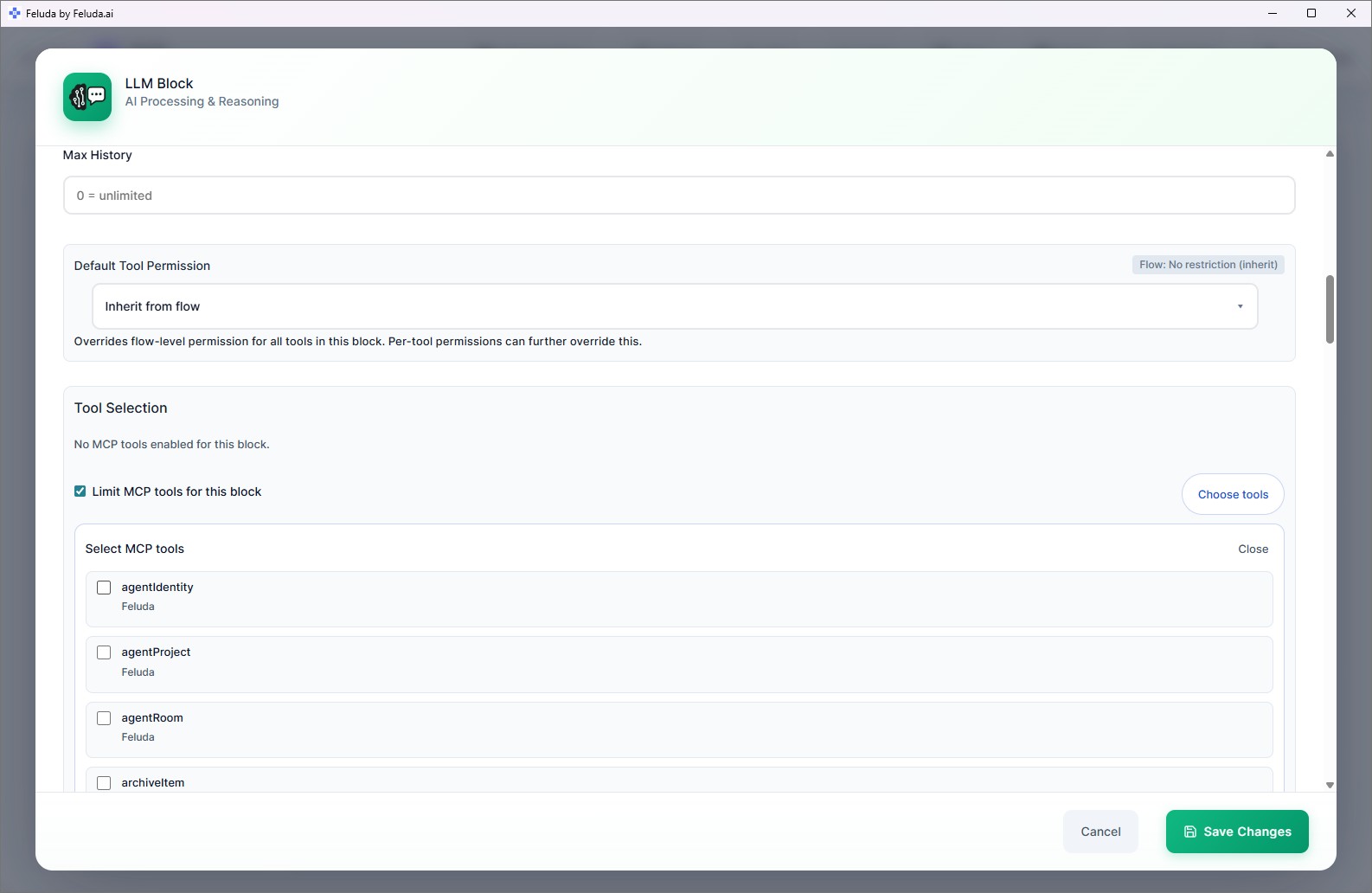
The core AI step. Send data to any language model — GPT-4, Claude, Mistral, or a local model — with custom instructions and optional tool access. The AI reasons, generates, or transforms the data.
LLM Label — Classify and Route
The AI reads incoming data and assigns a label from categories you define. Each label creates a separate output path, so your pipeline can branch based on AI judgement.
LLM Extract — Structured Data
Define extraction schemas — "Person" with name and role, "Amount" with value and currency — and the AI pulls structured data from unstructured text. Output is clean and ready for downstream processing.
Expression — Logic Without AI
For steps that need deterministic logic: conditional routing, text manipulation, PII detection and redaction, or direct tool calls. Fast, predictable, and no AI cost involved.
Generate Image
Create images from text descriptions using DALL-E or other image generation models. Useful in content pipelines where every piece needs an accompanying visual.
Visual Connections That Handle Errors Automatically
In most AI tools, when something goes wrong — a rate limit, a timeout, a content filter — the process simply stops. In Feluda, every connection between blocks carries type information. You can see and control which kinds of messages travel through each line.
If an AI call hits a rate limit, you draw a connection from the "Rate Limit" output to a backup block that uses a different provider. If a tool call fails, you route to a retry step. If content is filtered, you send it to a human review path. All of this is visible on the canvas — no code, no exception handling, just visual connections.
This makes your AI pipelines resilient by design. Errors do not crash the pipeline; they become just another path on the canvas.
How to Build Your First Visual AI Pipeline
Download Feluda
Download the free desktop app for Windows, macOS, or Linux. No account needed for the free plan.
Add an AI Provider
Enter your API key for OpenAI, Anthropic, or Mistral — or connect a local model for complete privacy.
Open Studio
Open Studio, drag blocks onto the canvas, draw connections, and configure each step through forms.
Run Your Pipeline
Click run and watch results appear in real time. Save the pipeline to reuse it, or schedule it to run automatically.
Frequently Asked Questions
Is there a tool that lets me build AI pipelines visually?
Yes. Feluda Studio is a visual drag-and-drop canvas where you build AI pipelines by placing blocks and connecting them. Block types include AI reasoning, classification, data extraction, image generation, and logic — all configured through forms, no code required.
What blocks are available for building AI pipelines?
Feluda provides Input, Output, LLM (AI reasoning), LLM Label (classification and routing), LLM Extract (structured data extraction), Expression (logic and scripting), Generate Image, Emit (intermediate output), and Undo (rollback) blocks.
Do I need programming skills?
No. Everything is visual. You drag blocks, draw connections, and fill in configuration forms. No programming language, terminal, or framework is needed.
Can I use different AI providers in the same pipeline?
Yes. Each AI block can use a different provider — OpenAI, Anthropic, Mistral, or a local model. Mix a fast model for classification with a powerful model for complex reasoning in the same pipeline.
Can I save and reuse my pipelines?
Yes. Pipelines are saved as files that you can reload any time. You can also package them inside a Gene (a portable capability bundle) to share with teammates or use across machines.
Start Building AI Pipelines Visually
Download Feluda for free. Open Studio. Drag your first block. Your visual AI pipeline is minutes away.