
What Is a Gene?
A Gene is Feluda's plugin packaging system — think of it like an app in an app store. Each Gene bundles everything needed for a specific capability into one installable unit:
| Component | What It Provides |
|---|---|
| Tools | Functions the AI can call — web search, file reading, data transformation, etc. |
| Prompts | Pre-written instruction templates for specific tasks |
| Resources | Data files, documents, and reference material |
| Flows | Ready-made workflows you can run instantly or customize in Studio |
| Settings | Configurable parameters for the Gene's behavior |
| Secrets | Credential placeholders (fill in actual values on the Secrets page) |
Feluda ships with a built-in set of tools. Genes expand those capabilities — when you sync a Gene, its tools, flows, and prompts appear everywhere in the app.
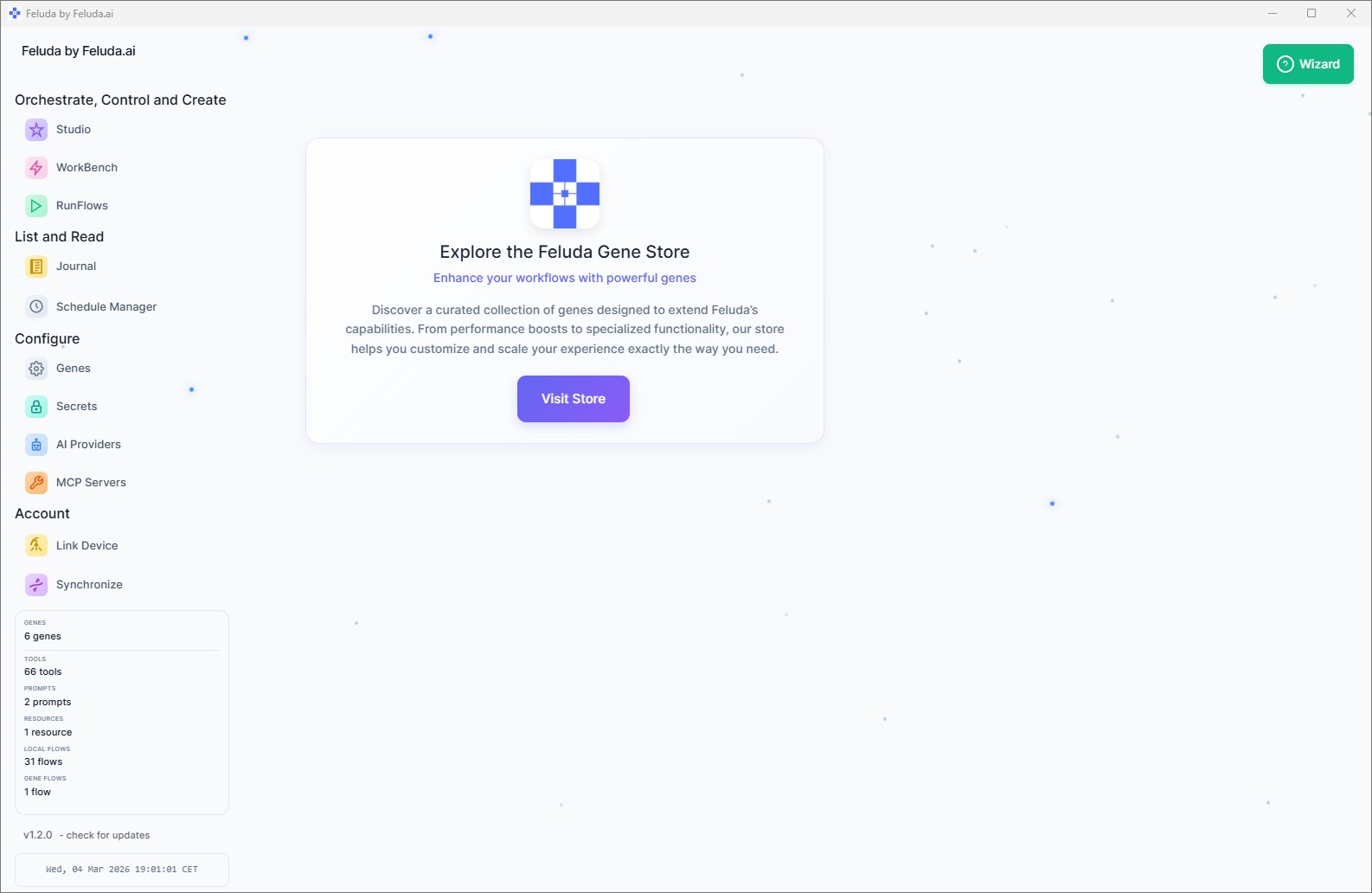
Step 1 — Link Your Device
Open Link Device
From the Dashboard sidebar, click Link Device. This connects your local Feluda installation to your feluda.ai account.
Confirm the link
A dialog confirms whether the linking succeeded. Once linked, Feluda knows which account and plan you're on. You only need to link once per device.
Linking requires an internet connection. If you are working offline, you can still use Feluda with its built-in capabilities — just sync when you are back online.
Step 2 — Synchronize
Open the Synchronize page
Click Synchronize in the sidebar.
Press Sync
Click the Sync button. Feluda contacts the server and downloads your purchased Genes — including their tools, prompts, resources, and flows.
Wait for completion
A progress indicator shows the sync status. Once complete, the new Genes appear throughout Feluda — in RunFlows, Studio, Workbench, and Gene Settings.
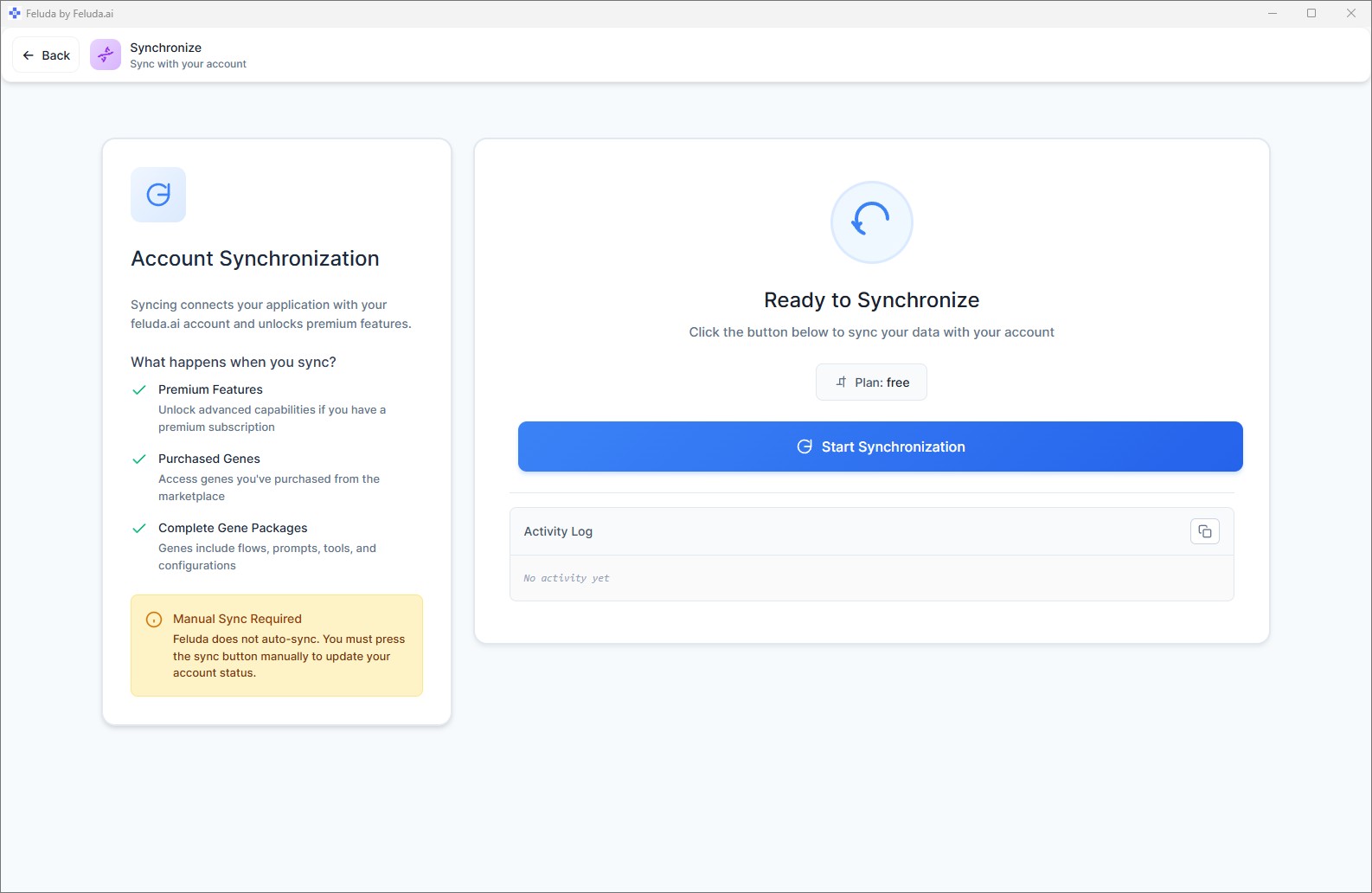
Feluda does not auto-sync. You must manually press Sync whenever you want to fetch the latest from your account. This is by design — Feluda stays offline by default and only contacts the server when you explicitly ask.
Using Gene Tools in the Workbench
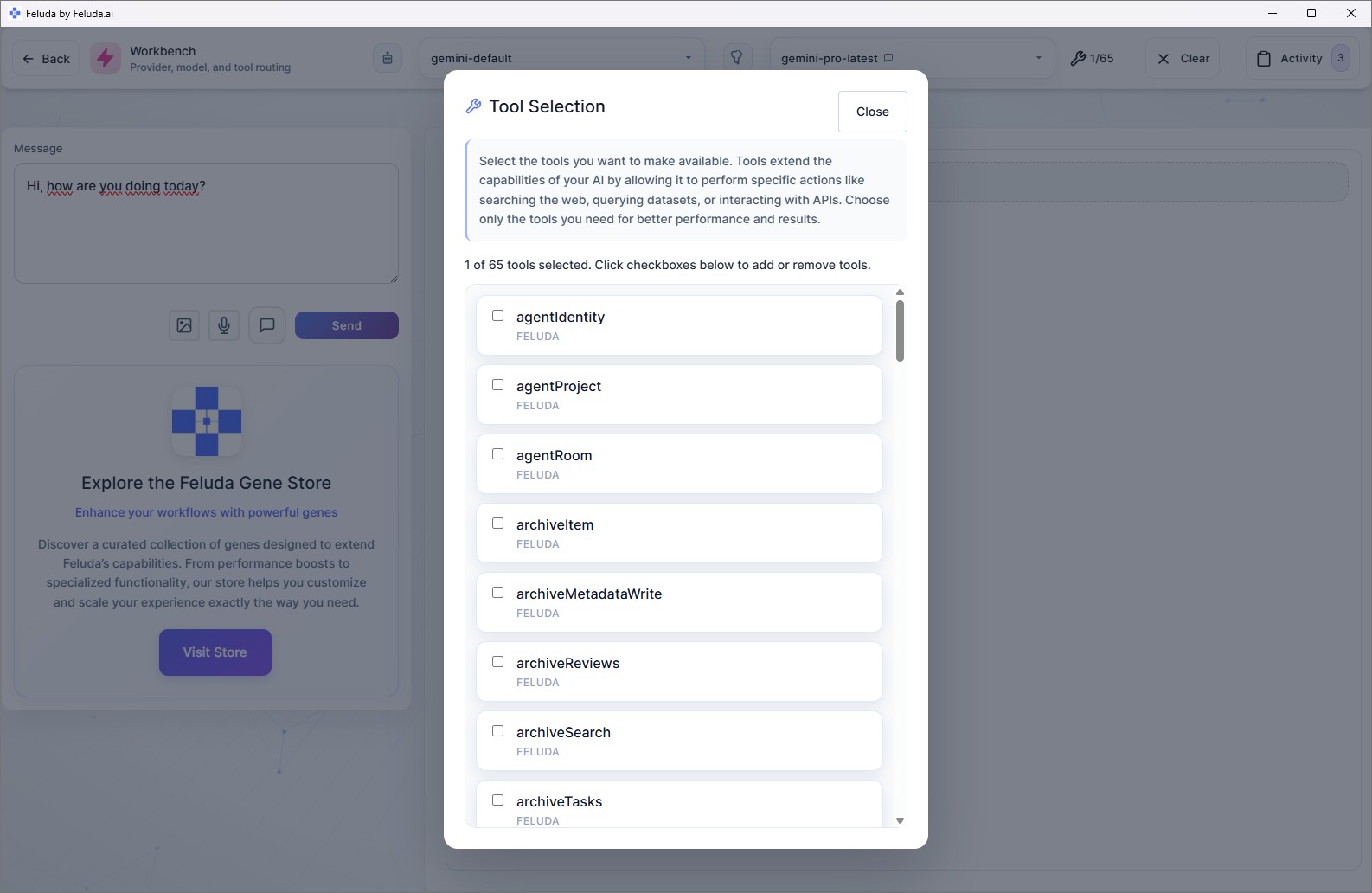
Once Genes are installed, their tools become available in the Workbench:
- Open the Workbench.
- Click the Tools button in the header.
- You will see all tools from all installed Genes listed. Toggle on the ones you want to use.
- Chat with the AI — it can now call those tools during the conversation.
Using Gene Flows in RunFlows
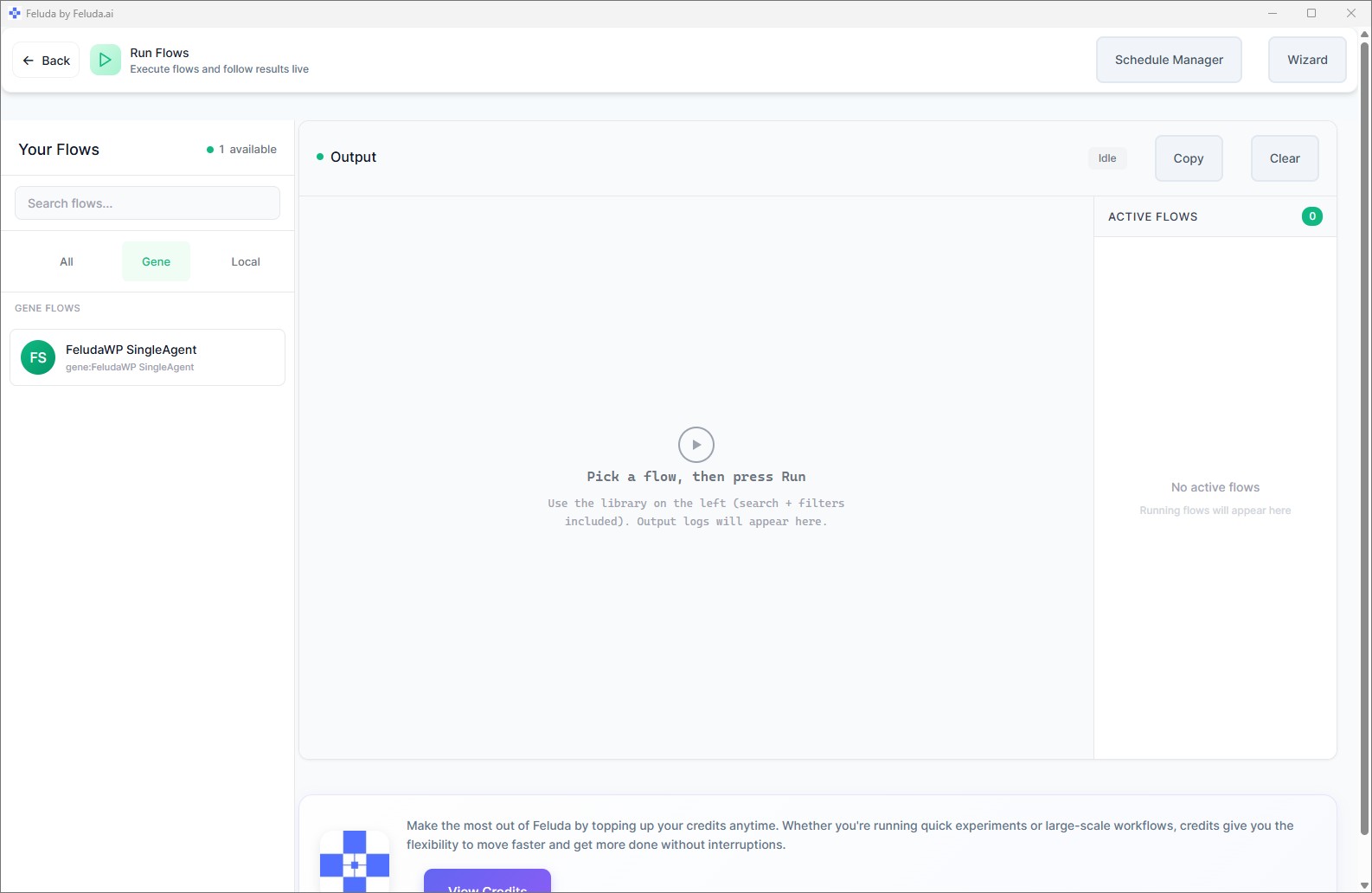
Gene flows appear on the RunFlows page under the Genes tab:
- Open RunFlows.
- Click the Genes tab in the left panel.
- Browse the pre-made flows that came with your installed Genes.
- Click Run to execute a flow, or open it in Studio to see how it is built and customize it.
Gene Prompts and Settings
Using Gene Prompts
Gene prompts appear in the Workbench's prompt selector. Click Prompts, browse the list, and click a prompt to use it. Some prompts have fields you can fill in before sending.
Configuring Gene Settings
If a Gene has configurable options, go to the Genes page (Dashboard sidebar → Configure). Select the Gene in the left panel and adjust its settings. Changes take effect immediately.
Filling in Gene Secrets
If a Gene requires API keys or tokens, go to the Secrets page, find the Gene in the list, and enter the required values. See the Manage Secrets guide for details.
Frequently Asked Questions
What is a Gene in Feluda?
A Gene is Feluda's plugin package. It bundles tools, prompts, resources, flows, settings, and secret placeholders into one installable unit — similar to an app in an app store.
Does Feluda auto-sync Genes?
No. Feluda stays offline by default and only contacts the server when you press the Sync button. This is by design for privacy.
Can I use Feluda without linking my device?
Yes. Feluda works offline with its built-in capabilities. Linking is only required to download additional Genes from the marketplace.
Where can I find more Genes?
Genes are purchased through the Feluda Marketplace using credits. Once activated, press Sync in the Feluda Desktop App to download them. Visit the pricing page for plan details.
Next: Automate Everything
With Genes installed you have a full toolkit. The final guide covers journal logging, MCP servers, scheduling, and debugging.